In this guide
Walk with me is for the walks that matter, like to school, back from the bus stop or home from a friend's. Your family is told you're on your way, and the walk ends by itself when you arrive. If you choose, they can follow you on a map while you walk. Walk with me is part of Family Haven Plus. On the free plan, parents see Walk with me · Plus, which shows what Plus adds, and children and other adults don't see Walk with me.
Before you start
- Know where you're going. It can be one of your places, like School, or any address.
- Teenagers need sharing turned on. If you've turned it off, see For teenagers: your sharing, your choice.
Step 1:Tap Walk with me
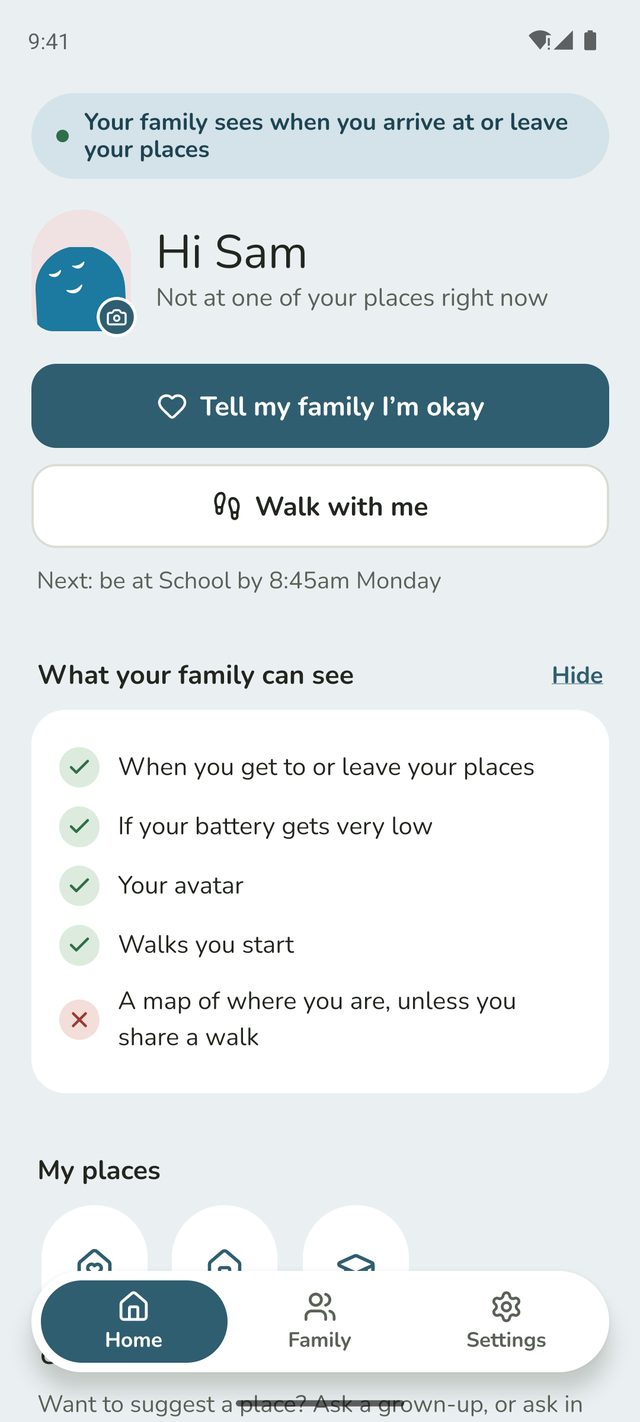
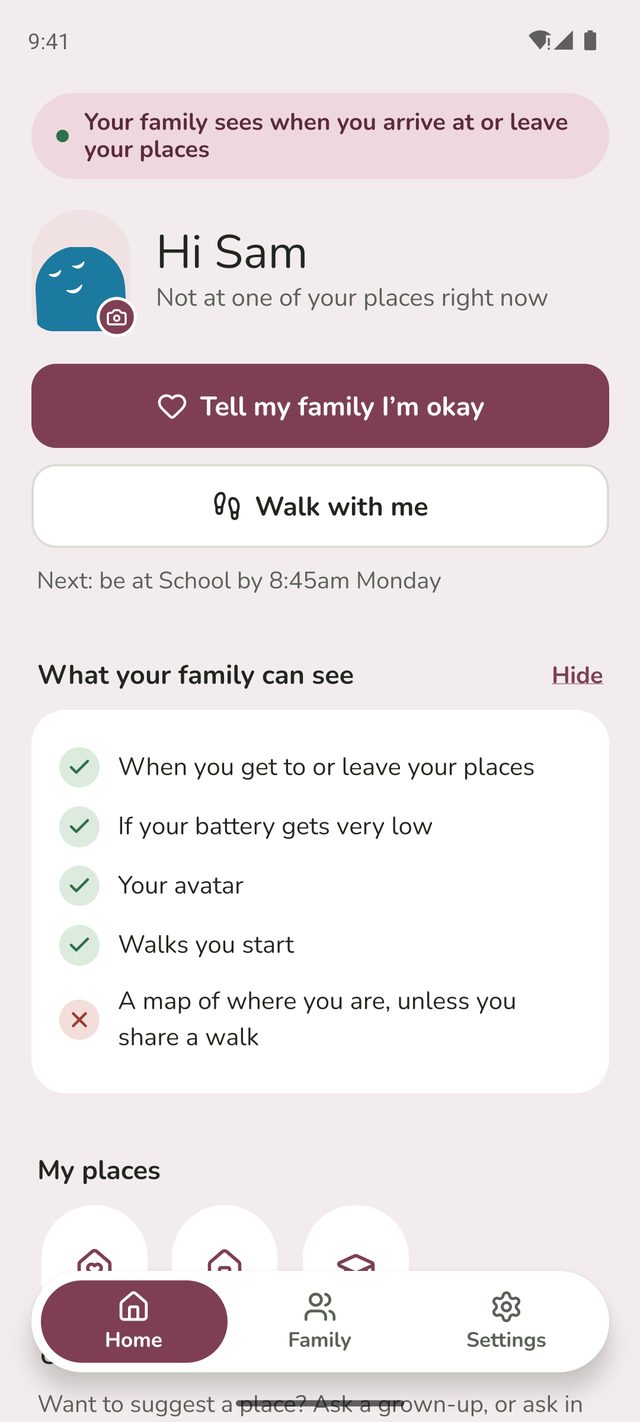
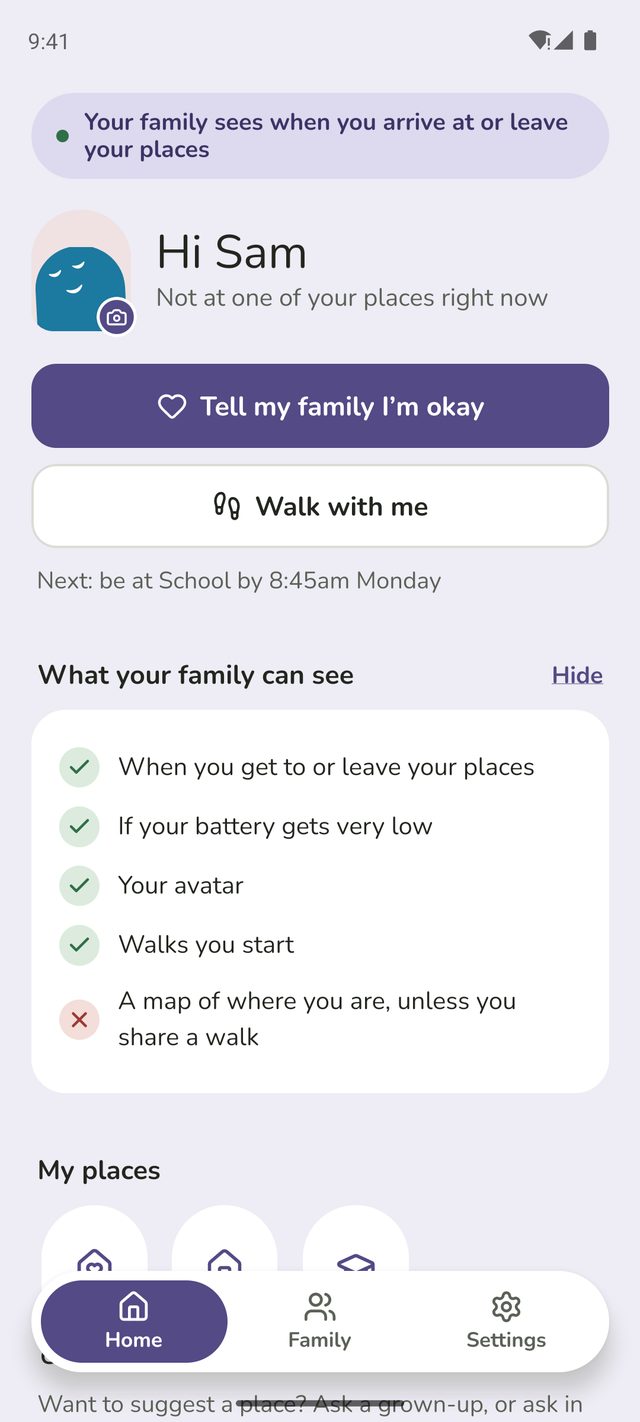
On your Home screen, tap Walk with me. On a child's phone it's near the top, under Tell my family I'm okay. Parents and other adults scroll down to find it. Once your walk starts, it moves to the top of Home.
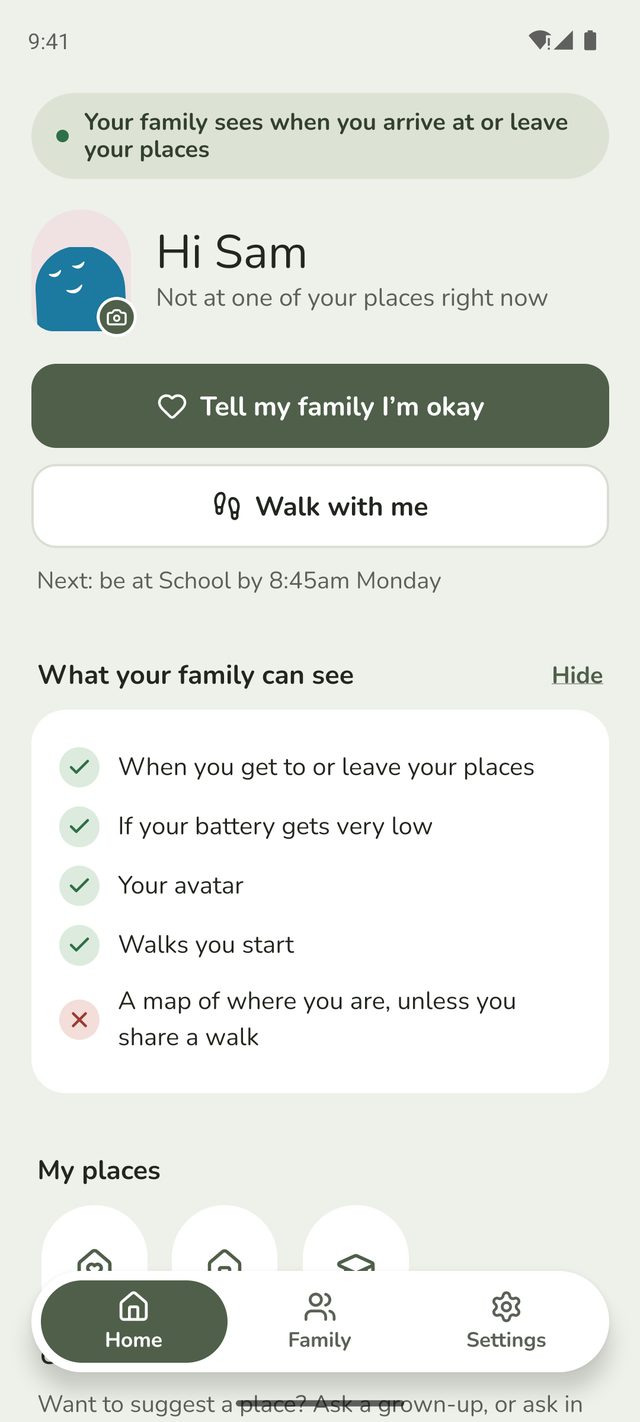
Step 2:Choose where and how long
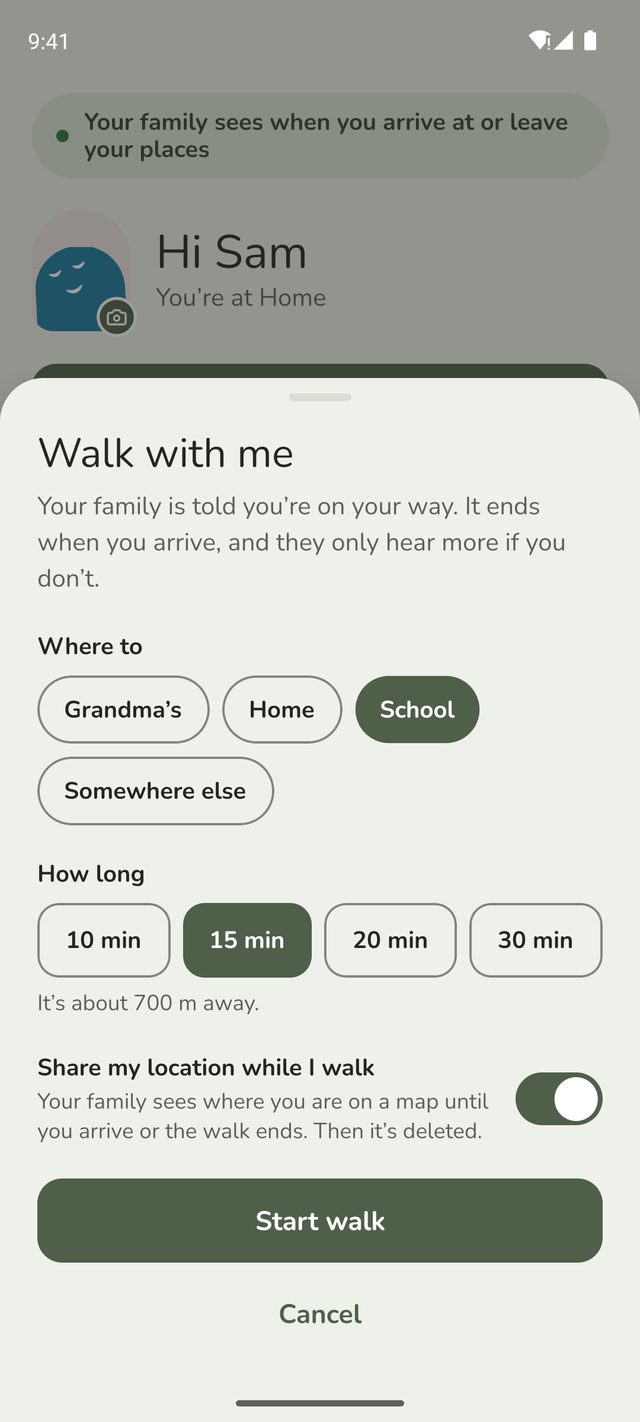
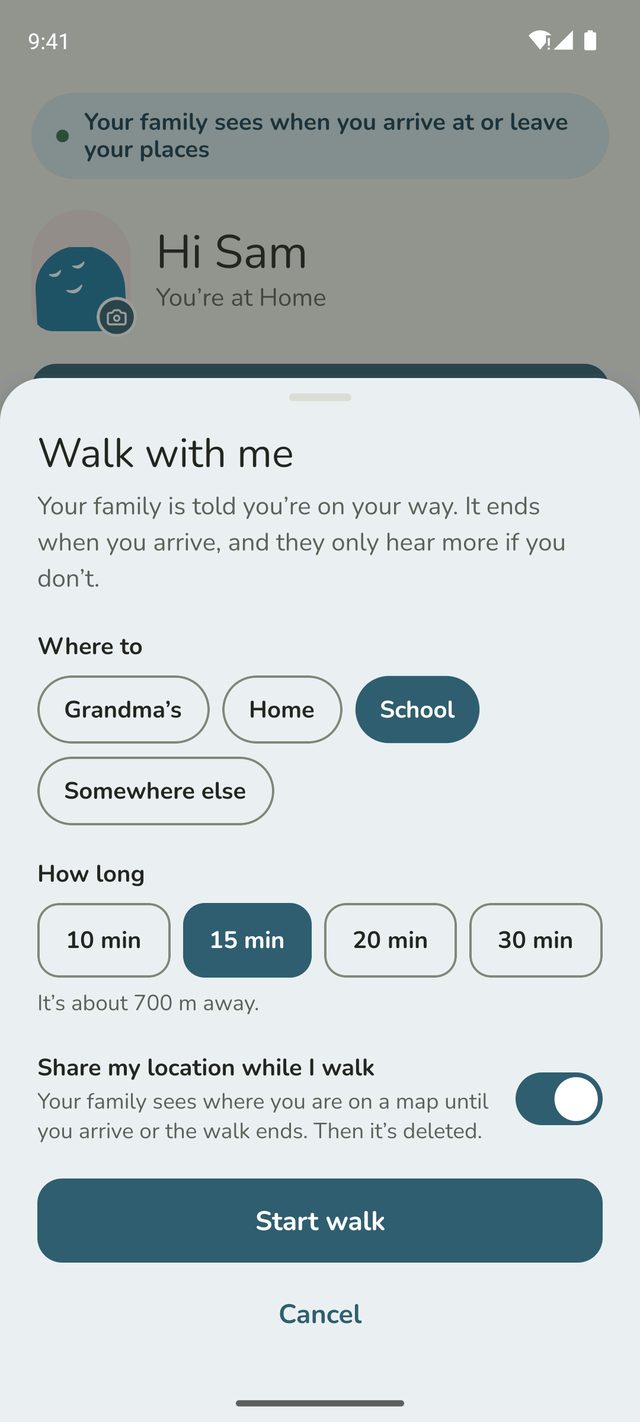
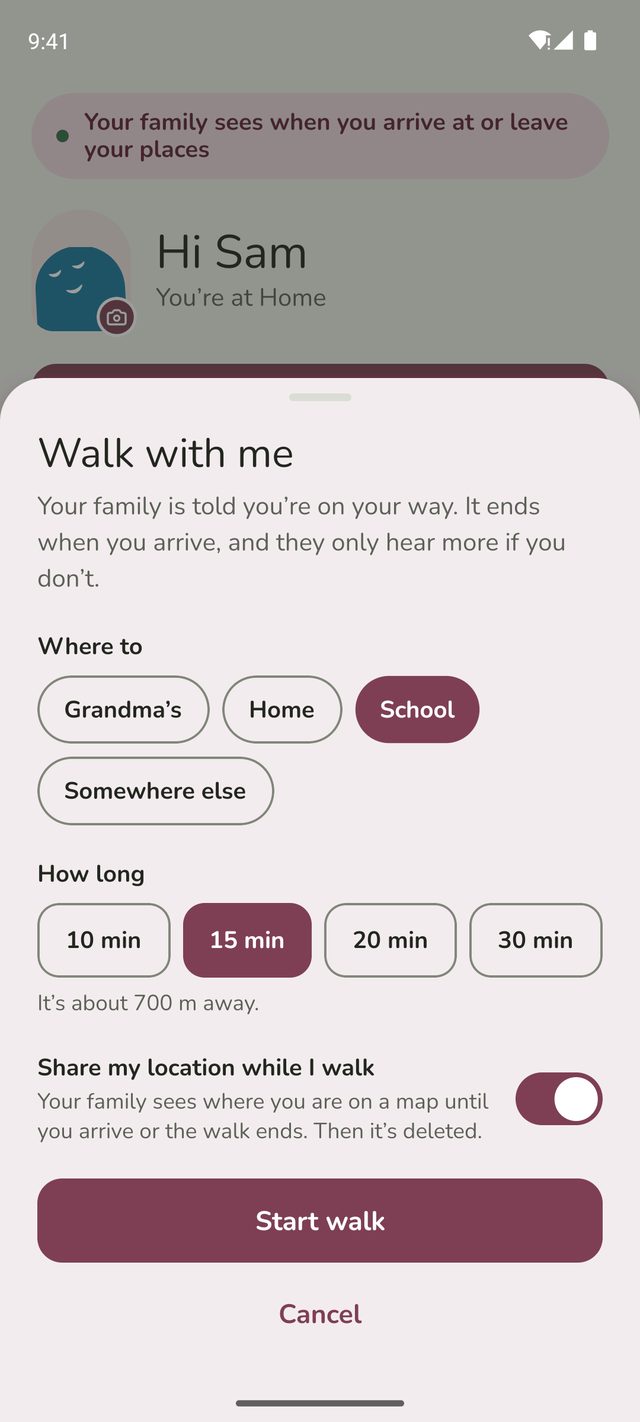
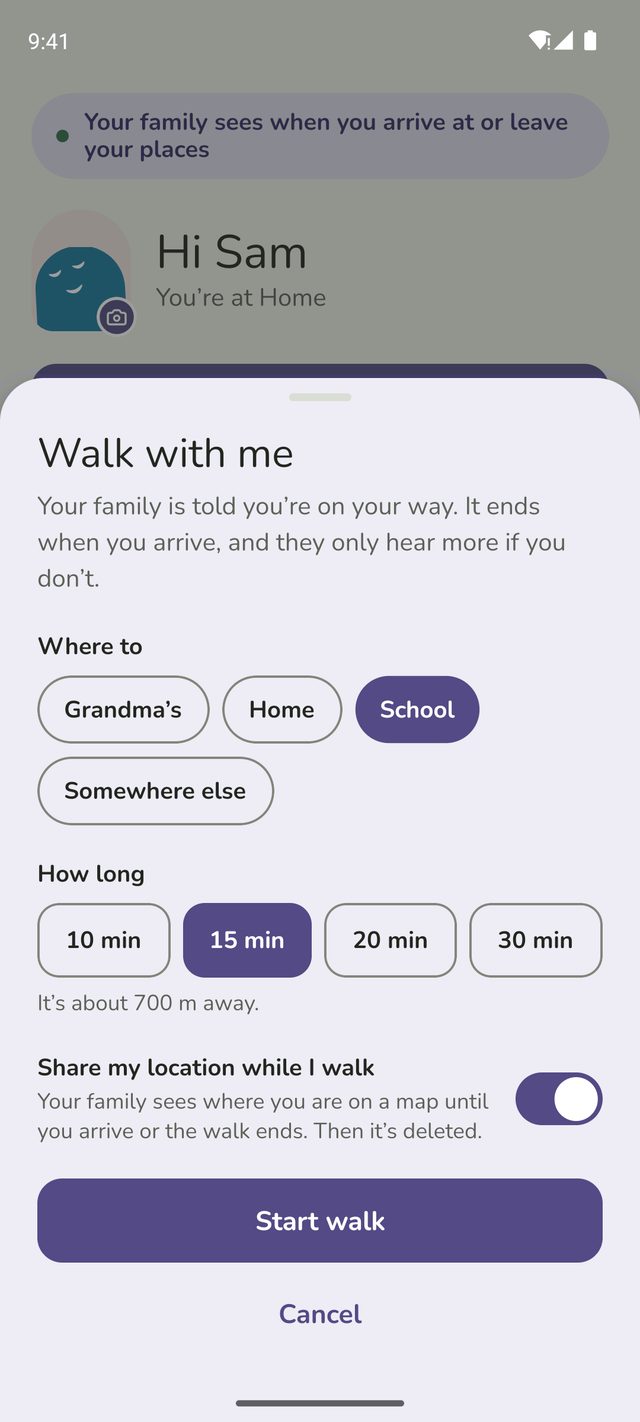
Under Where to, tap one of your places, or Somewhere else to search for a UK address or postcode. For somewhere else, give it a name under Call it, like Sam's house, so your family knows where you're heading.
Then under How long, choose 10, 15, 20 or 30 minutes. If your phone knows where you are, Family Haven picks a time for you from how far it is, like It's about 1.0 km away, so 20 min is chosen for you. Change it if you like.
Walked to one of your places before? Same as last time fills in your last walk, like Same as last time · Home, 15 min.
Parents and other adults also choose Who should know? The other parents are ticked to start with, and you can add anyone else in the family for this walk.
Step 3:Choose whether to share your location
Share my location while I walk is off to start with. Leave it off, and your family only sees that you're walking and when you arrive. Turn it on, and they can see where you are on a map until you arrive or the walk ends. Then it's deleted.
Tap Start walk. Your family is told you've started walking, and when you're due.
Step 4:While you walk
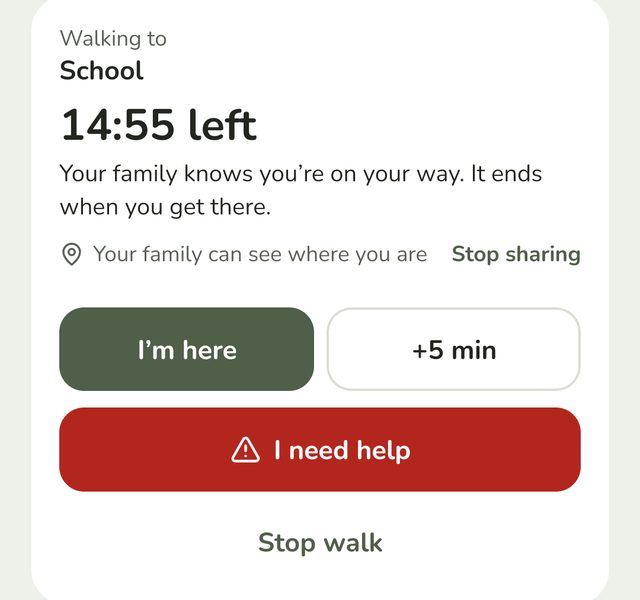
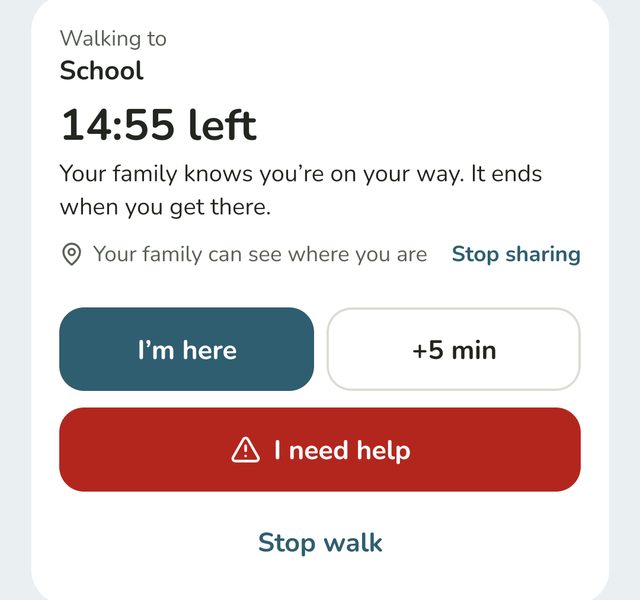
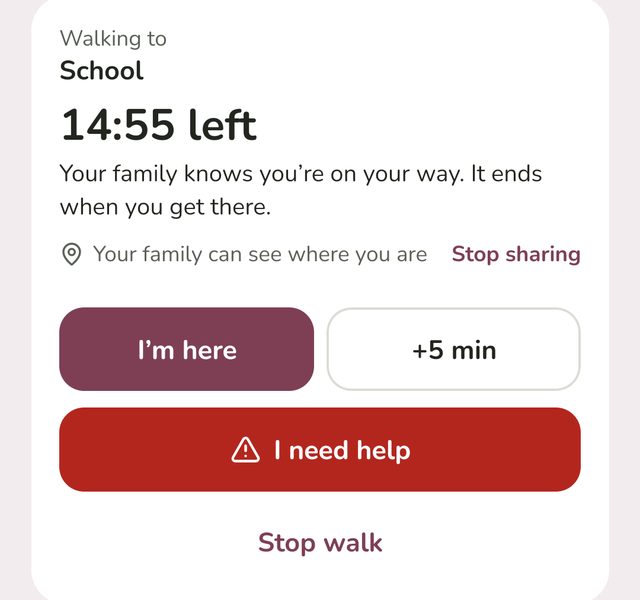
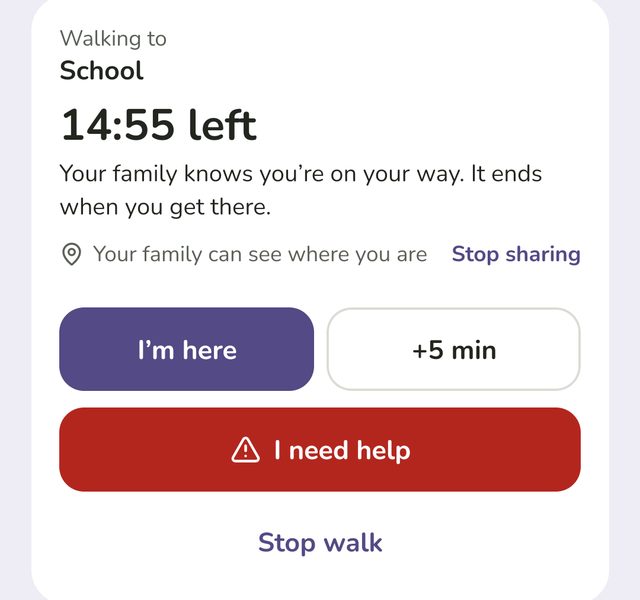
Your walk is at the top of your Home screen, with how long is left. It says who can see where you are, like Tia can see where you are, and when someone opens your walk, like Tia is watching your walk.
- I'm here ends the walk and tells your family you've arrived. You don't usually need it: the walk ends by itself when you get to the place.
- +5 min gives you 5 more minutes, up to three times.
- Stop sharing stops the map but keeps the walk going.
- Stop walk ends it. Your family is told you ended it.
When you arrive, your Home screen shows a short summary for a minute, like You got to School · 14 min walk · your family knows.
Step 5:If you need help
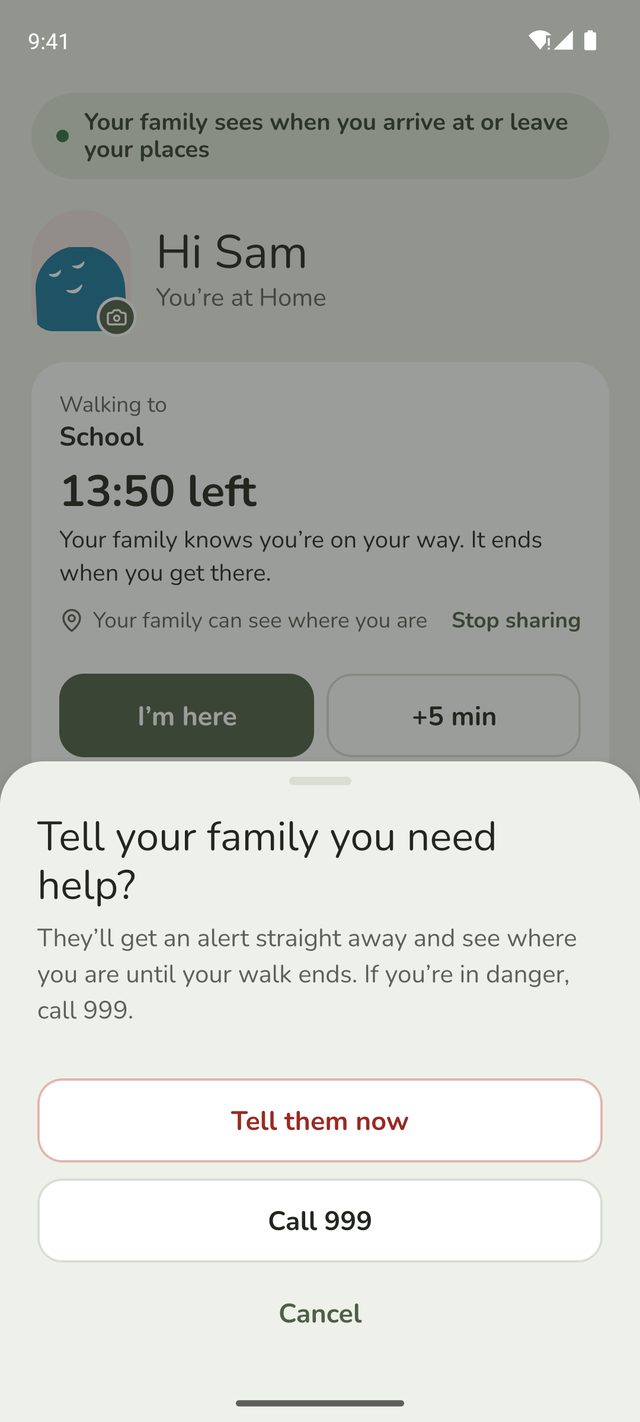
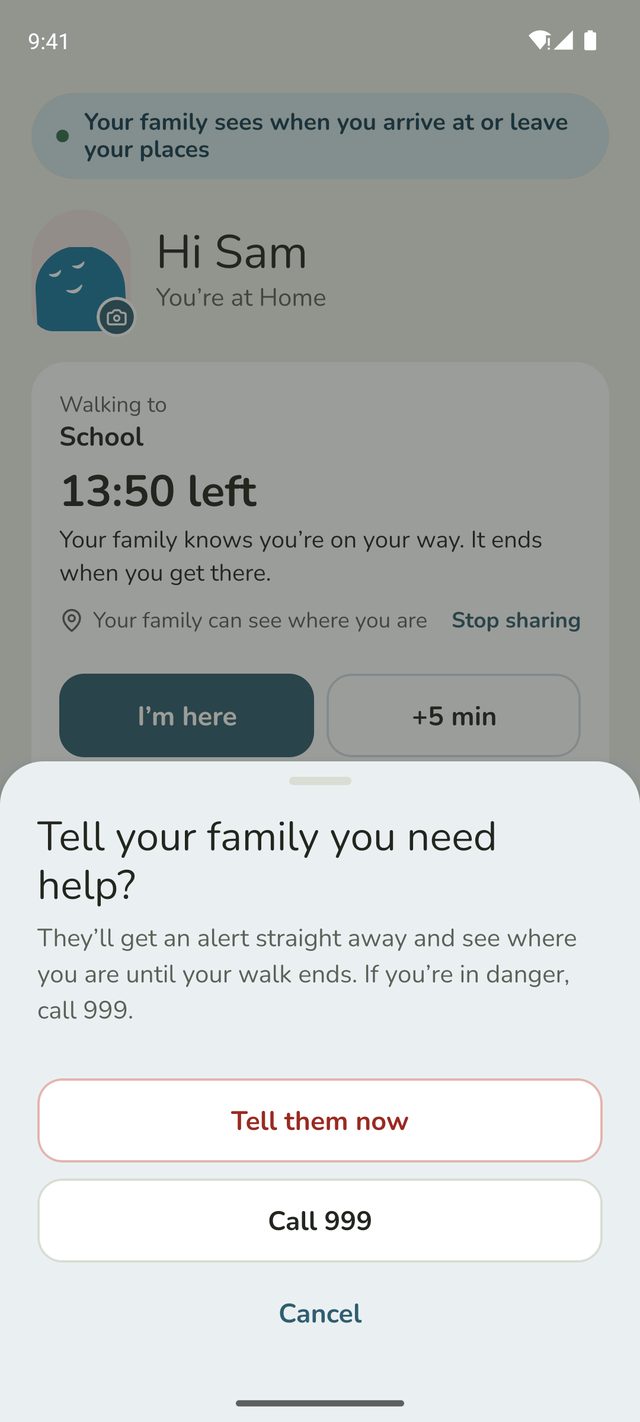
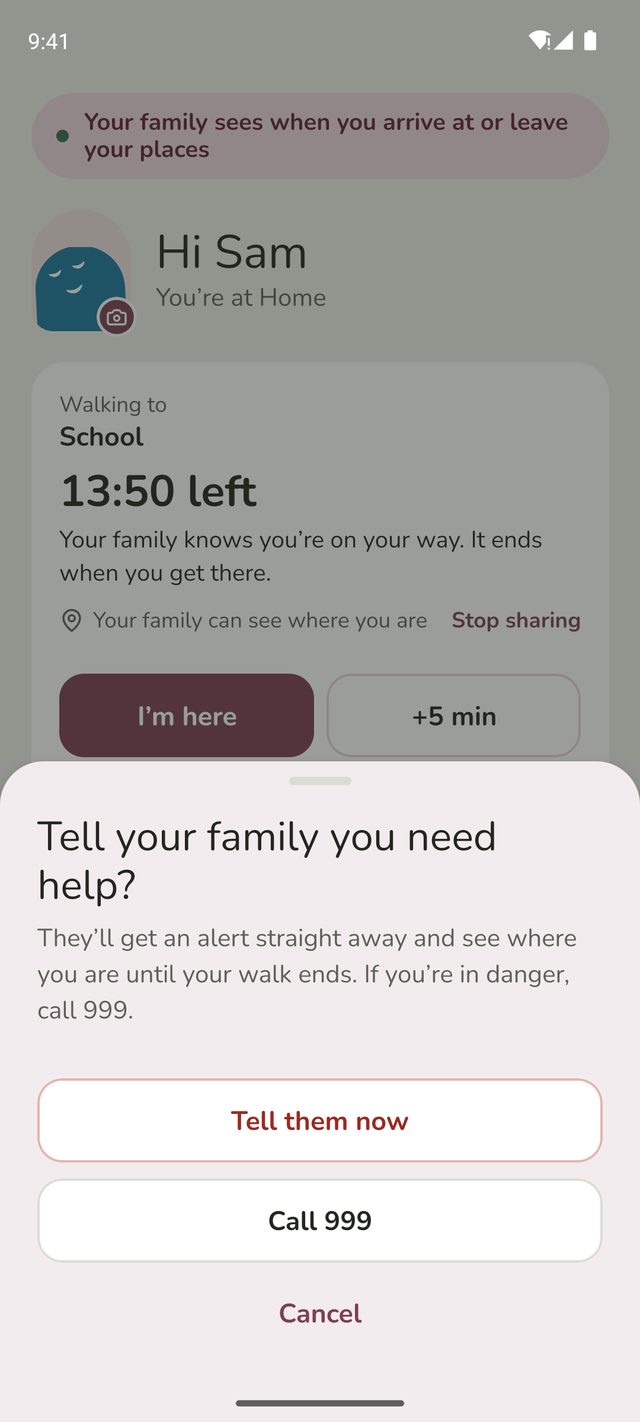
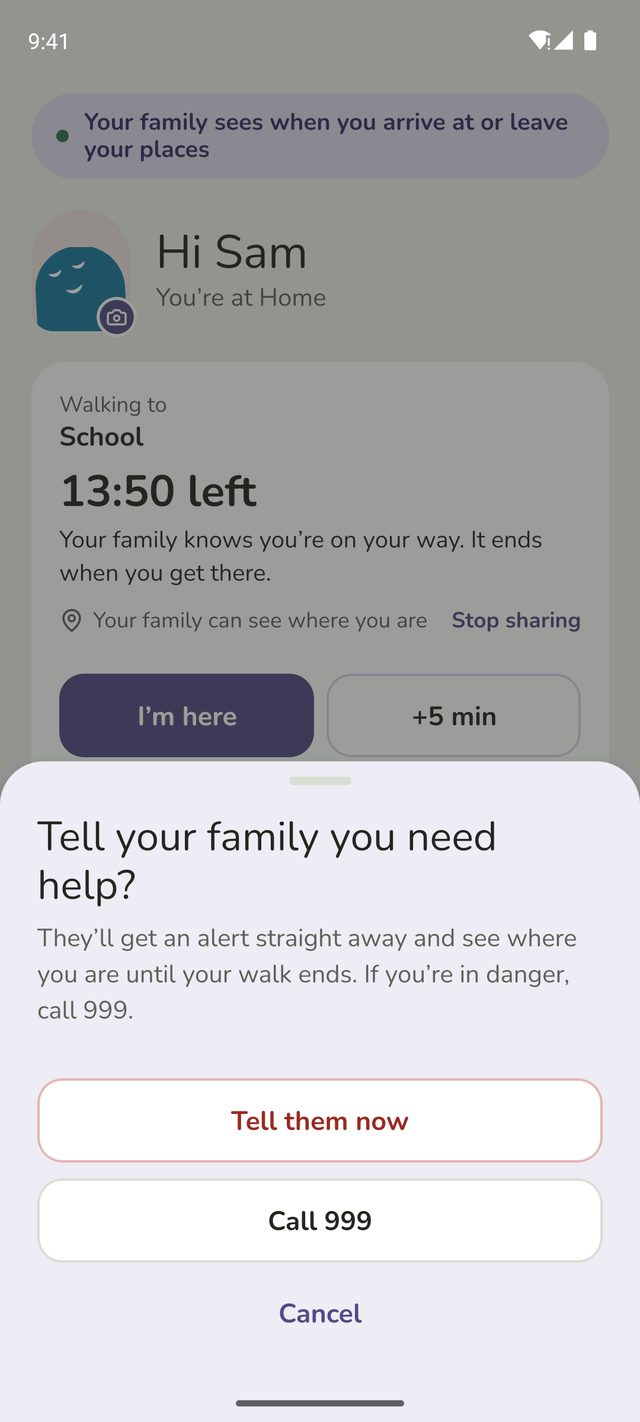
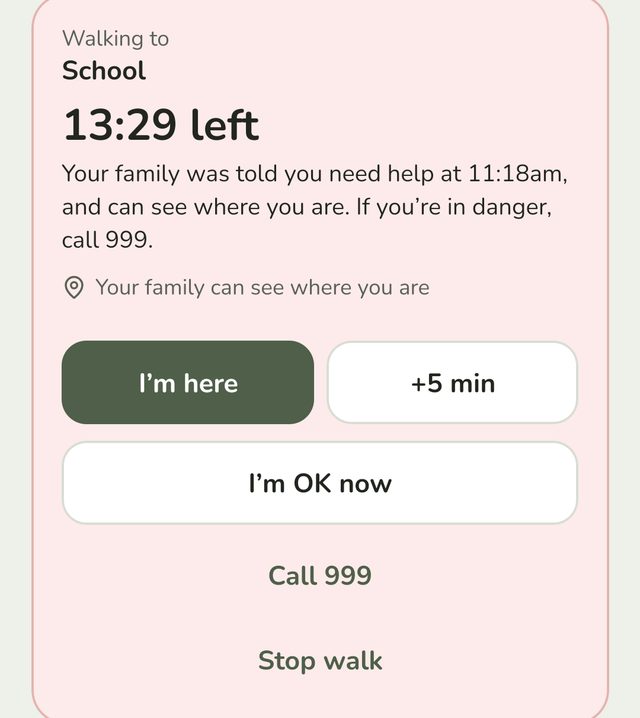
Tap I need help, the red button on your walk. Family Haven checks first, like Tell your family you need help? Tap Tell them now to go ahead (or the person's name, like Tell Mum now), Call 999 to call for help, or Cancel.
When you go ahead, everyone who knows about your walk gets an alert straight away. They can also see where you are until your walk ends, even if you weren't sharing your location.
Your walk turns red. When you're all right again, tap I'm OK now, and your family is told.
Step 6:If you're running late
When the walk is due, your phone asks Are you at School? Tap it to say you're there, or that you need more time.
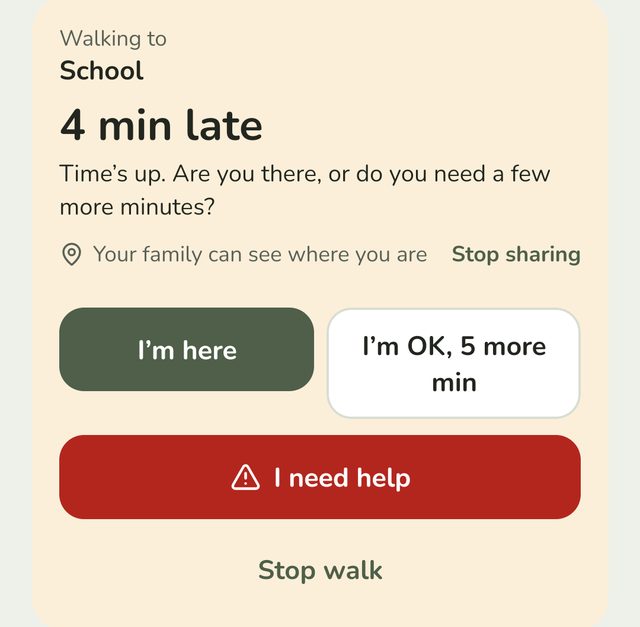
Once you're late, your walk shows how late, like 4 min late, and +5 min becomes I'm OK, 5 more min. That gives you 5 more minutes and tells your family you're fine.
If you don't reply within 3 minutes, your family is told your walk is late, like Tia's walk to Park is late. If you're sharing your location, it says when it last updated. If there's still no reply, they're told the walk ended with no reply.
What your family sees
Step 7:Follow the walk
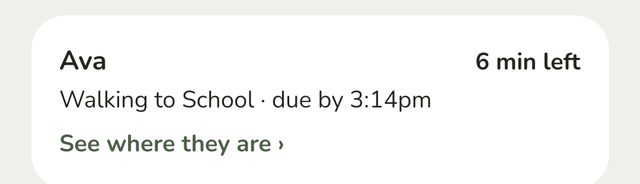
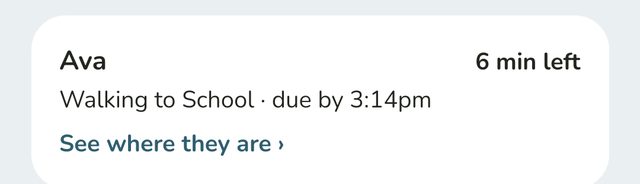
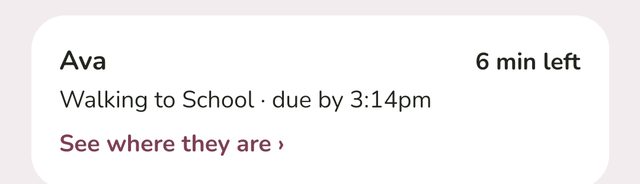
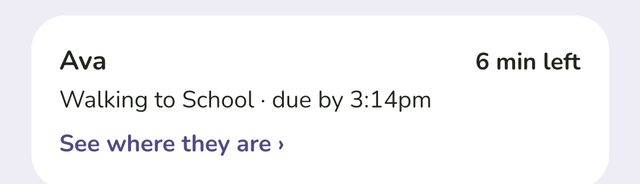
The people you chose get a notification when the walk starts, and see it at the top of their Home screen, and on your page in Family. The card shows how long is left, or how late the walk is. If you're sharing your location, they tap See where they are. If not, they tap Open their walk.
Step 8:See the walk on the map
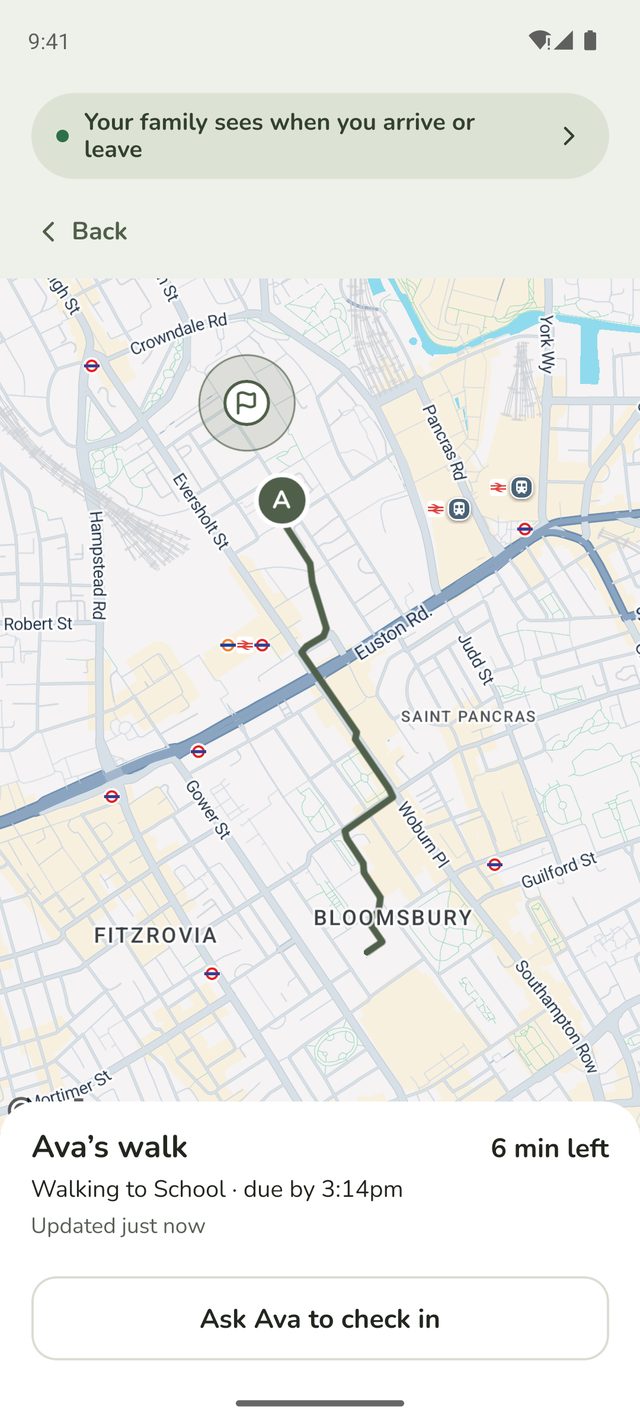
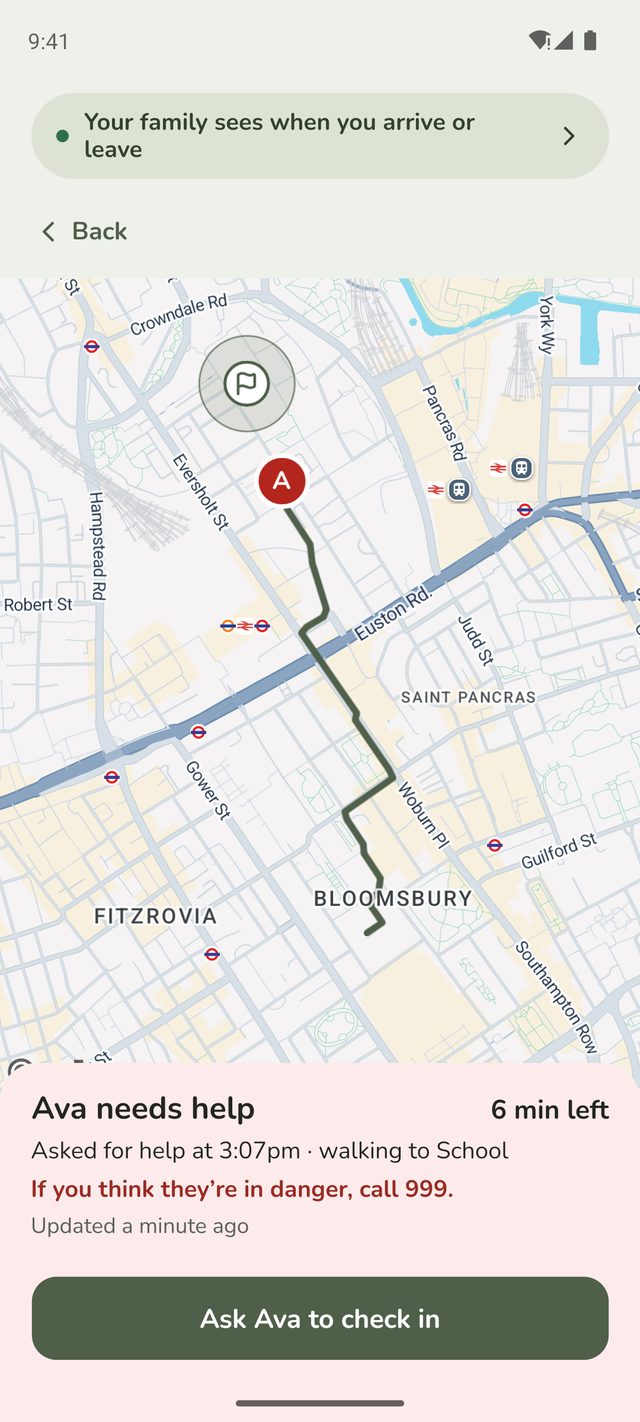
The map follows the walker, with their initial on the pin, and shows the place they're going. Move the map and it stops following. Tap Follow to follow again.
The panel at the bottom says how long is left, and when their location last updated, or if they haven't moved for a while, like Hasn't moved since 9:10. It also has Ask Ava to check in, which anyone who knows about the walk can use.
If they ask for help, the pin and the panel turn red, like Ava needs help · If you think they're in danger, call 999.
Good to know
- Who sees a walk. Parents and adults choose who should know about each walk. A child's walks go to their parents, and to a grandparent or carer who can see the children's arrivals. See Let a grandparent or carer see arrivals.
- Arriving late. If you get there after your family was told you're late, they're told you're OK, like Tia got to Park · They're OK, 4 min late.
- Low battery. If your phone gets low on battery during a walk, the people who know about it are told once.
- Usual walks. For parents and other adults, Family Haven remembers walks you take often, like from Work to Home. After you've done the same walk twice, leaving around your usual time can bring a notification: Walking to Home? Tap to start your usual walk (15 min). It's never offered to children, and only you can see your usual walks. A usual walk you haven't taken for 90 days is forgotten.
- The map isn't kept. Your route is deleted when the walk ends, and at the latest an hour after it was due.
- It uses more battery while you share your location, until the walk ends.
- Not an emergency service. If you're in danger, call 999.
Still stuck?
Send us a message and a person will reply by email.