In this guide
- Before you start
- Pause sharing
- 1Tap Pause
- 2Choose how long
- 3It turns back on by itself
- Tell your family you're okay
- Low battery alert
- 4Turn on Low battery alert
- 5Choose who gets it
- Your picture
- 6Tap your picture
- 7Choose an avatar or a photo
- Download your data
- 8Tap Download my data
- 9Choose a summary or a data file
- Good to know
These are the things you'll use from day to day. Most of them are in Settings. Children see some of them only if a parent allows it.
Before you start
- You're in a family. If not, start with Set up your family.
Pause sharing
Take a break, for example on a day out you'd rather keep to yourself. Parents and adults can always pause. Children can if a parent has turned on Pause sharing for them.
Step 1:Tap Pause
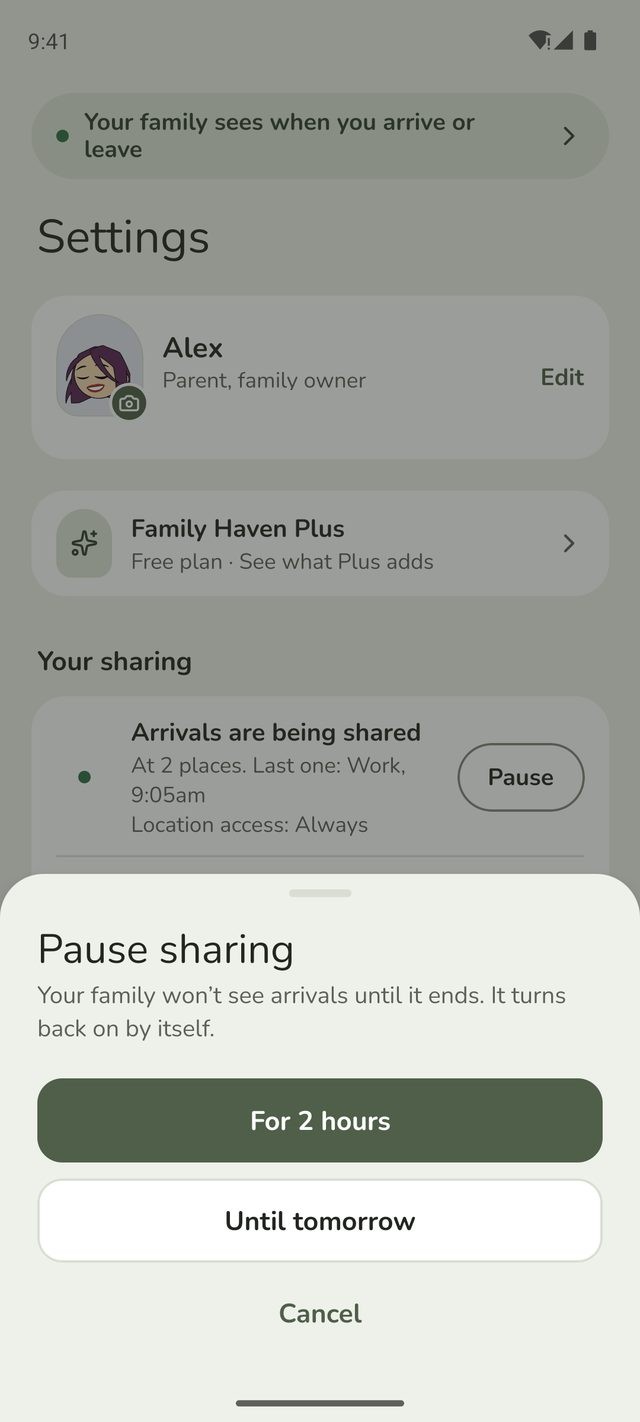
Tap Settings. Under Your sharing, tap Pause.
Step 2:Choose how long
Choose For 2 hours or Until tomorrow. Your family won't see your arrivals until it ends.
Step 3:It turns back on by itself
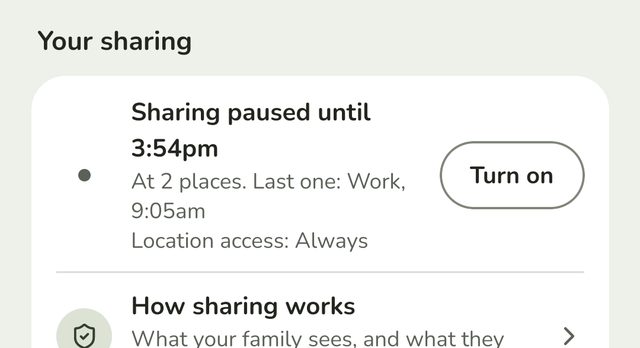
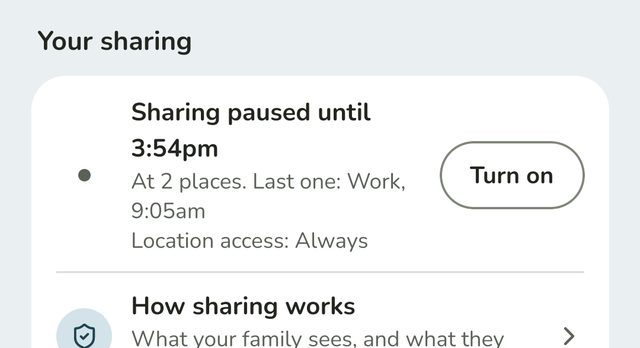
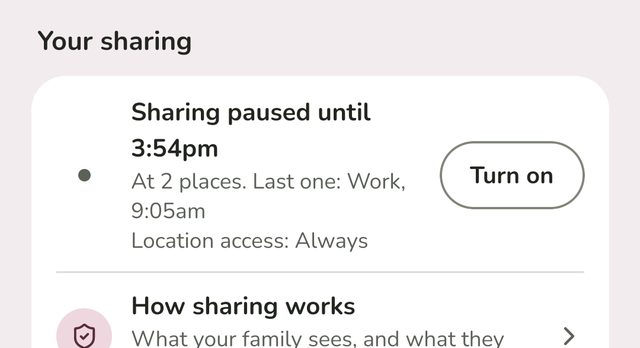
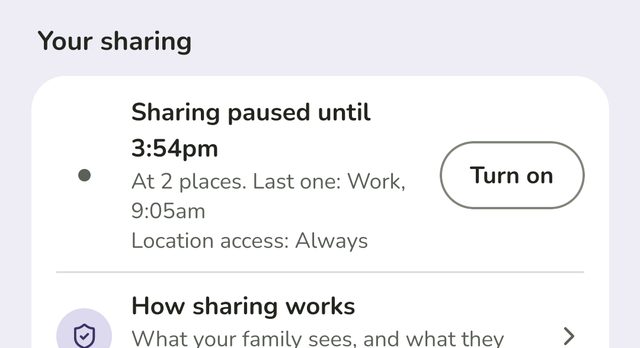
Your sharing shows when the pause ends, like Sharing paused until 3:54pm. To end it early, tap Turn on next to it.
Tell your family you're okay
On your Home screen, tap Tell my family I'm okay. On a child's phone it's near the top. Parents and other adults scroll down to find it. Everyone in your family gets a message straight away, and you'll see Check-in sent. It doesn't share where you are.
If a child is late for a routine, Family Haven sends them a notification asking them to check in. They tap it, then Send check-in.
Low battery alert
Let your family know if your phone is about to die, so they don't worry when your arrivals stop.
Step 4:Turn on Low battery alert
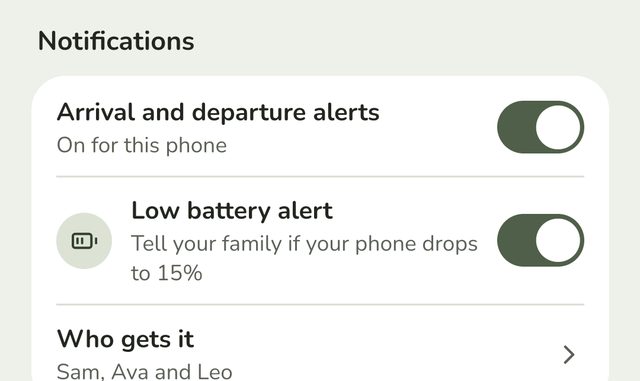
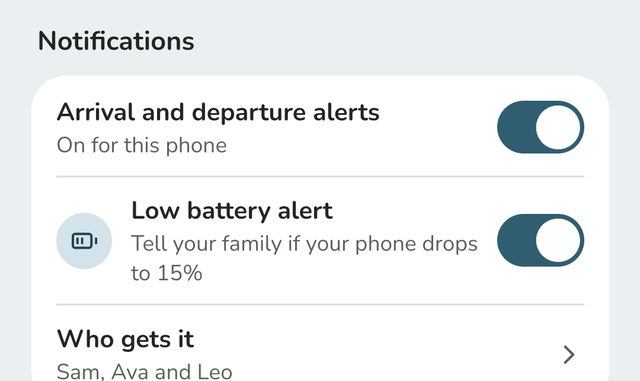
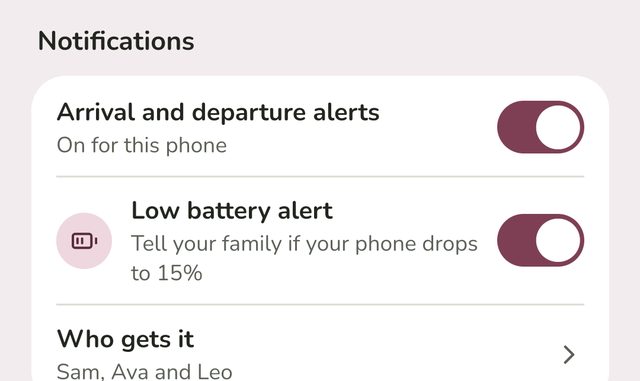
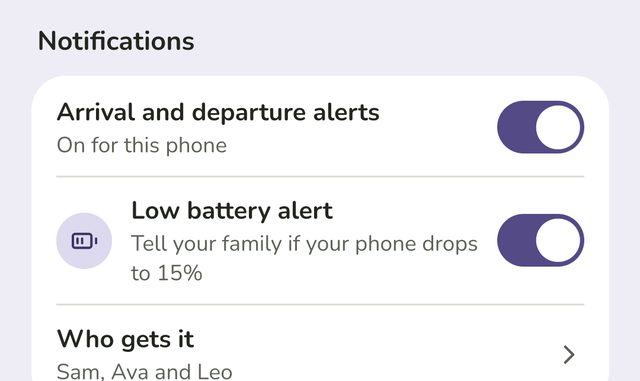
In Settings, scroll to Notifications and turn on Low battery alert. Your family hears if your phone drops to 15%.
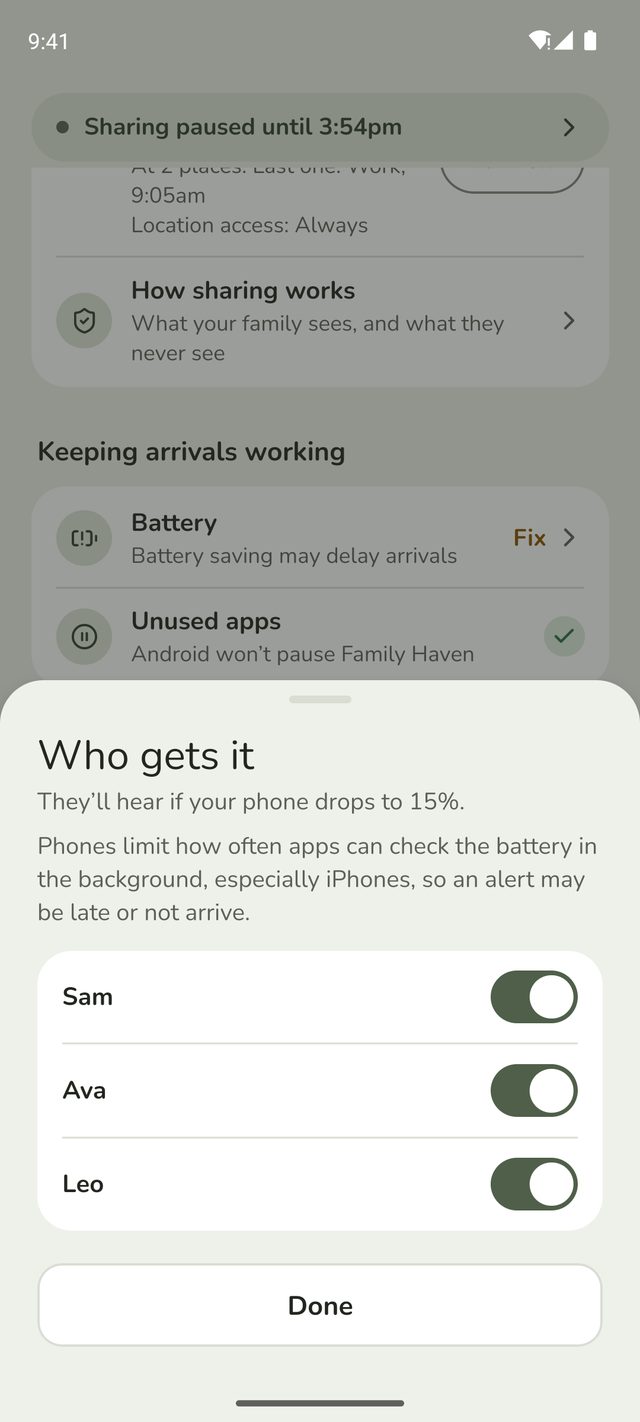
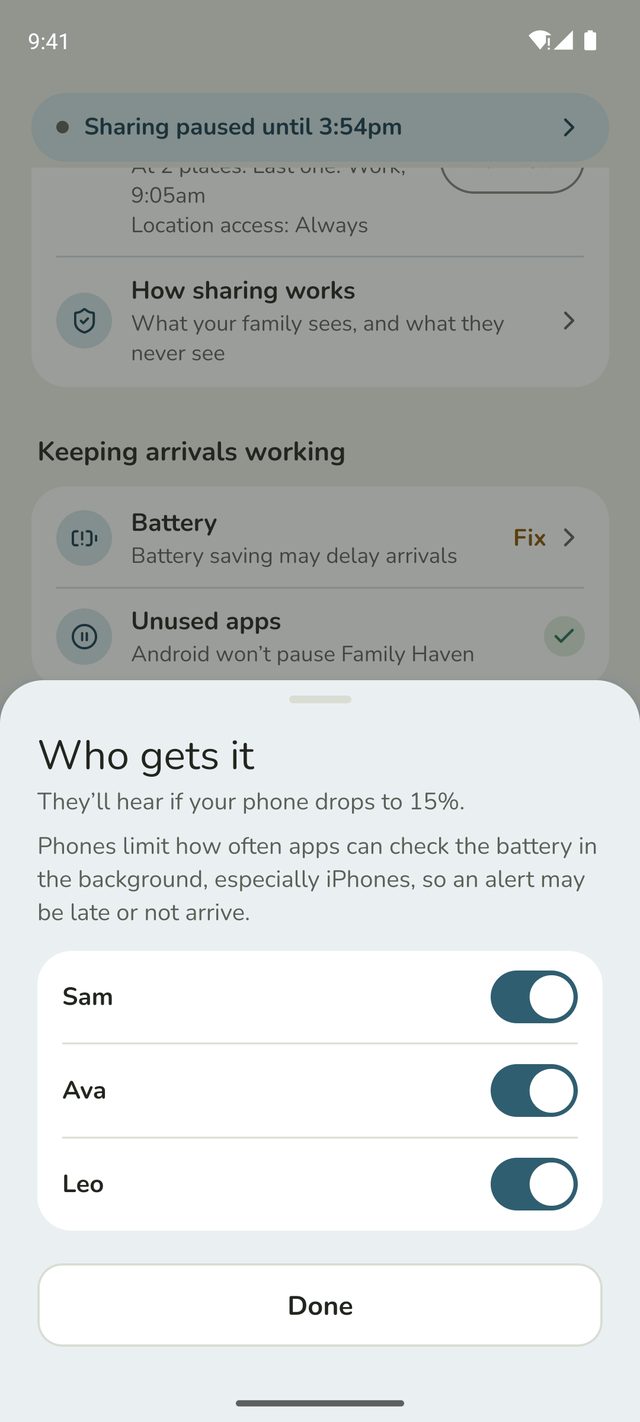
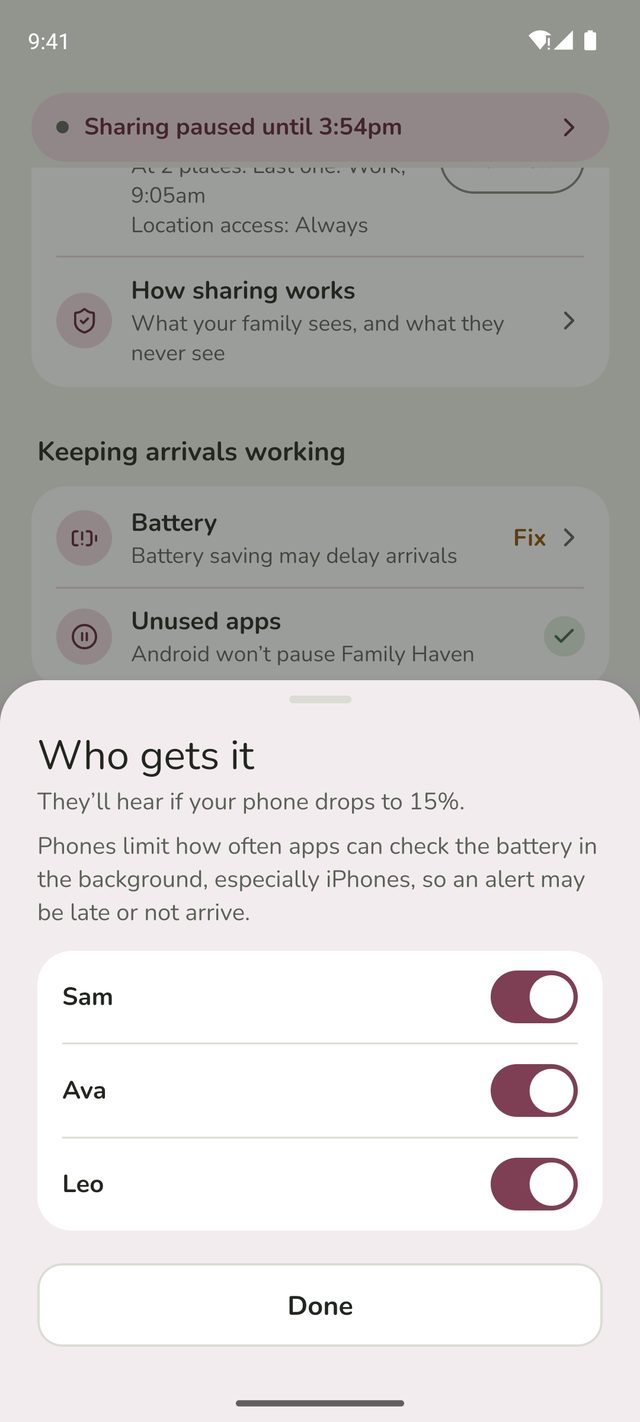
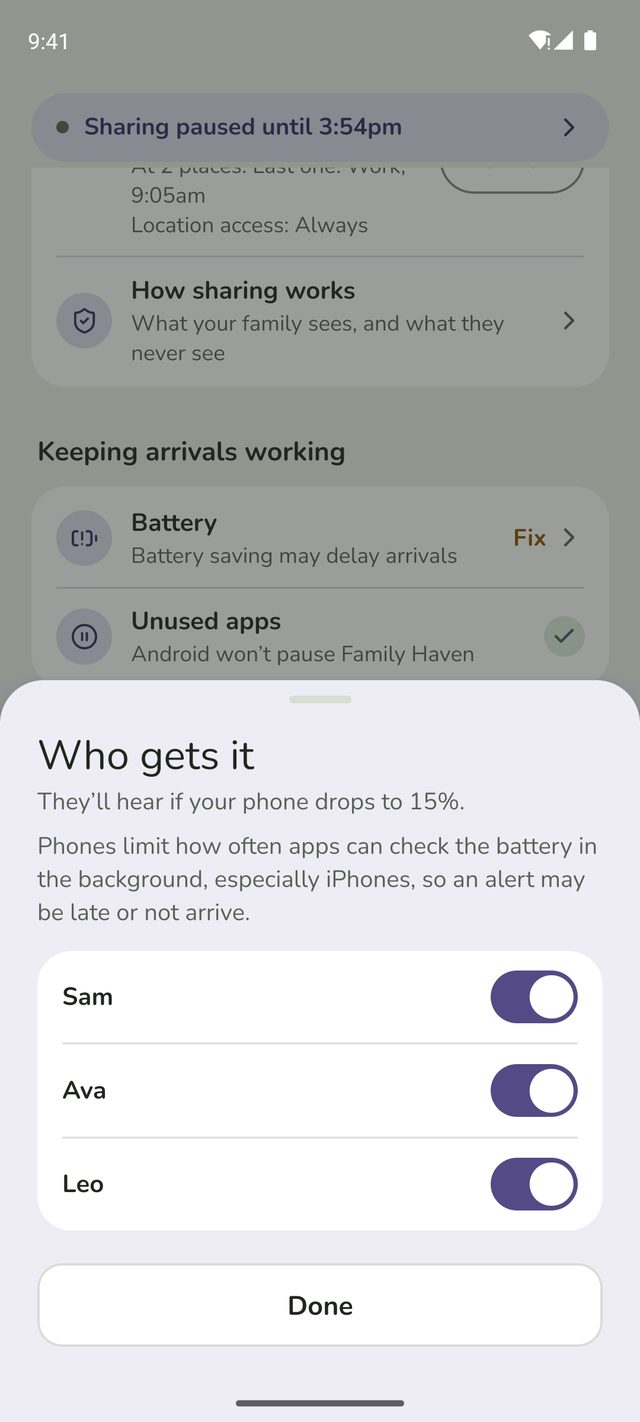
Step 5:Choose who gets it
Tap Who gets it, and switch on the people you want to tell. It starts with the other parents, or everyone else if you're the only parent. A child's alert only ever goes to their parents.
Your picture
Step 6:Tap your picture
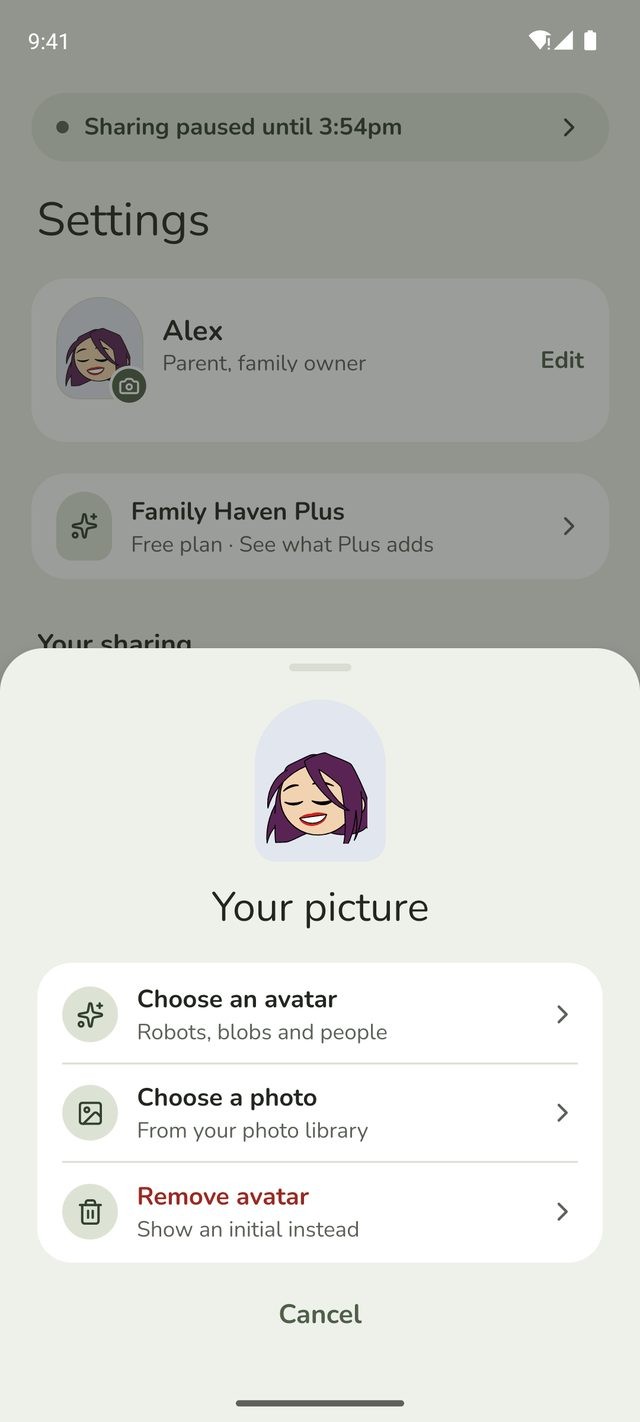
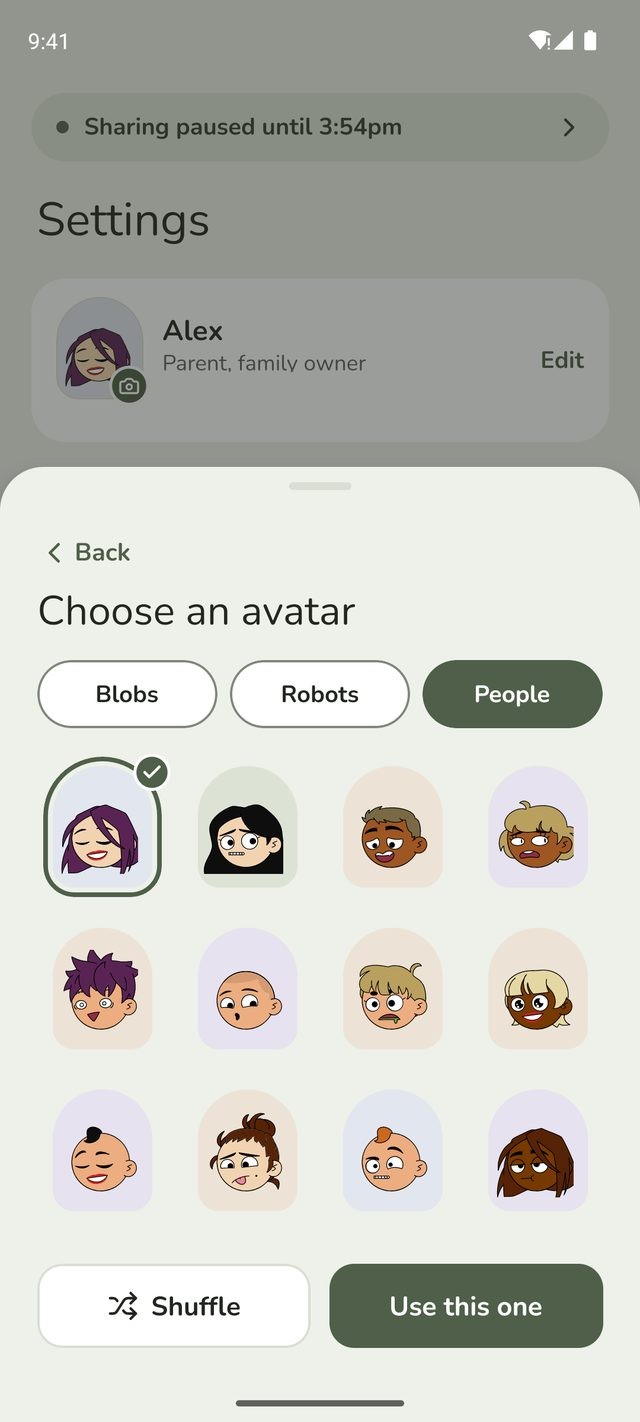
In Settings, tap the picture next to your name. It has a small camera on it.
Step 7:Choose an avatar or a photo
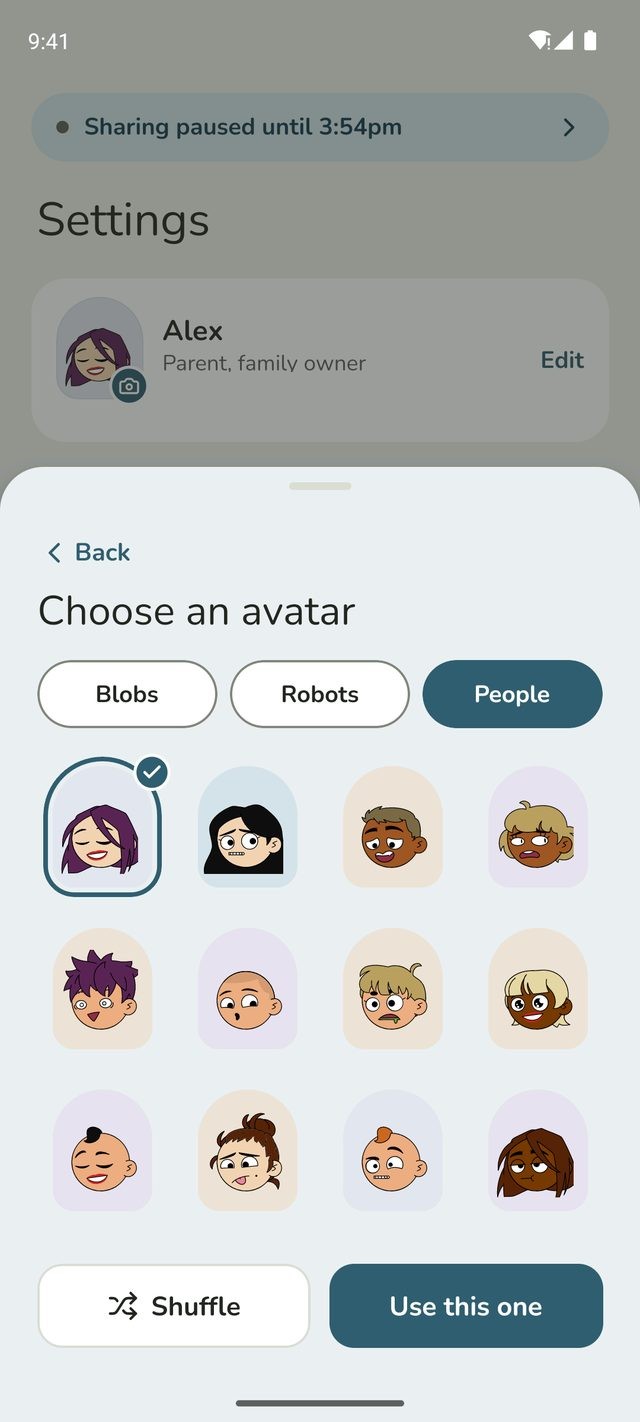
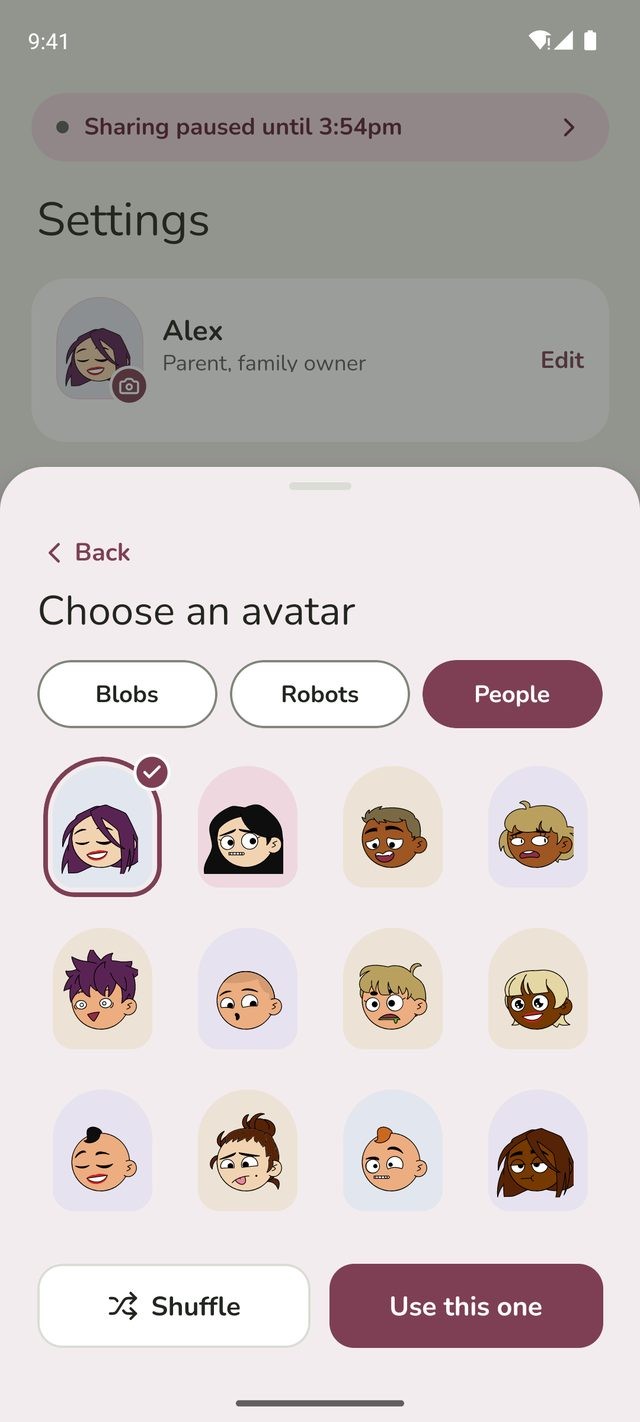
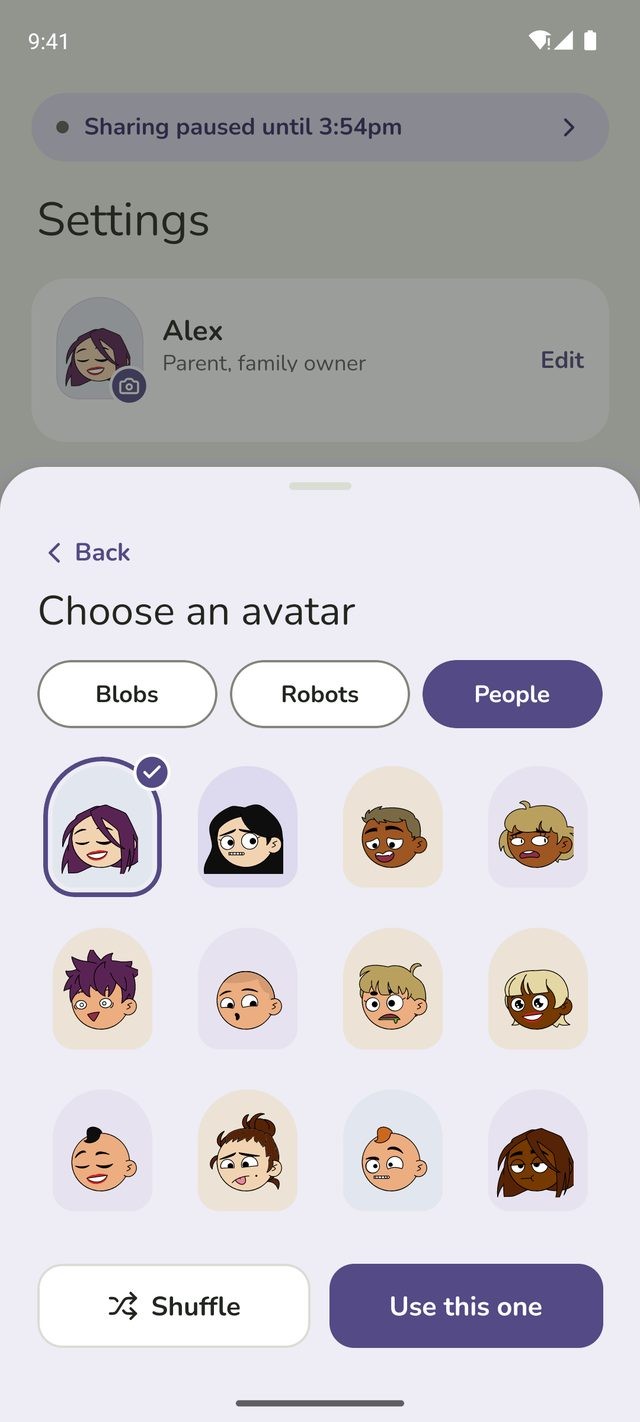
Tap Choose an avatar to pick a robot, blob or person, or Choose a photo to use one from your phone. To go back to just your initial, tap Remove avatar or Remove photo.
Download your data
Step 8:Tap Download my data
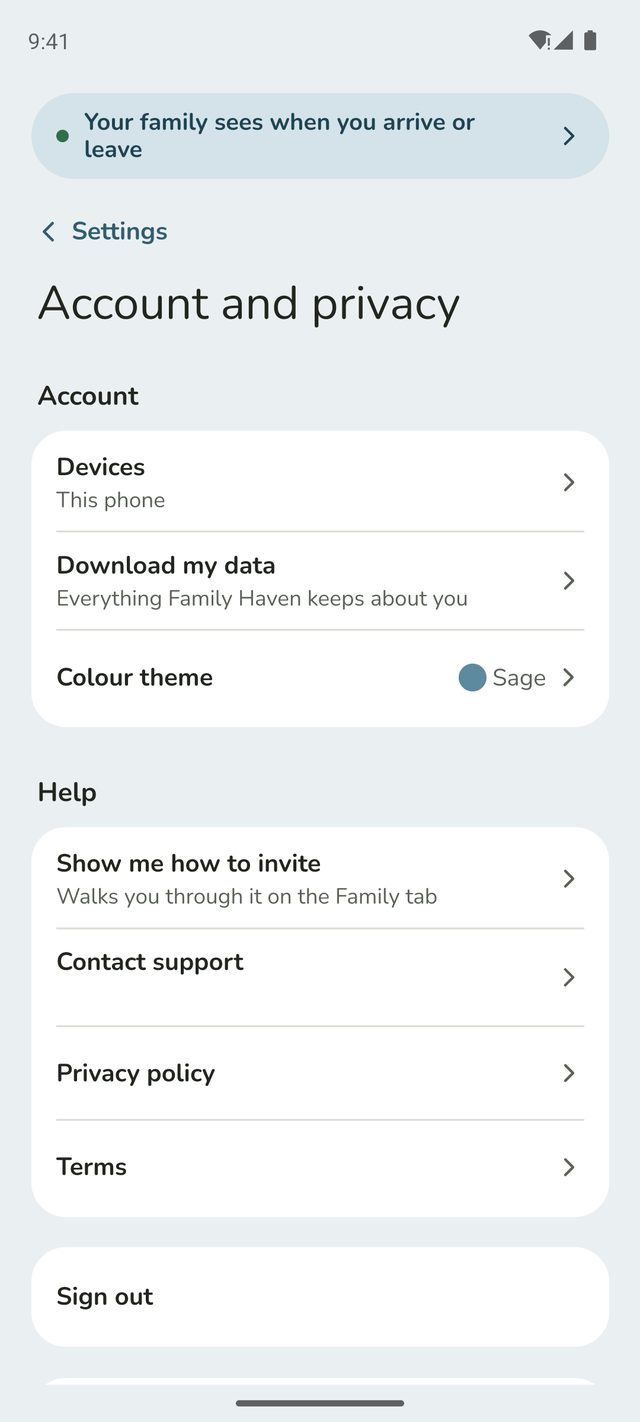
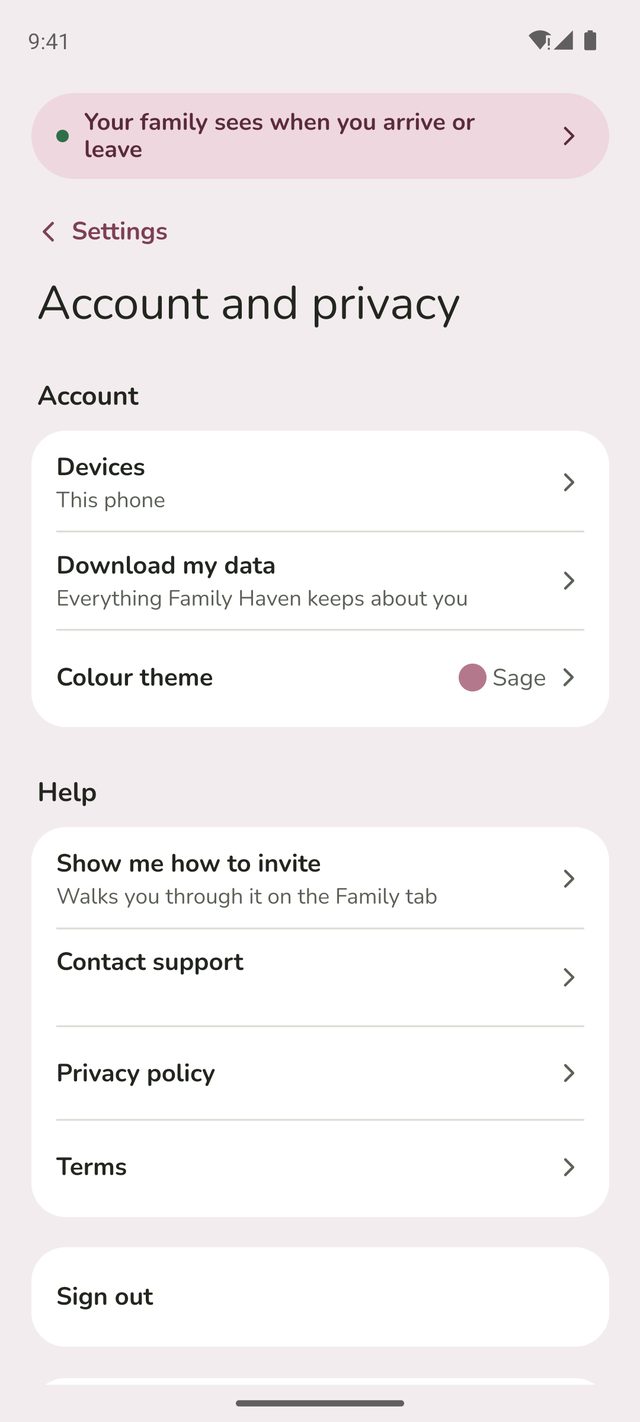
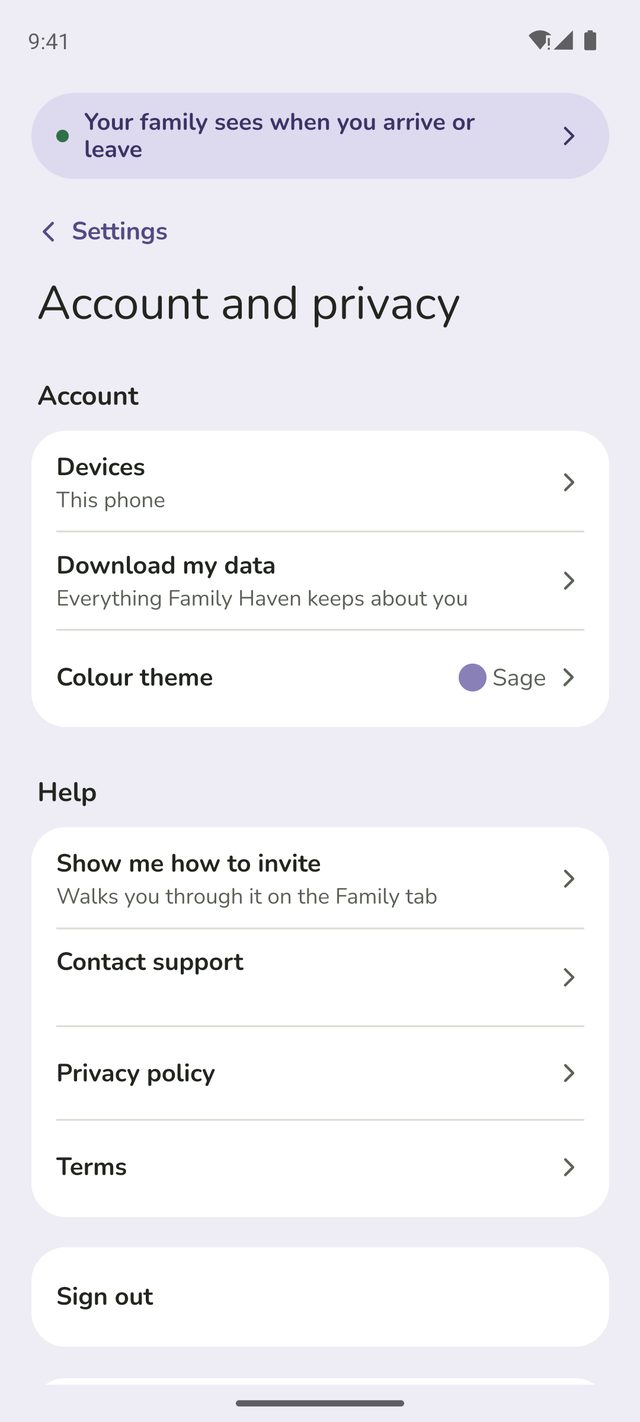
In Settings, tap Account and privacy, then Download my data. It's everything Family Haven keeps about you: your account, places, routines, the last 30 days of arrivals and departures, and your phones. It also says what we don't keep.
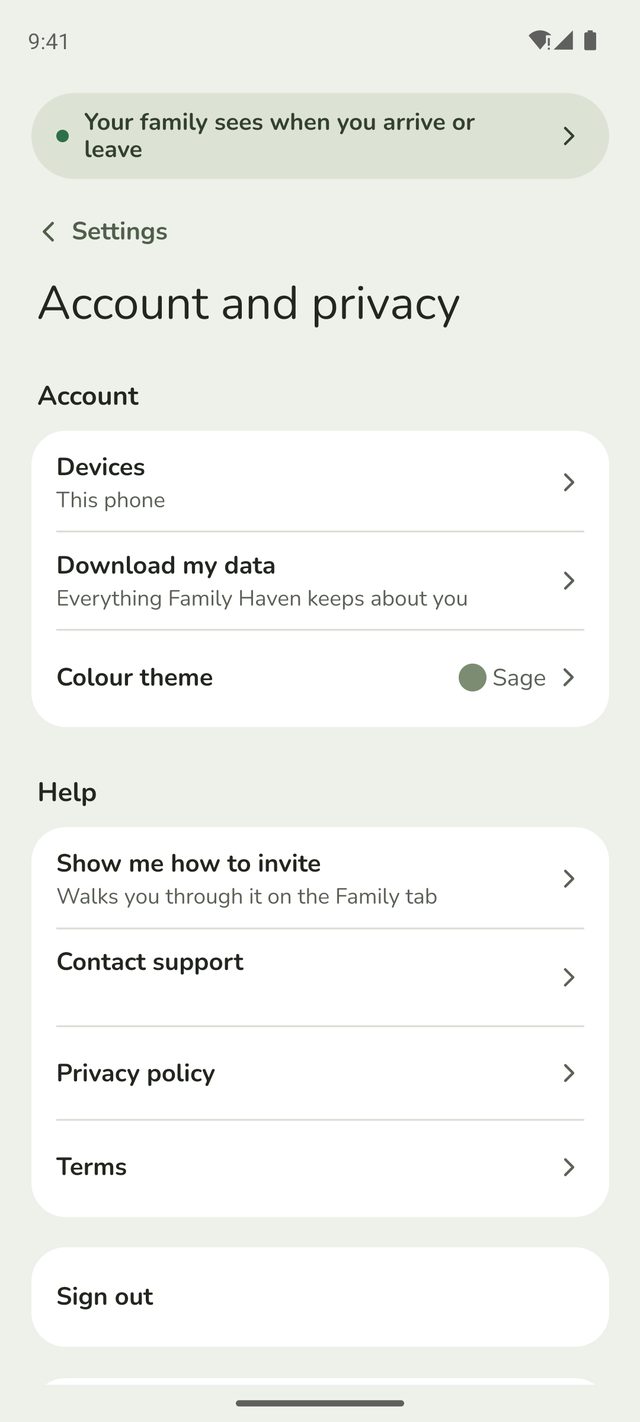
Step 9:Choose a summary or a data file
Tap Readable summary for a page you can open, save or print, or Data file (JSON) to move it to another service. It isn't kept on your phone, so choose where to save or send it, and keep it safe: it shows places and times.
Parents can download a child's data too, from the child's page in Family.
Good to know
- Children under 13 can choose an avatar but not a photo. A parent can choose a photo for them, on the child's profile in Family.
- A parent can remove any child's picture, from the child's profile.
- Battery alerts can be late. Phones, iPhones especially, limit how often apps check the battery in the background.
- Turning off location on your phone also stops sharing. Your sharing will say Location is off on this phone until you turn it back on.
Still stuck?
Send us a message and a person will reply by email.