In this guide
This guide is for the parent or guardian setting up Family Haven for the first time. You'll be the family's owner, and you can invite everyone else when you're done.
Before you start
- Your own phone, with Family Haven installed from the App Store or Google Play.
- A Google account, or on iPhone an Apple account, to sign in with.
- About five minutes.
Joining a family someone else has already set up? You don't need this guide. Ask them for an invite code, then choose Join with a code at step 4.
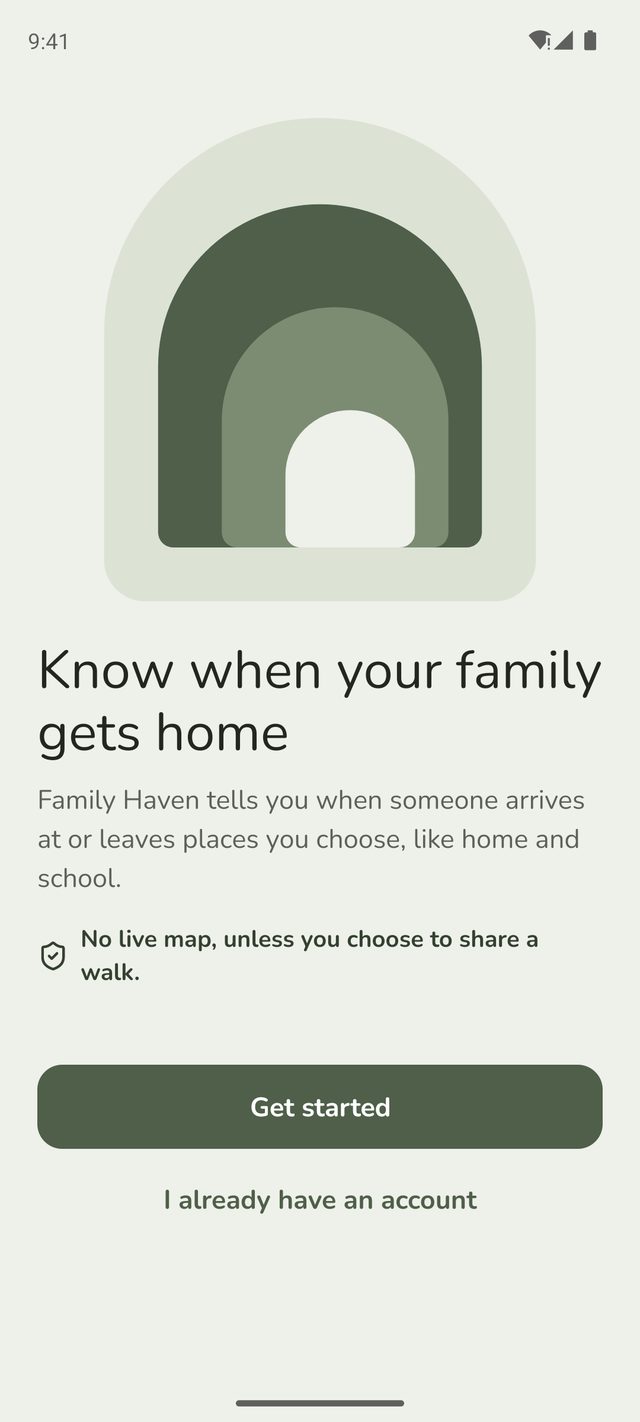
Step 1:Open Family Haven and tap Get started
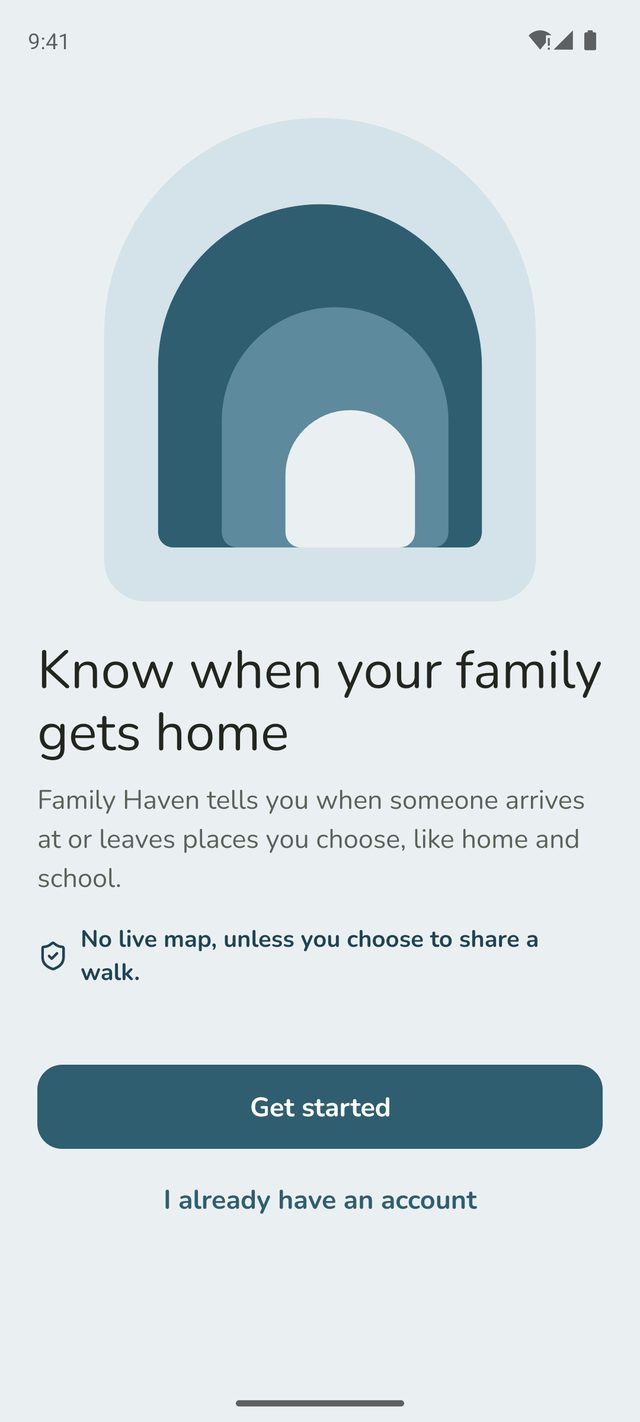
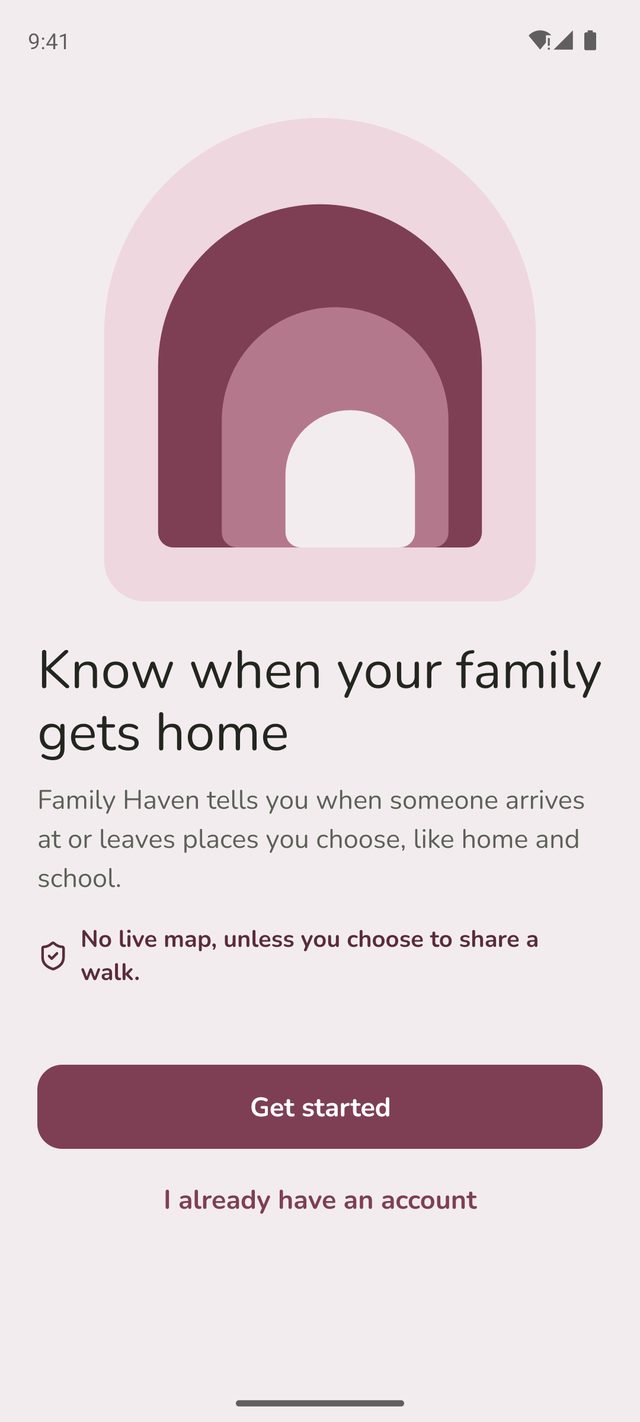
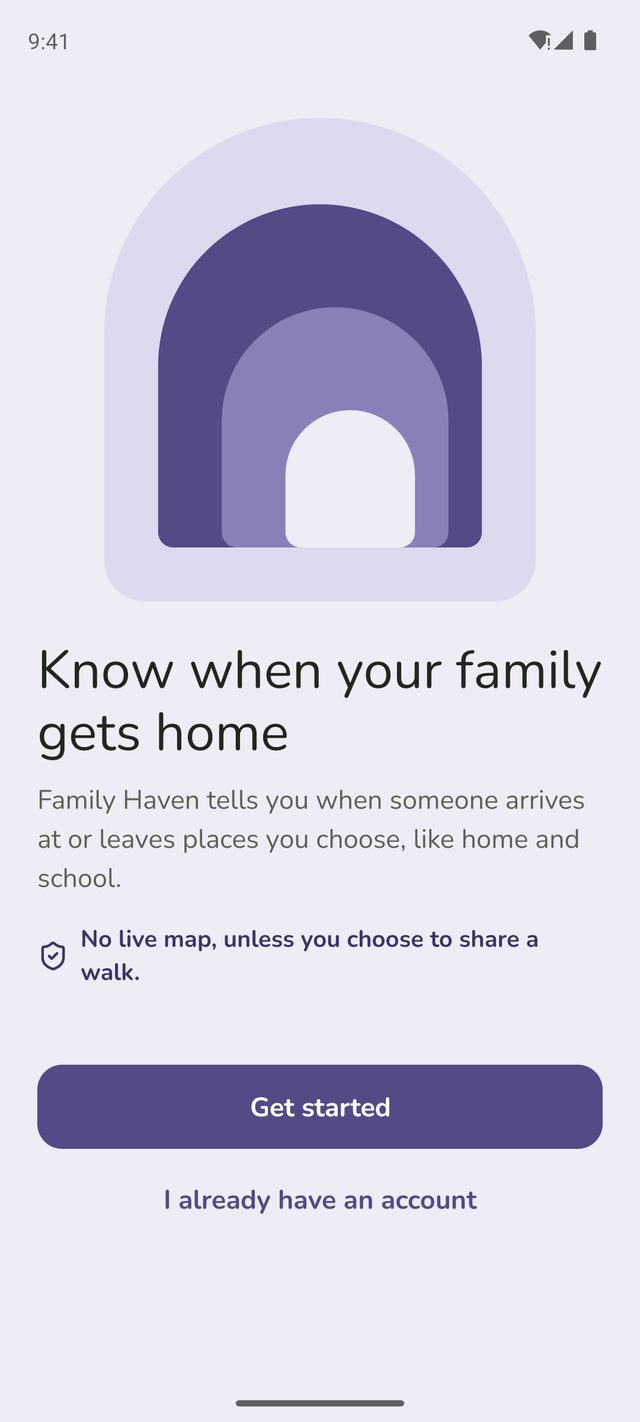
The first screen tells you what Family Haven does. Tap Get started.
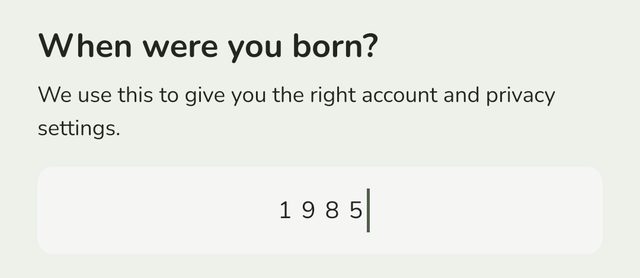
Step 2:Enter the year you were born
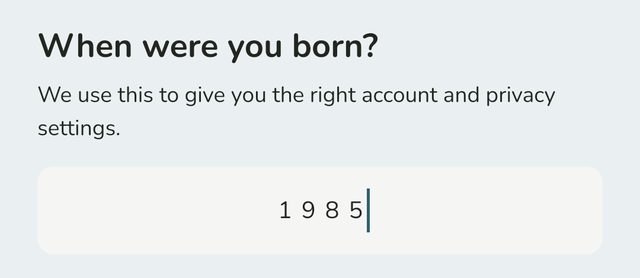
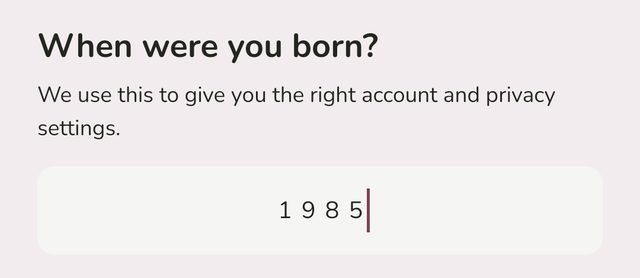
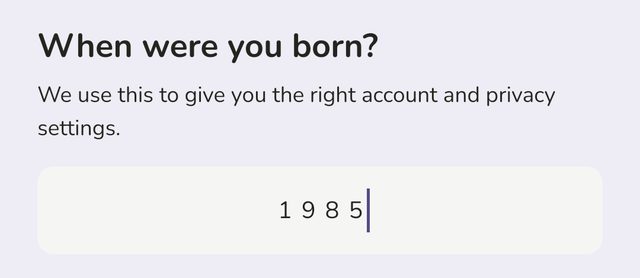
Type the year you were born, then tap Continue. Family Haven uses this to give you the right kind of account. Your date of birth isn't stored.
If your birthday could make you either 17 or 18, you'll see Just one more thing and be asked for the exact date.
Step 3:Sign in
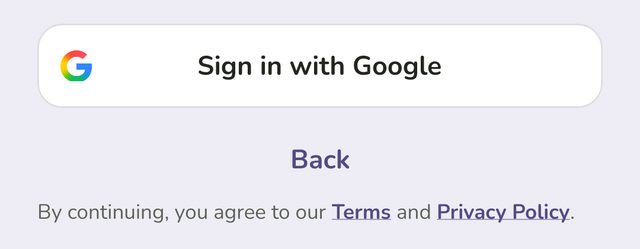
Tap Sign in with Google. On iPhone you can also choose Sign in with Apple. Pick the account you want to use.



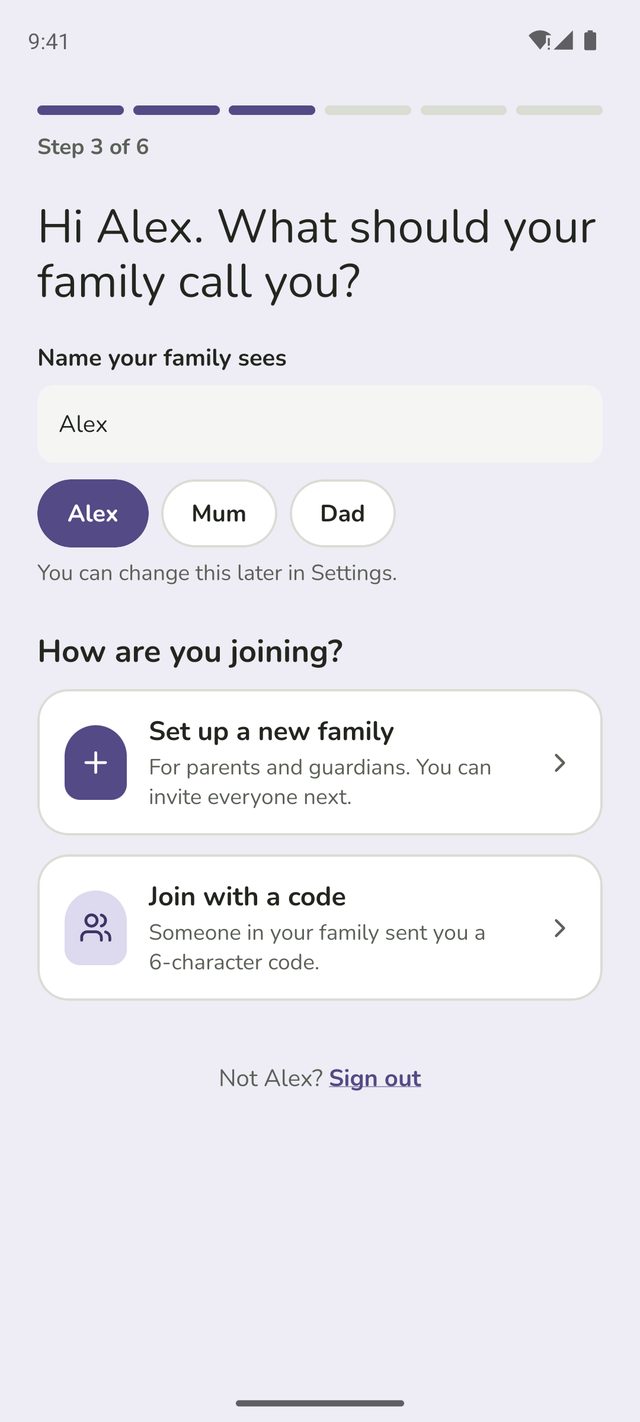
Step 4:Choose your name, then set up a new family
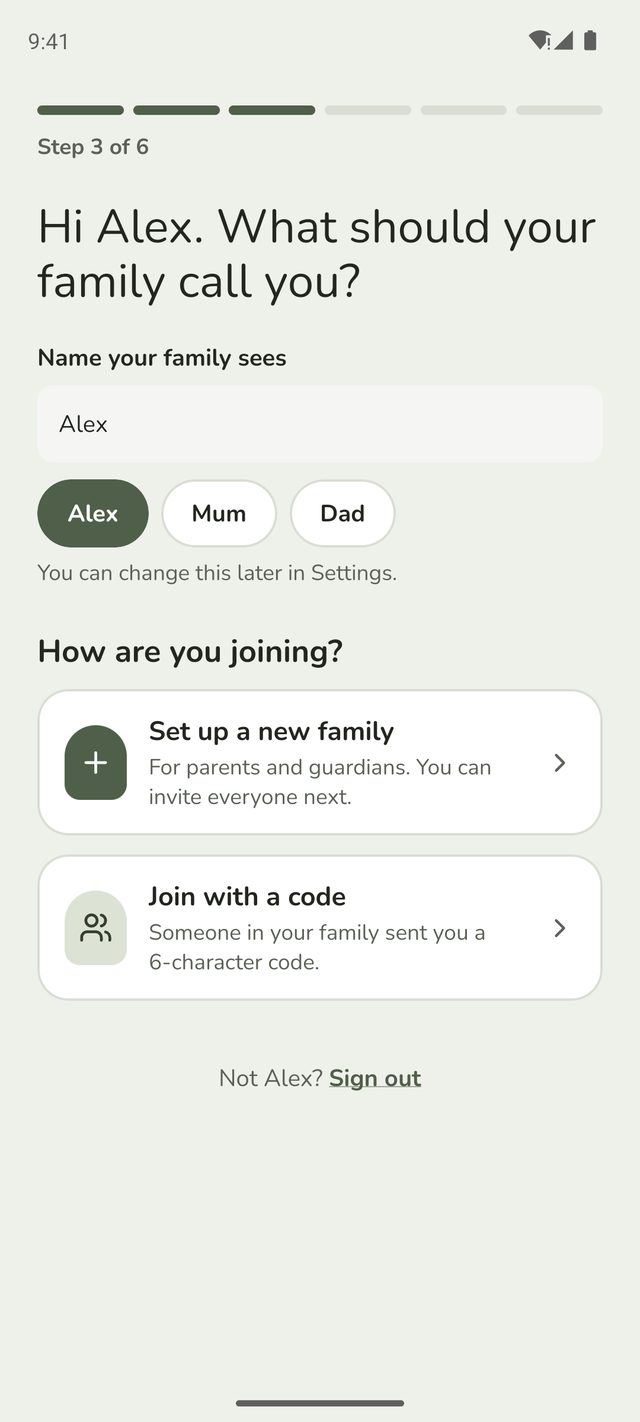
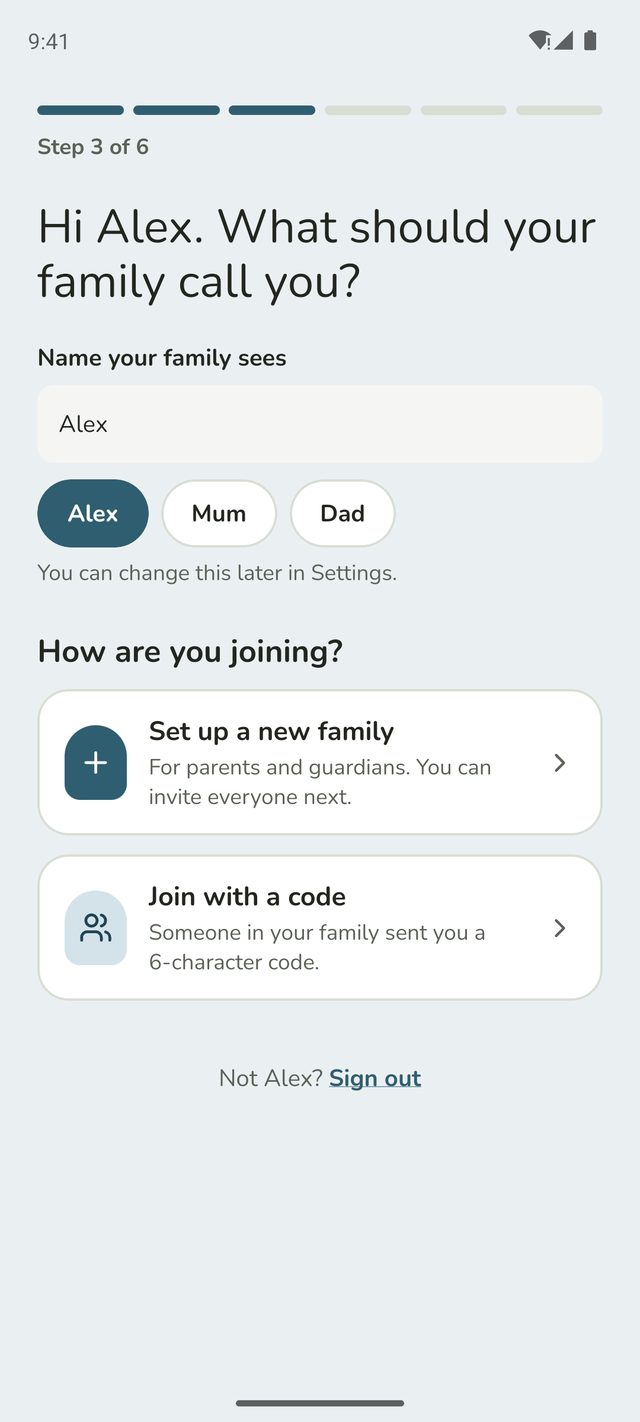
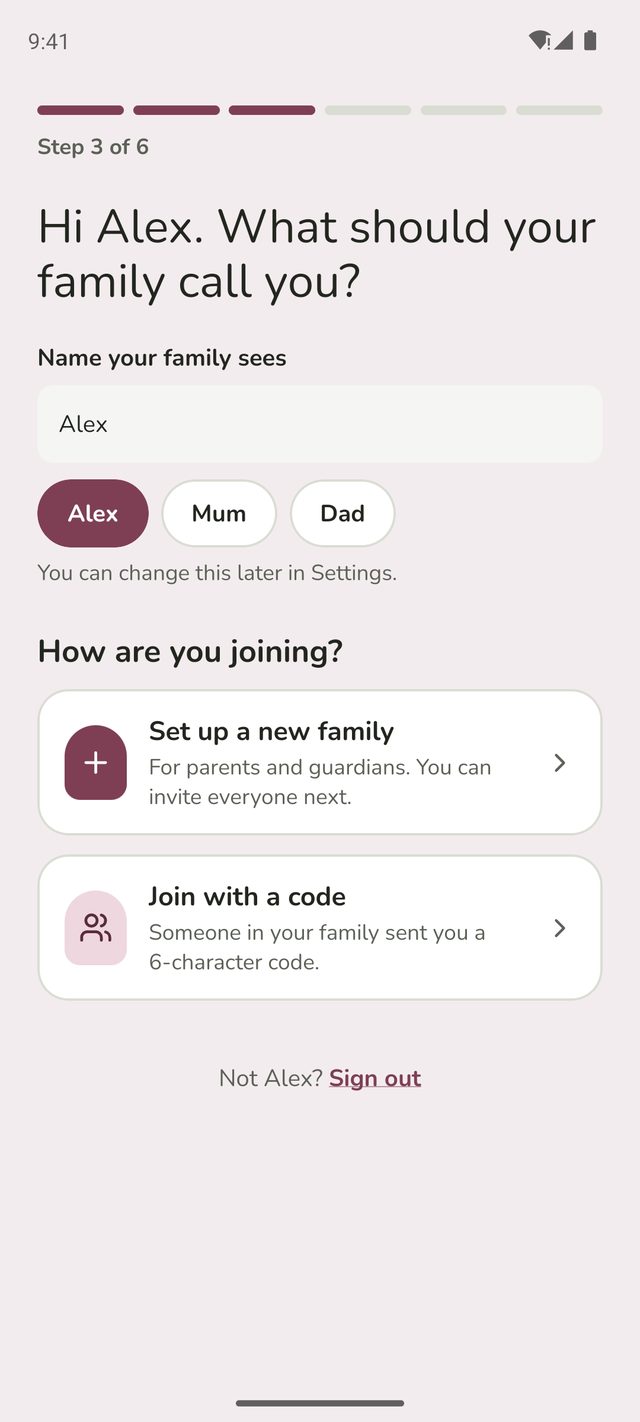
Type the name your family will see you as, such as Mum, Dad or your first name. You can also tap one of the suggestions. You can change it later in Settings.
Then tap Set up a new family.
Step 5:Name your family
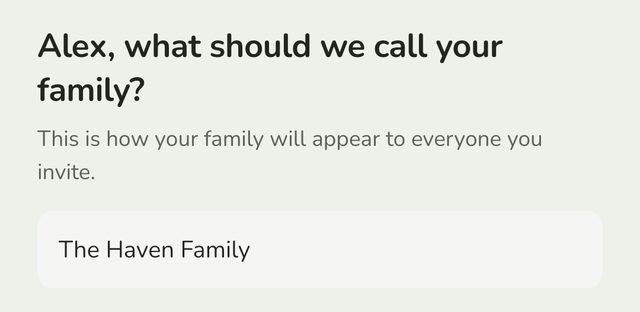
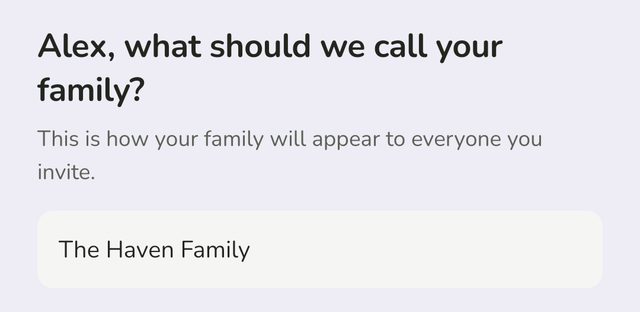
Family Haven suggests a name from your account, such as The Smith Family. Keep it or type your own. Everyone you invite will see it. Tap Create family.
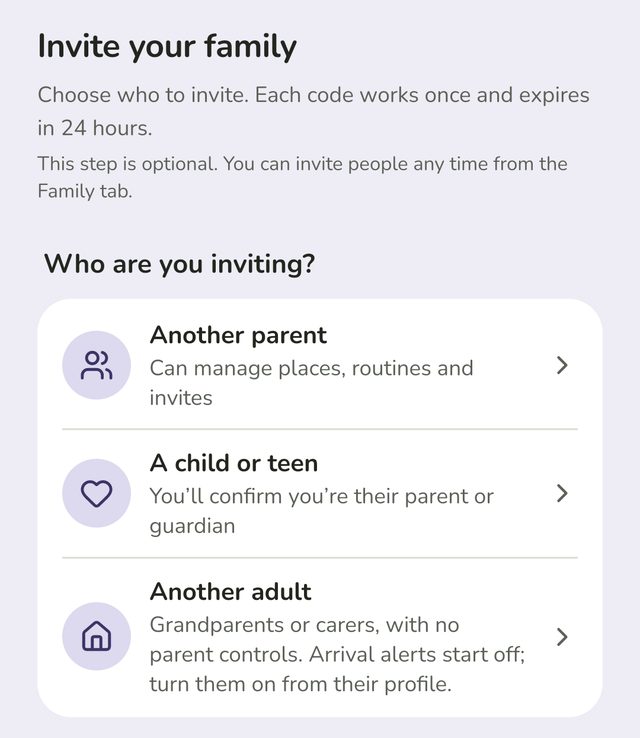
Step 6:Invite your family, or skip for now
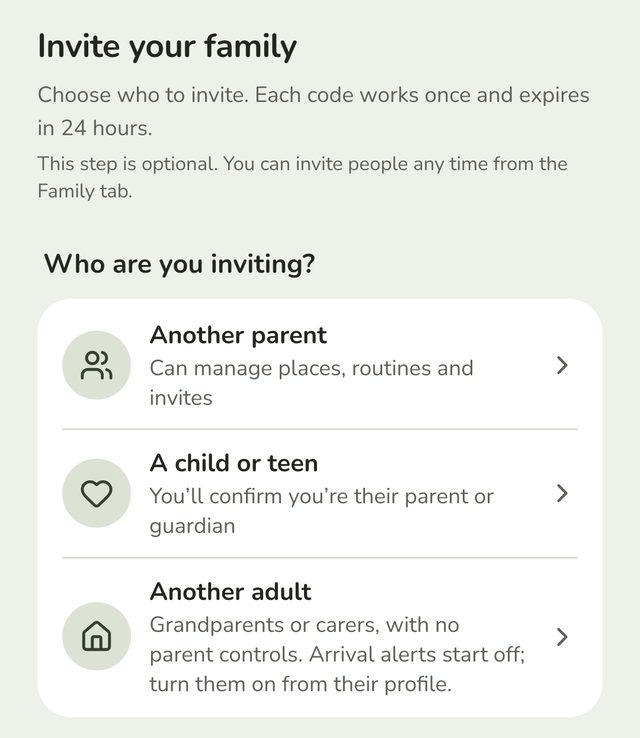
You can invite people straight away, or tap Skip for now and do it later from the Family tab. Each invite code works once and expires after 24 hours.
Step 7:Turn on alerts
Tap Turn on alerts, then allow notifications when your phone asks. This is how you'll hear when someone arrives or leaves, even when the app is closed.




Step 8:Share your arrivals
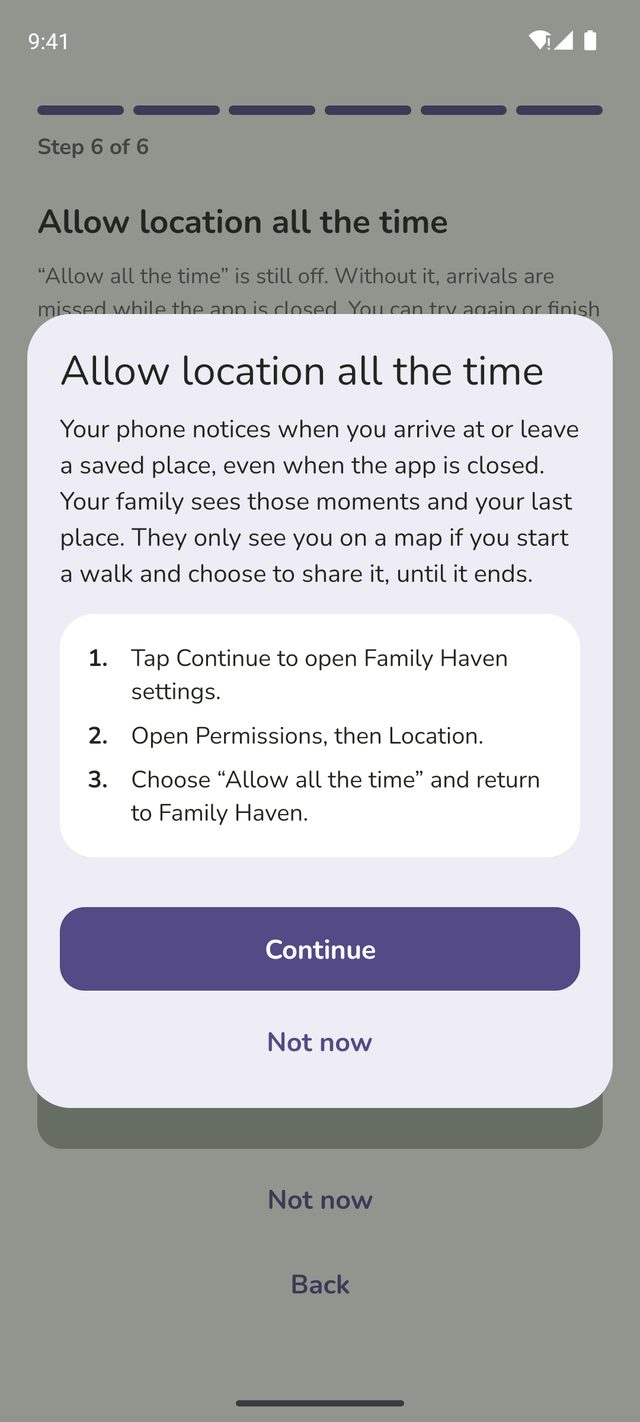
Family Haven needs your location to notice when you arrive at or leave a saved place. Your phone asks two questions, and Family Haven explains each one first.
- Tap Set up location, then Continue.
- When your phone asks, choose While using the app.
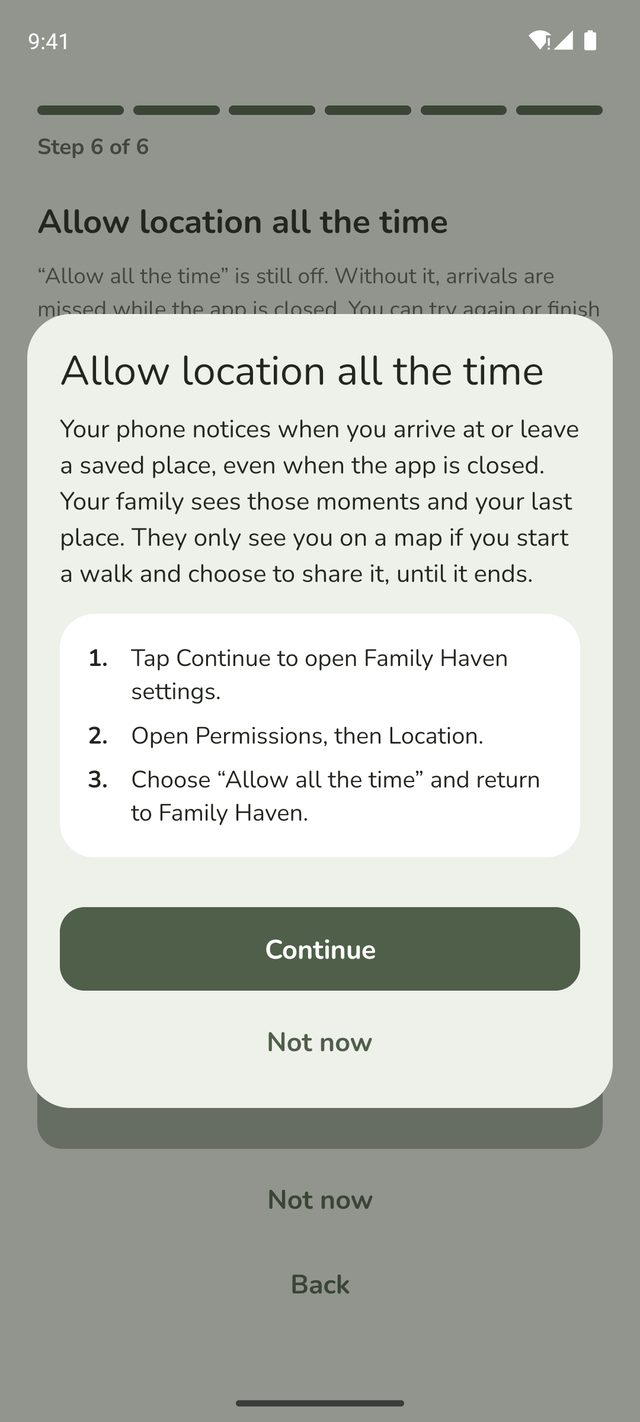
- Family Haven then explains why it needs location all the time. Tap Continue.
- On Android, open Permissions, then Location, and choose Allow all the time. Then come back to Family Haven.
- On iPhone, choose Change to Always Allow. If Settings opens instead, tap Location and choose Always.
If "Allow all the time" is still off, Family Haven shows Allow location all the time with the steps again. Your family won't hear about your arrivals and departures while the app is closed until it's on.
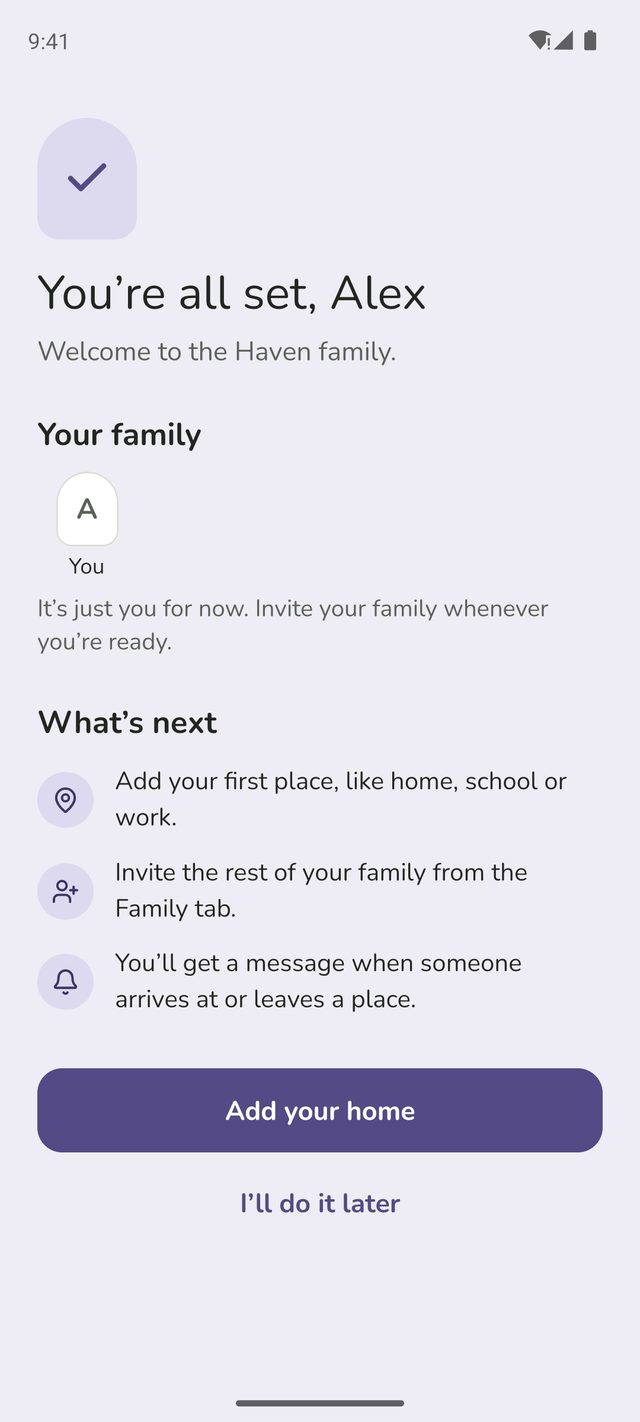
Step 9:You're all set
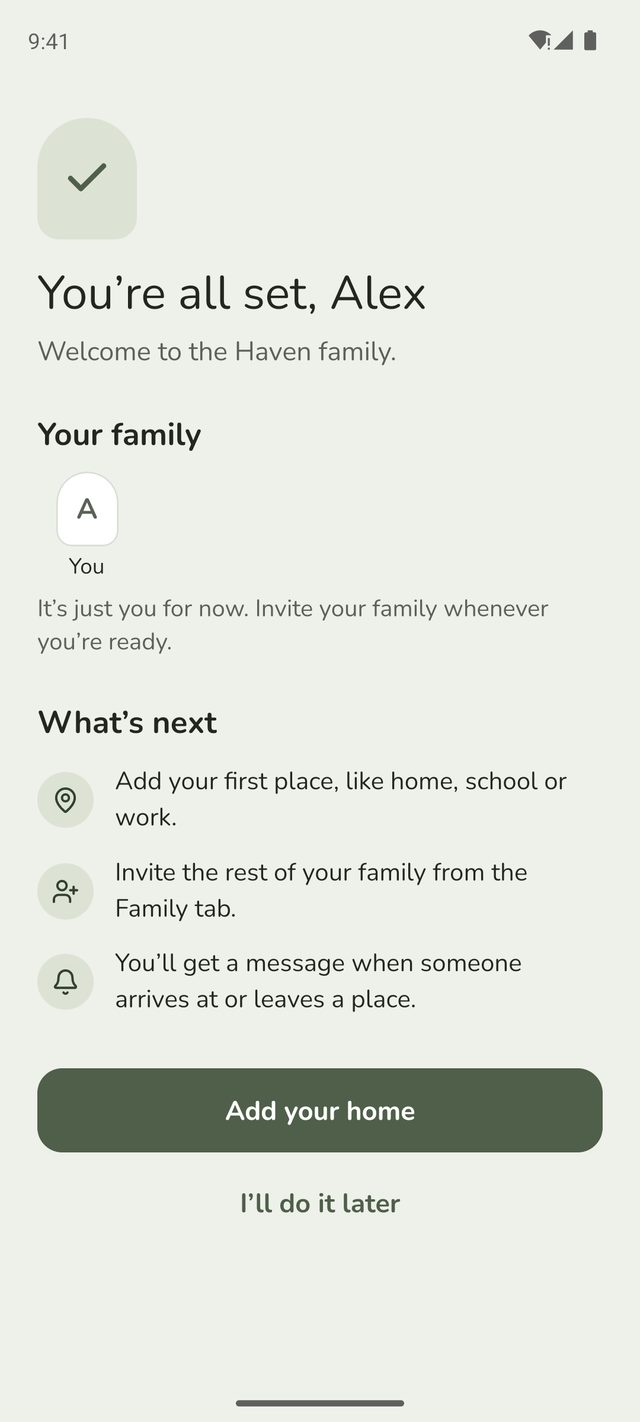
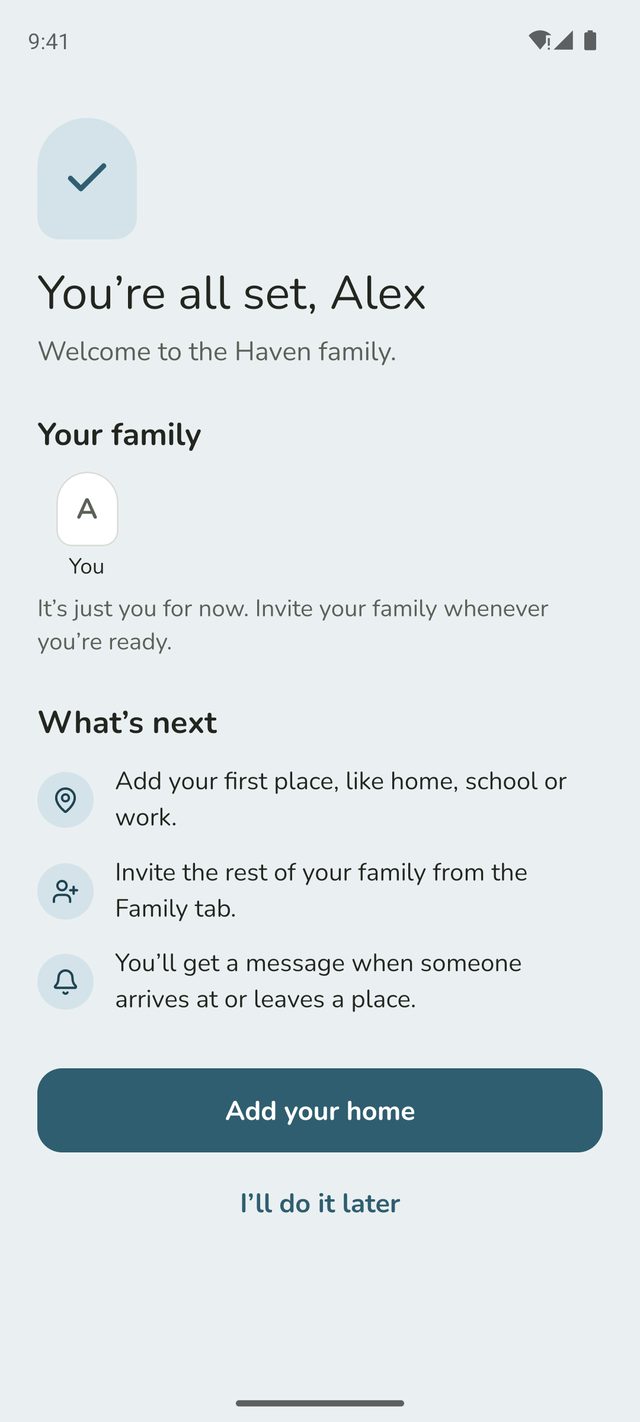
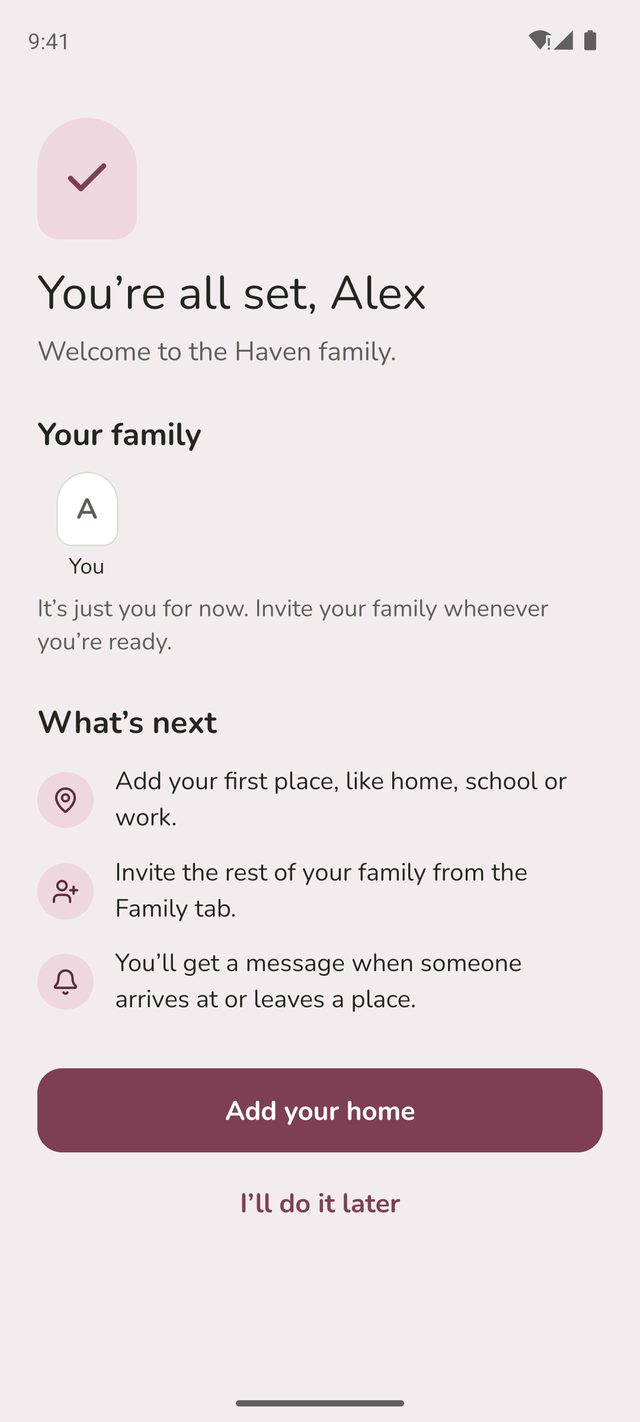
Family Haven shows who's in your family so far, and what to do next. Tap Add your home to save your first place now, or I'll do it later to go to your Home screen.
Step 10:Work through your Get set up list
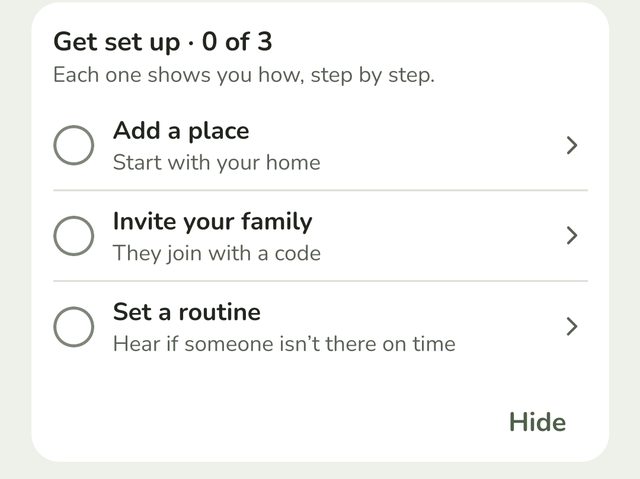
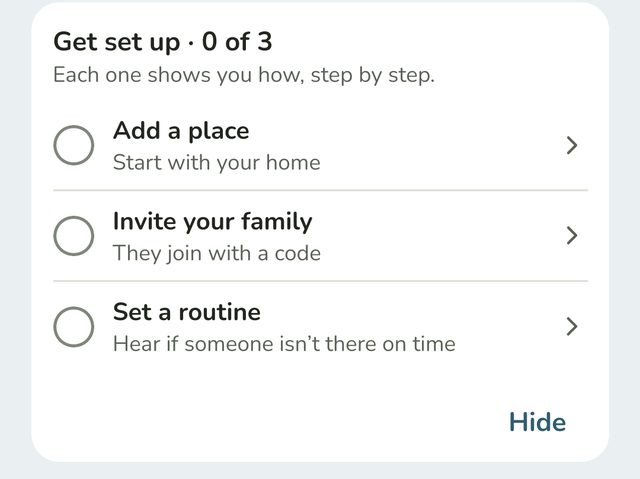
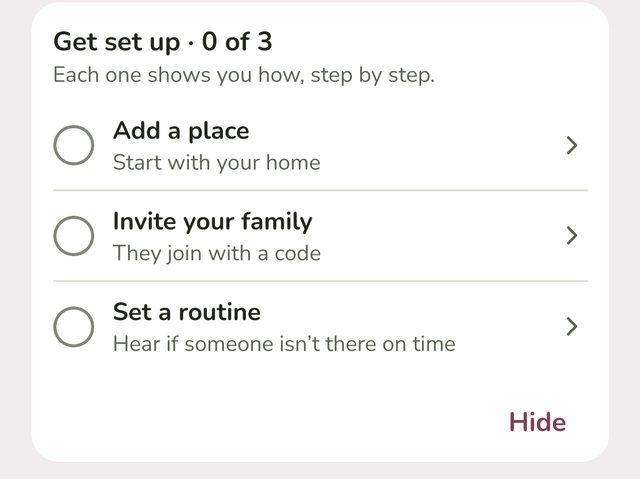
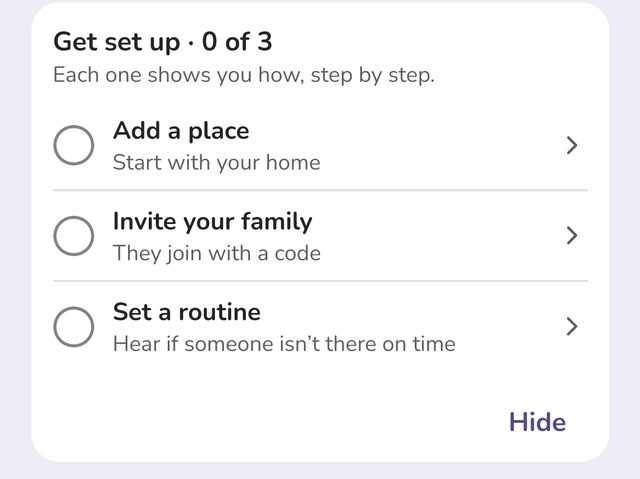
Your Home screen shows a Get set up list with three things to do:
- Add a place. Start with your home.
- Invite your family. They join with a code.
- Set a routine. Hear if someone isn't there on time.
Tap any of them to start. Add a place and Set a routine ask one question at a time, and Invite your family shows you how on the real screen. Each one ticks itself off once it's done. Invite your family ticks off as soon as you copy or share a code. Tap Hide if you'd rather do them later.
The list also shows See Family Haven Plus, if you'd like to look at what Plus adds. It's optional: the list goes away once the three steps are done. See Family Haven Plus.
Still stuck?
Send us a message and a person will reply by email.