In this guide
- Before you start
- For a child under 13
- 1Enter the month and year they were born
- 2Tap I have my code
- 3Enter the code
- 4Check it's your family
- 5Turn on notifications and location
- 6Let's go
- For a teen, 13 to 17
- 1Enter the month and year they were born, and sign in
- 2Enter the code
- 3Turn on notifications and location
- 4Read what the family will see, and agree
- 5They're in
- Good to know
Do this after you've made your child's code. If you haven't yet, start with Add a child or teen. Follow the part that matches the profile you chose: a younger child, or a teen.
Before you start
- Your child's phone, with Family Haven installed from the App Store or Google Play.
- The code you made. It works once and runs out after 24 hours.
- For a teen: their own Google account, or Apple account on iPhone. A younger child doesn't need one.
- Sit with them. It takes about five minutes, and their phone will ask a couple of questions about location.
For a child under 13
A younger child doesn't need an email address or account. The code signs them in.
Step 1:Enter the month and year they were born
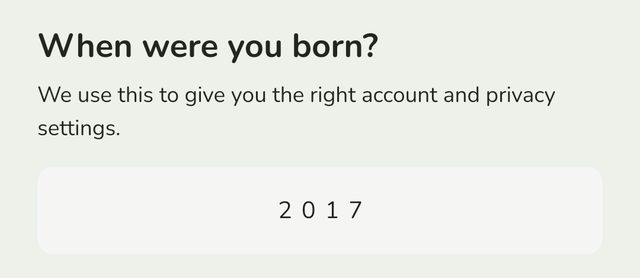
On your child's phone, open Family Haven and tap Get started. Type the year they were born, then choose the month at Which month were you born? and tap Continue. It's used on their phone so their account moves up at the right time as they get older, and their birthday isn't kept.
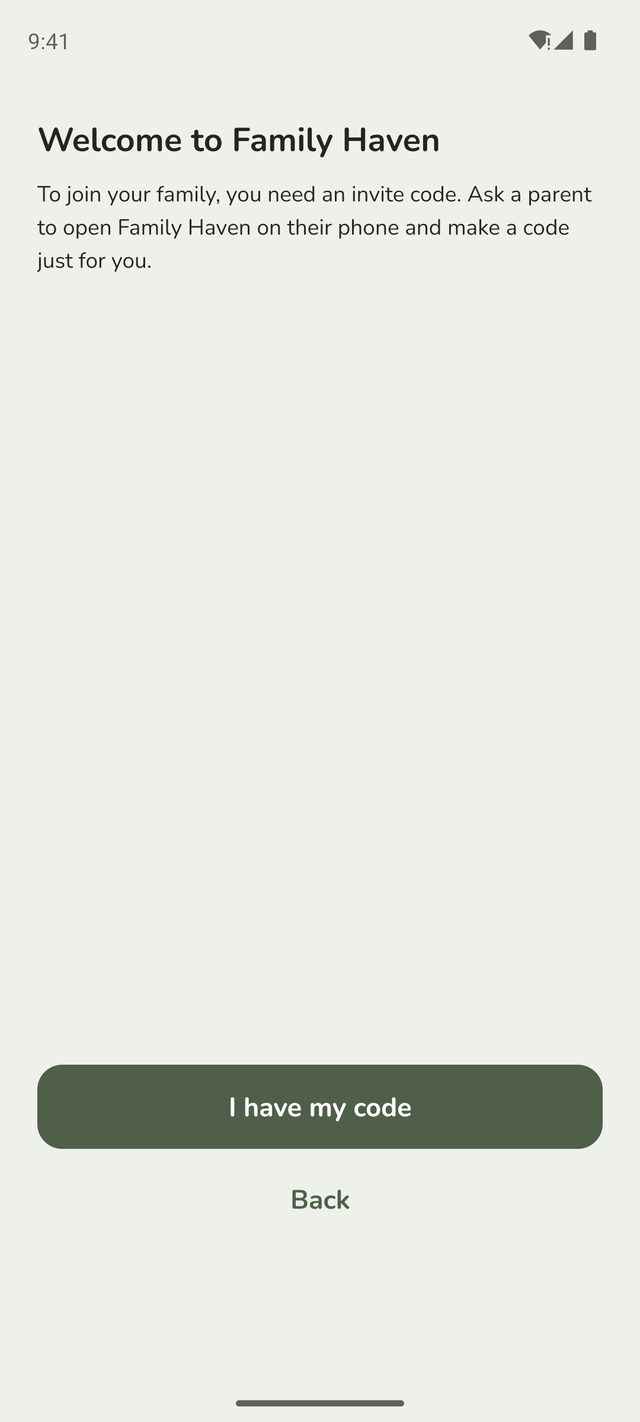
Step 2:Tap I have my code
The app explains that they need a code from a parent. You've got one, so tap I have my code.
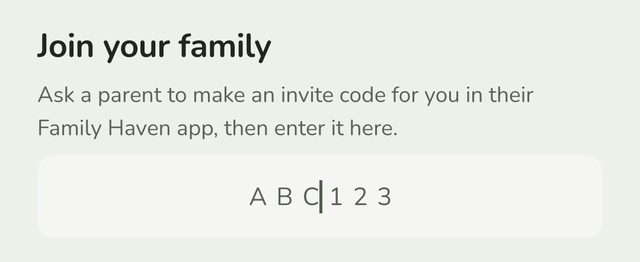
Step 3:Enter the code
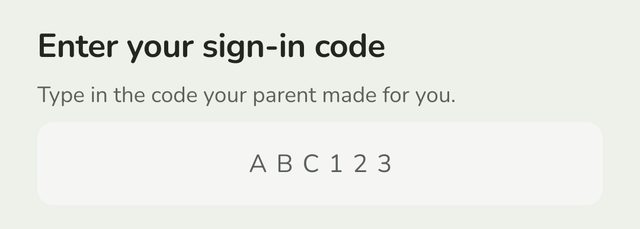
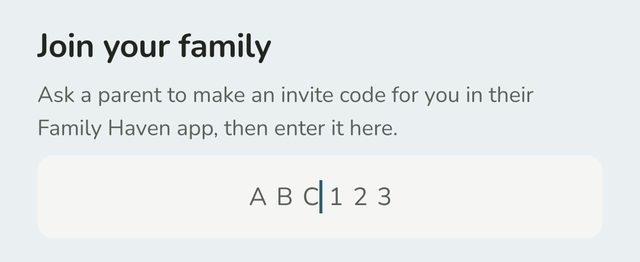
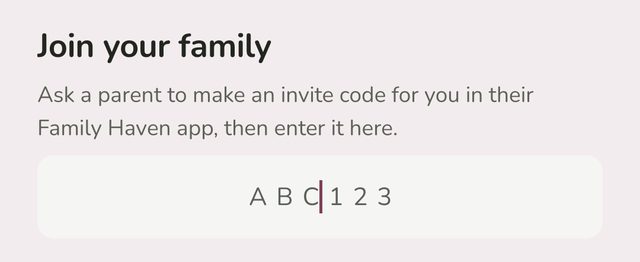
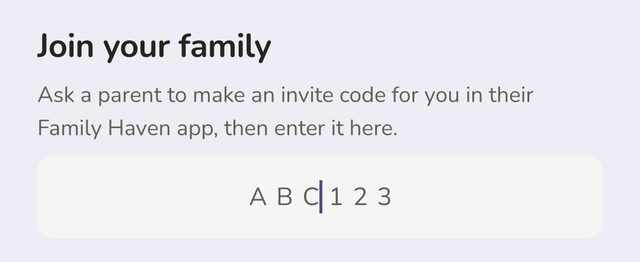
Type the 6-character code you made. It's called a sign-in code here, because it's how your child gets into the app.
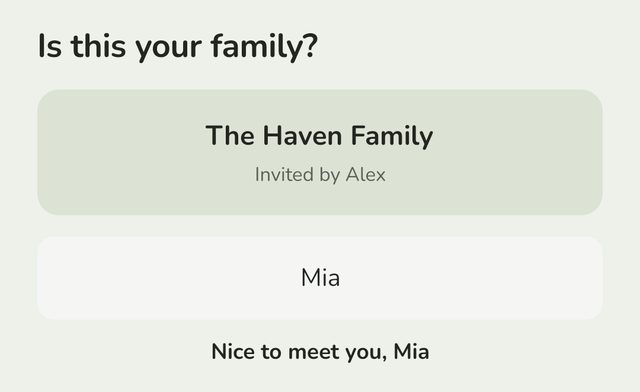
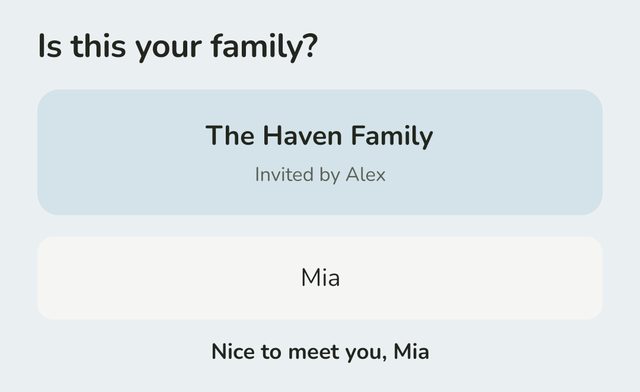
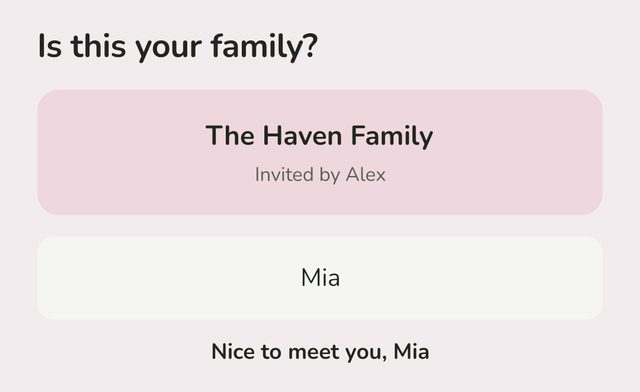
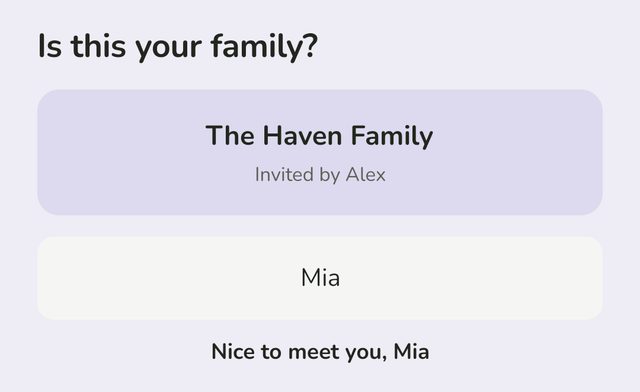
Step 4:Check it's your family
The app shows your family's name, who made the code, and your child's name. Change the name if it's not right, then tap Yes, that's my family.
Step 5:Turn on notifications and location
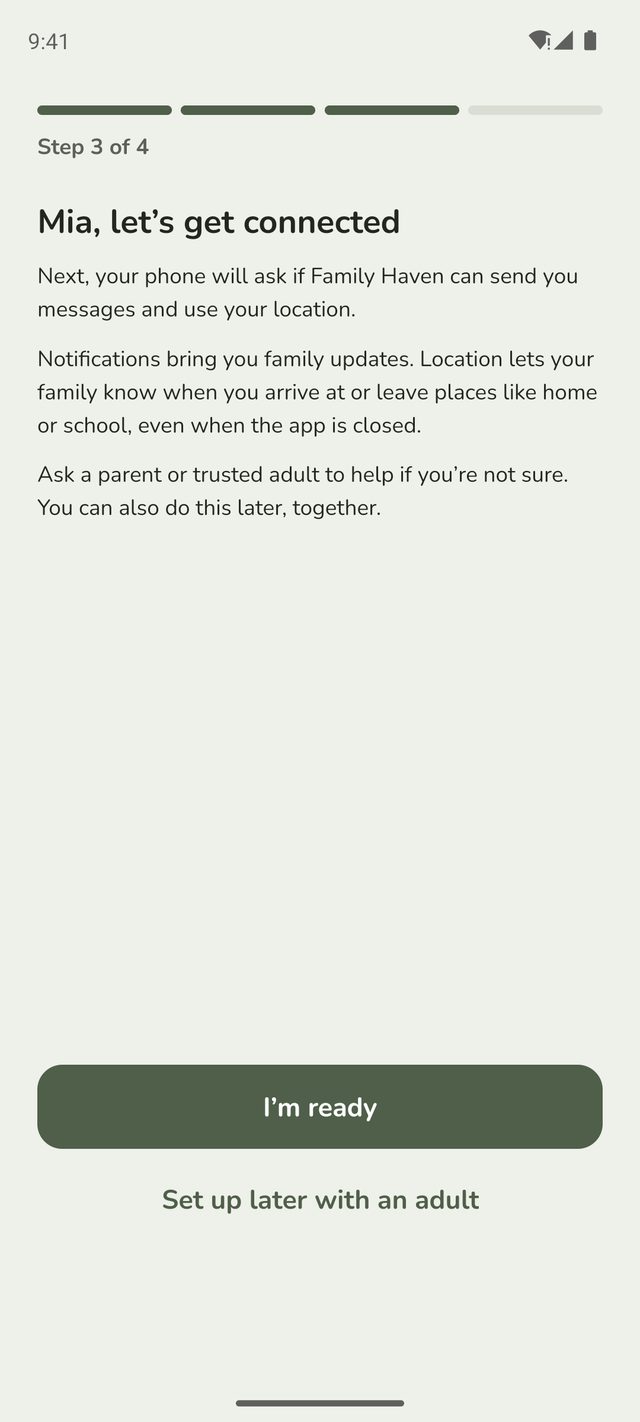
Tap I'm ready, then:
- Tap Turn on notifications and allow them when the phone asks.
- Tap Set up location, then Continue. When the phone asks, choose While using the app.
- Tap Continue again. On Android, open Permissions, then Location, and choose Allow all the time. On iPhone, choose Change to Always Allow.
Not with them right now? They can tap Set up later with an adult, and do it with you another time.
Step 6:Let's go
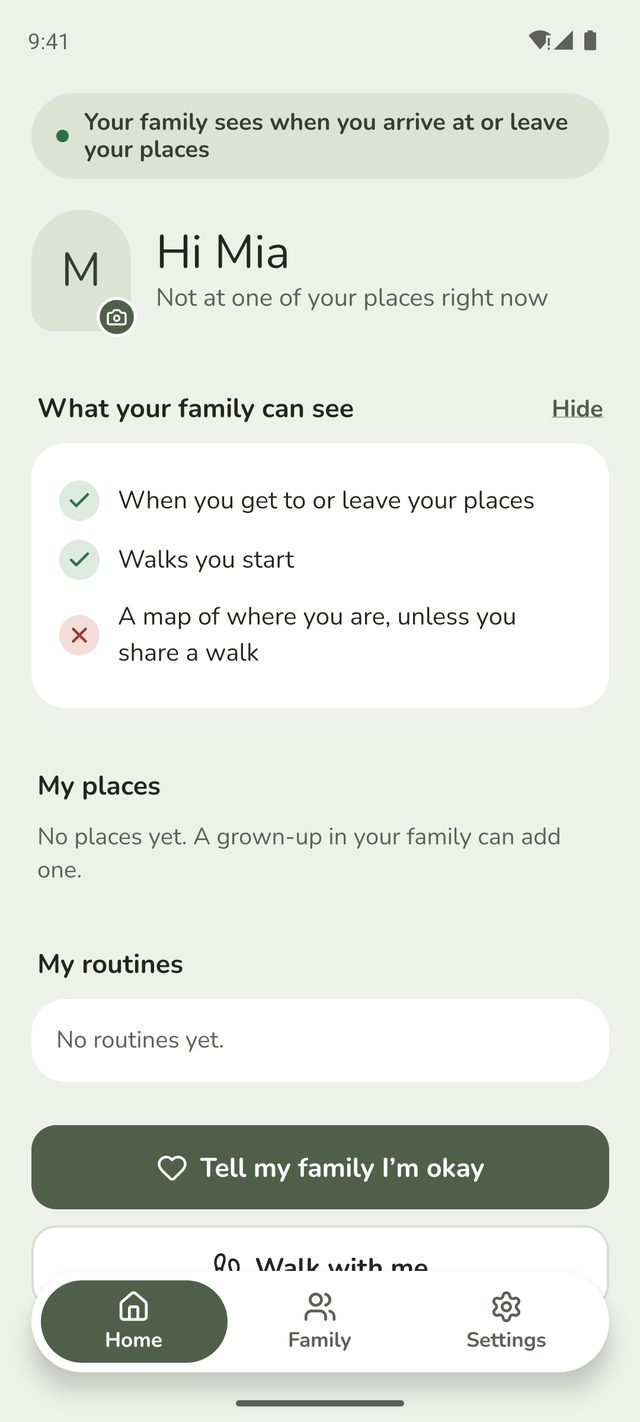
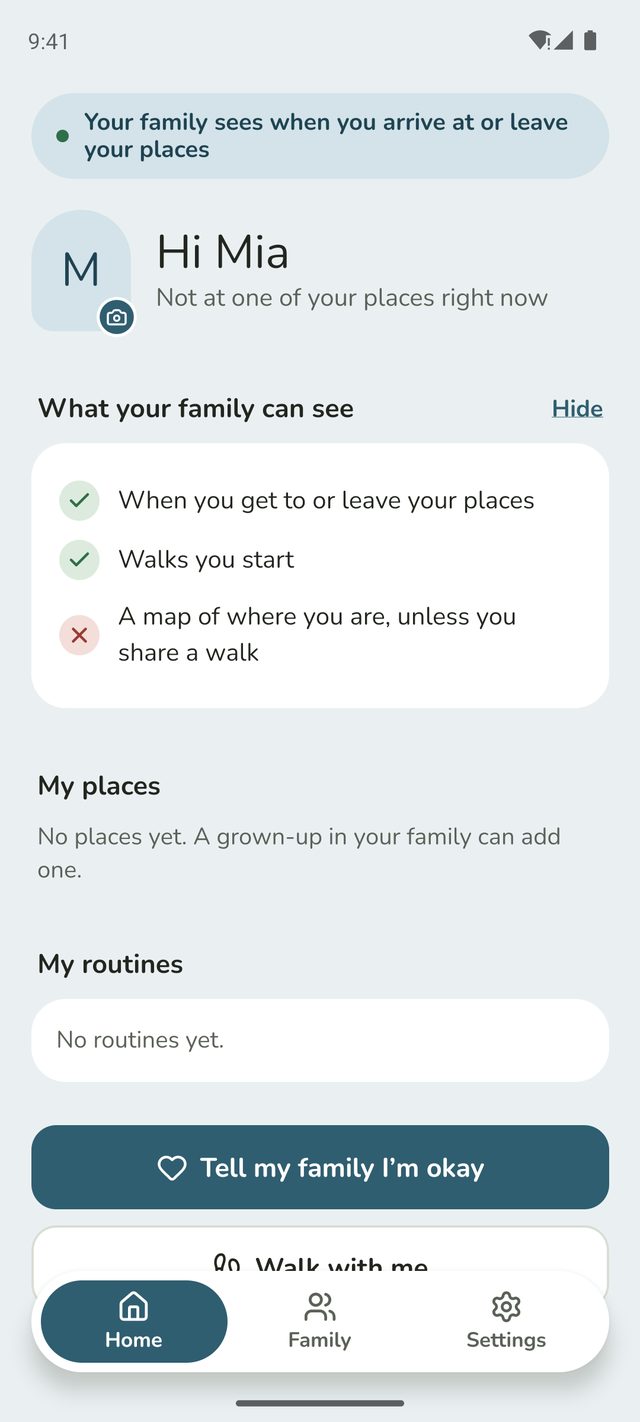
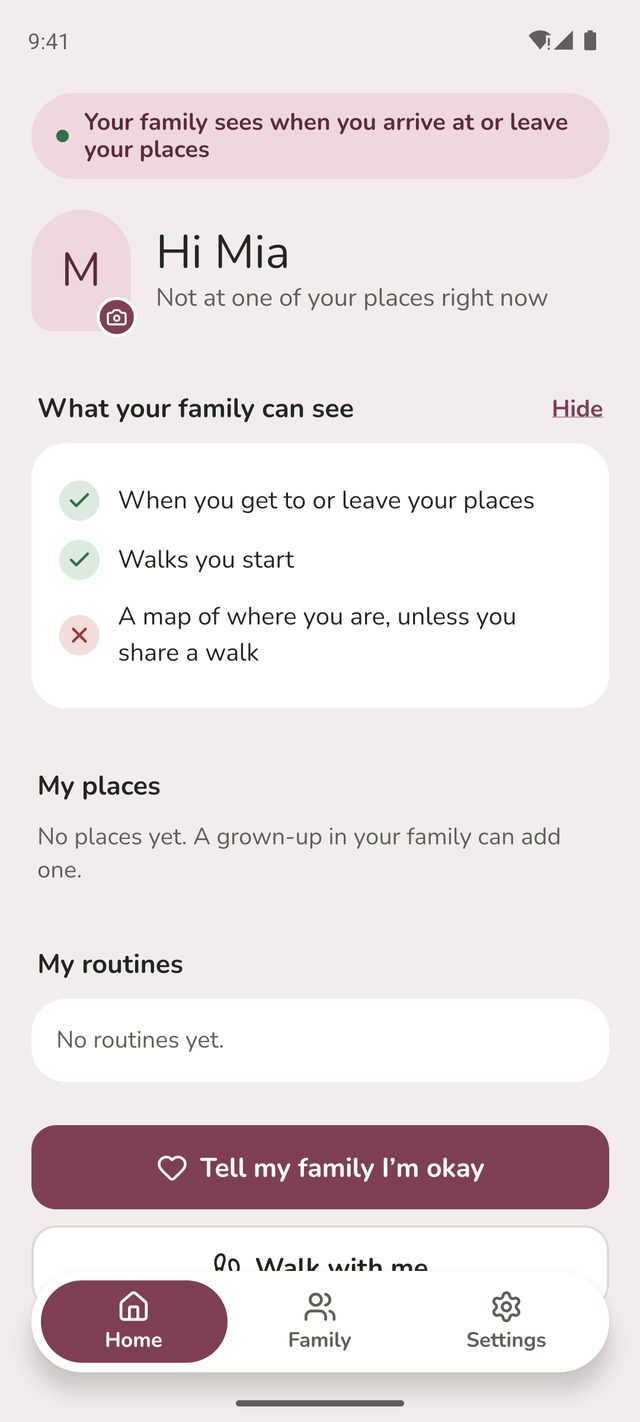
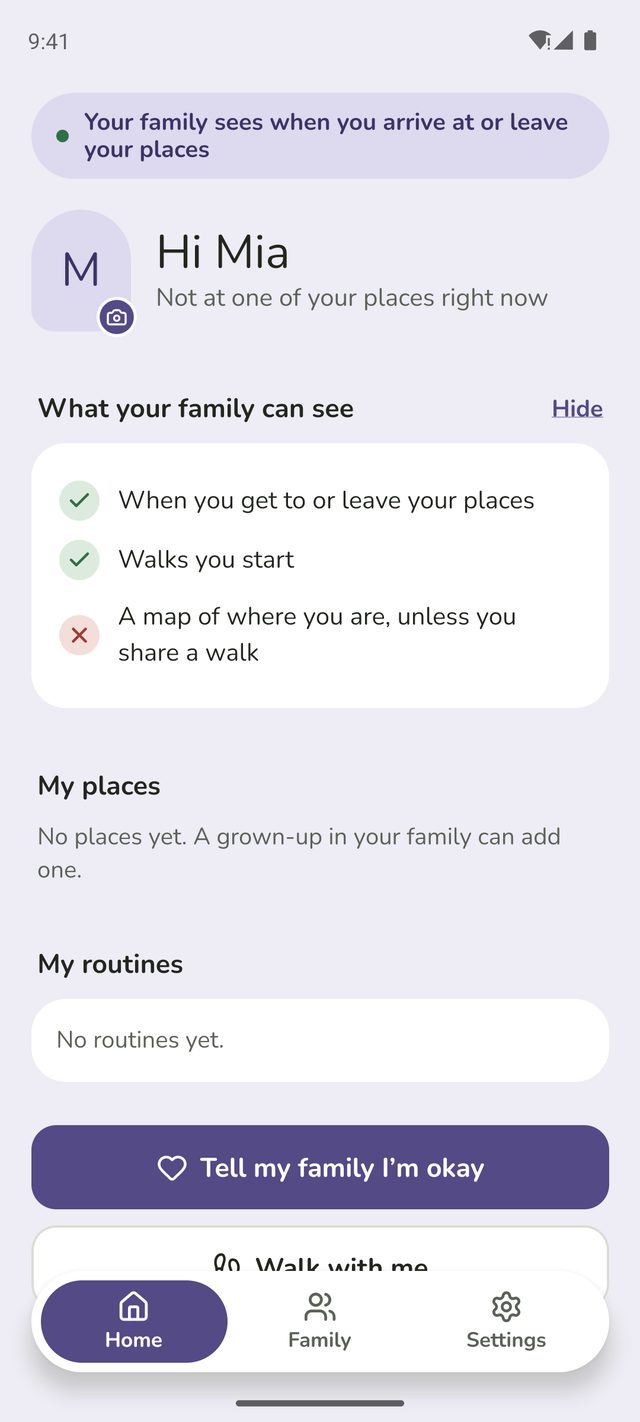
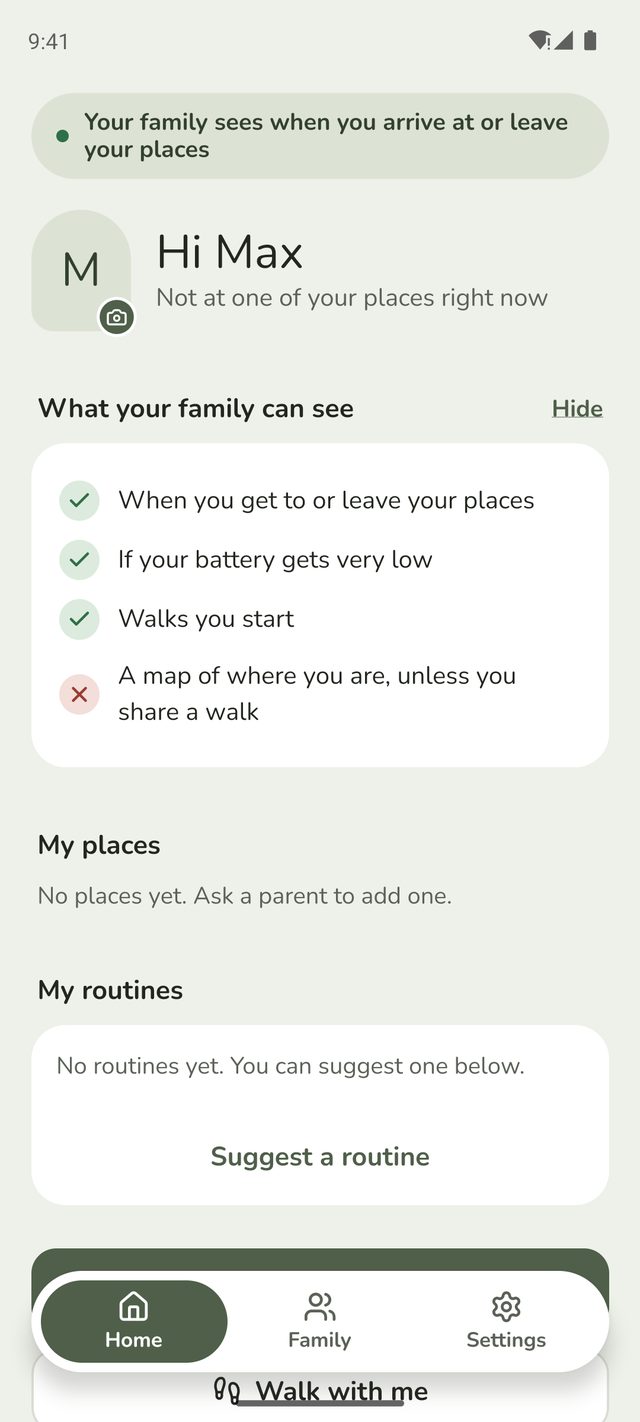
Your child sees You're all set and their family. They tap Let's go, and land on their Home screen. It shows what their family can see, until they tap Hide.
On Android, they may also see Keep Family Haven working. Android pauses apps that haven't been opened for a while, which would stop you seeing when they arrive. Tap Show me how: it shows the switch to turn off on that phone, then Open settings takes you there. Turn it off together. See step 3 of Alerts not arriving? for the switch names.
For a teen, 13 to 17
A teen signs in with their own account, and decides for themselves whether to share their arrivals and departures.
Step 1:Enter the month and year they were born, and sign in
On their phone, they open Family Haven, tap Get started, choose the month and year they were born, then tap Sign in with Google. On iPhone they can also choose Sign in with Apple.
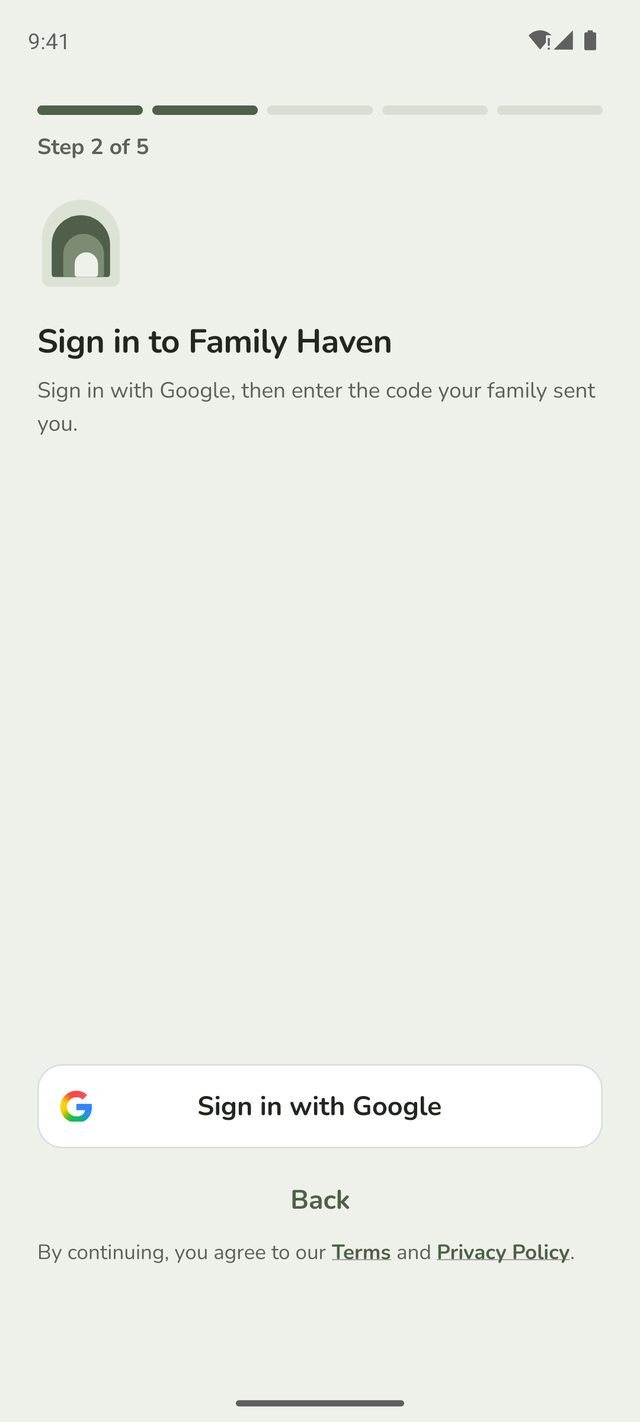
Step 2:Enter the code
They type the 6-character code you made, then check it's your family and tap Yes, that's my family, just like step 4 for a younger child.
Step 3:Turn on notifications and location
The same as step 5 for a younger child: I'm ready, then notifications, then location set to Allow all the time.
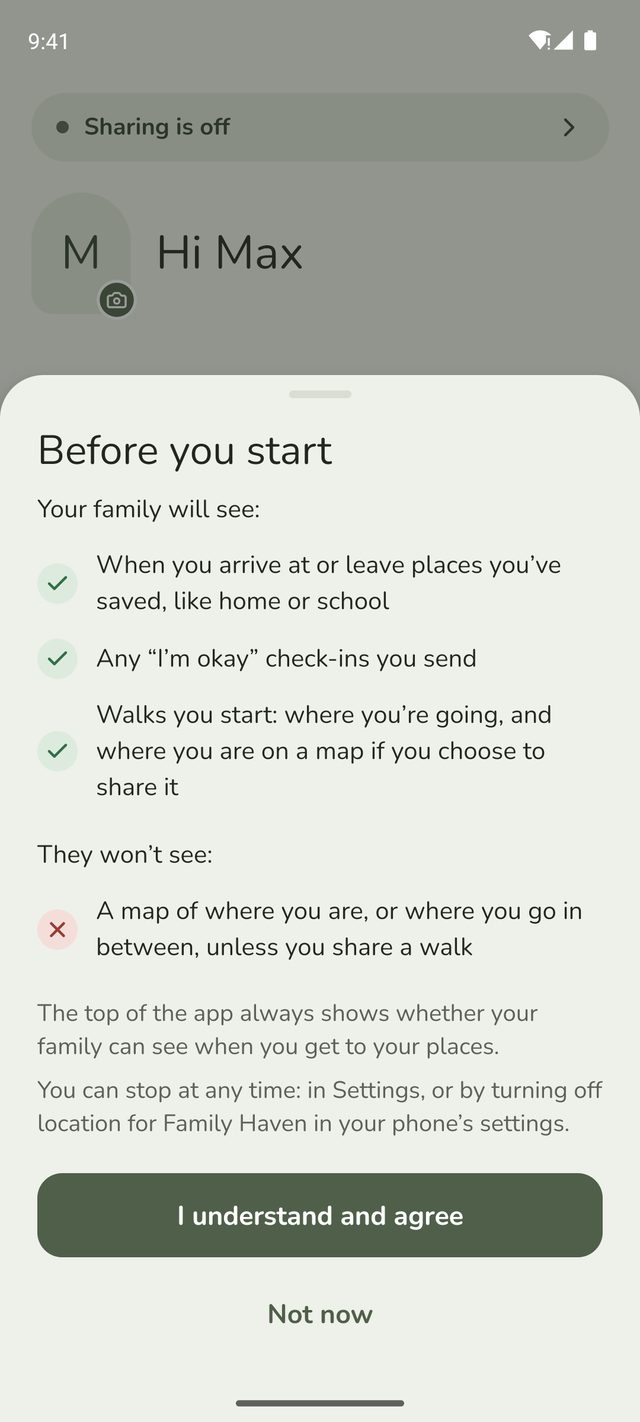
Step 4:Read what the family will see, and agree
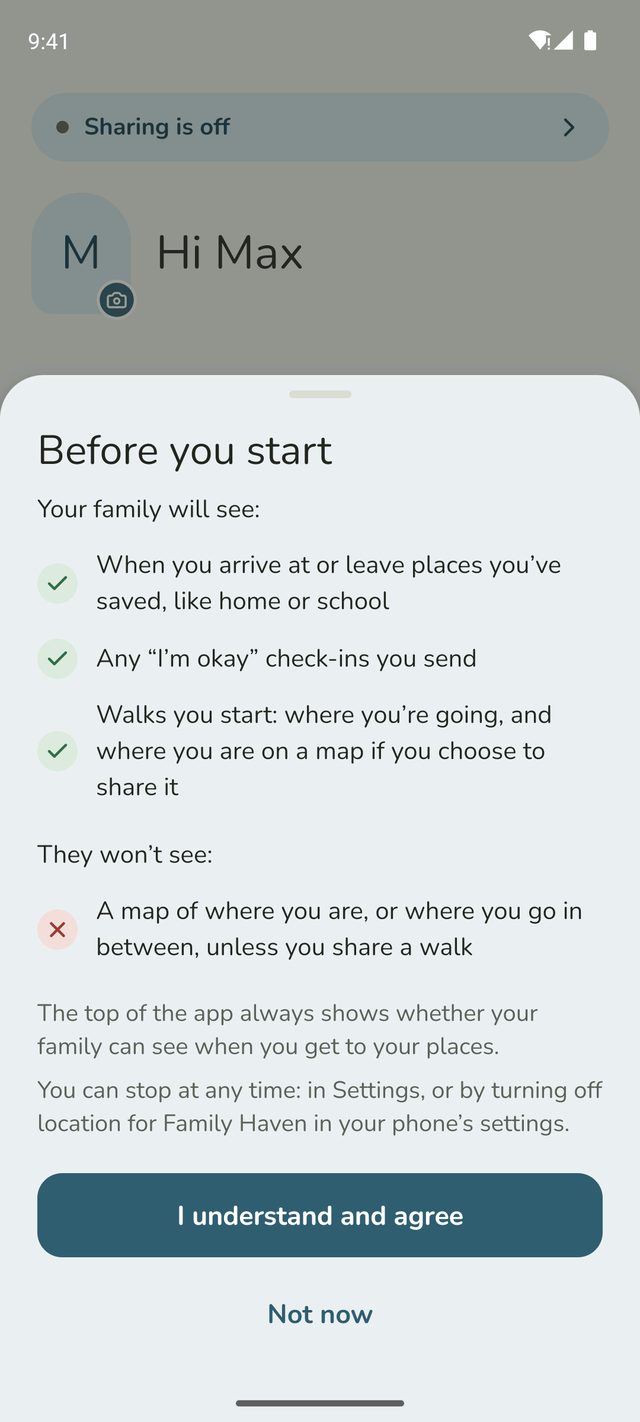
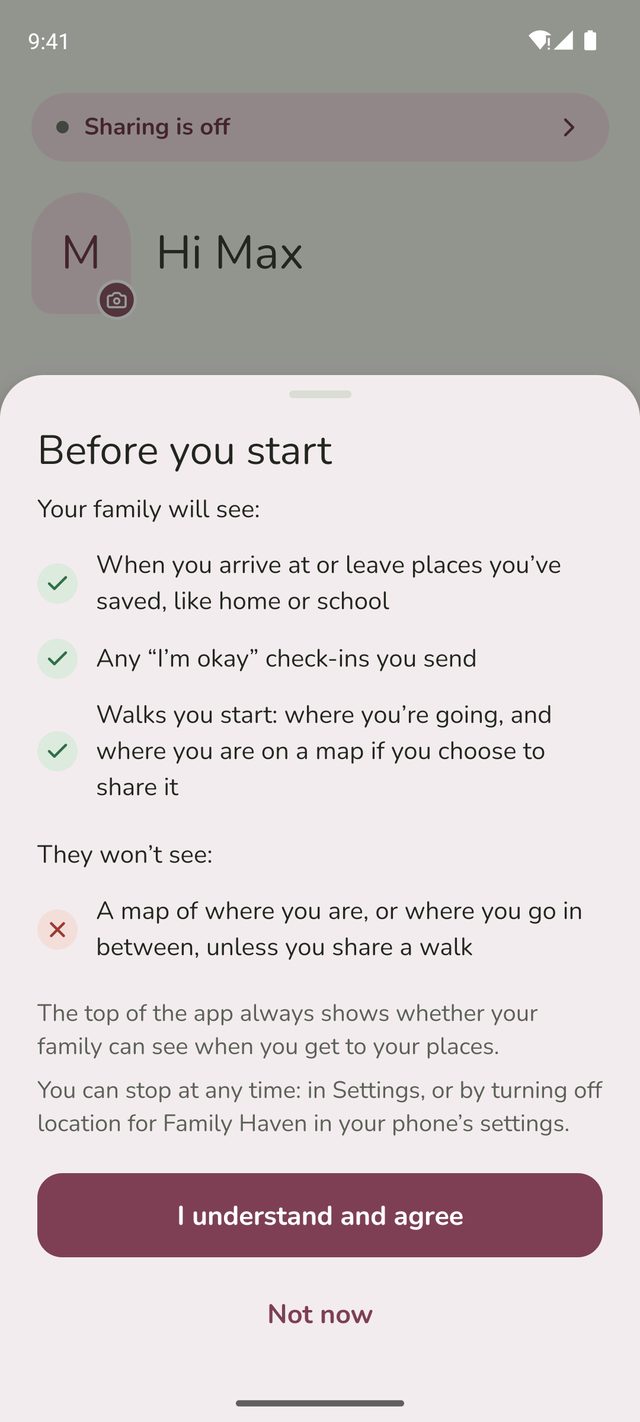
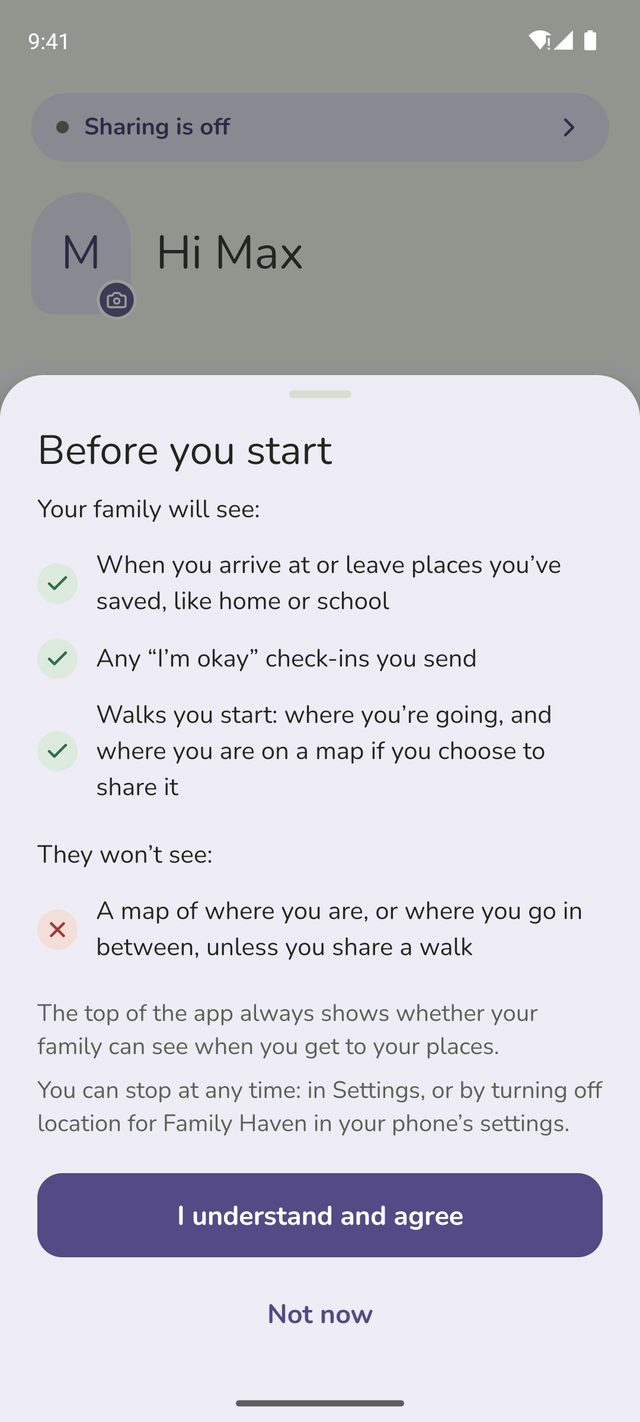
Until they agree, nothing is shared: the top of their screen says Sharing is off. Family Haven shows them what their family will see, what it won't, and that they can stop at any time. They tap I understand and agree to start sharing.
If they tap Not now, sharing stays off and you won't see their arrivals and departures. They can turn it on later.
Step 5:They're in
Their Home screen shows that their family sees when they arrive or leave, and what their family can see.
Good to know
- Add places for them next. A new child has no places yet. See Add a place.
- A teen can stop sharing at any time in Settings, even if you haven't let them pause it. You'll see that their sharing is off.
- If a younger child gets signed out, or gets a new phone, you can make them a sign-in code from their profile in Family.
Still stuck?
Send us a message and a person will reply by email.