In this guide
This guide covers your side: making a code for your child. They then use it on their own phone, which is covered in "Set up your child's phone".
Before you start
- You need to be a parent in the family. Only parents can add children.
- You must be their parent or legal guardian, and over 18. You'll confirm this before the code is made.
- Your child needs their own phone, with Family Haven installed.
Step 1:Open Family and tap A child or teen
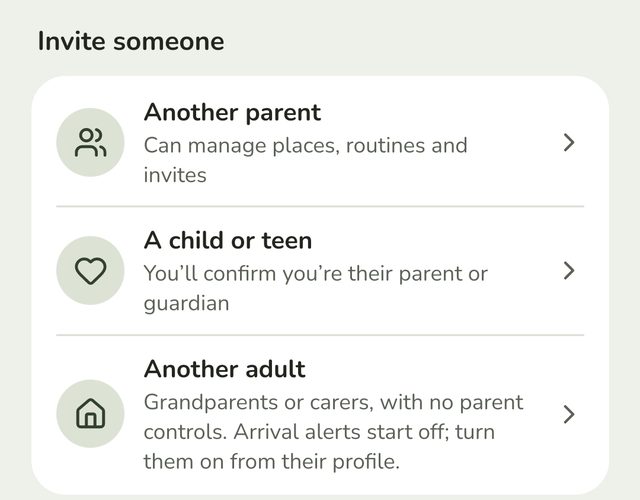
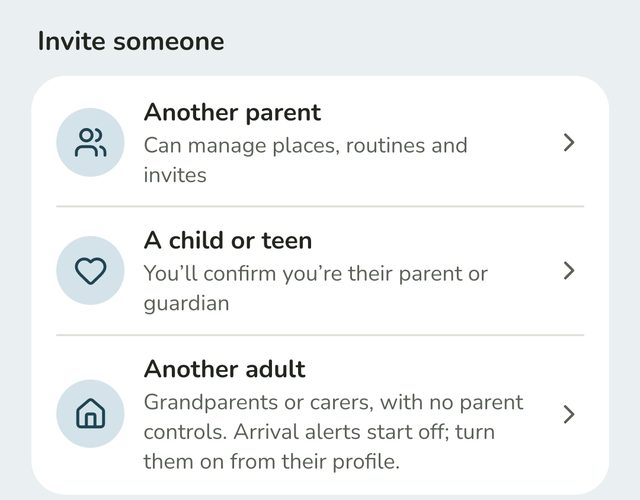
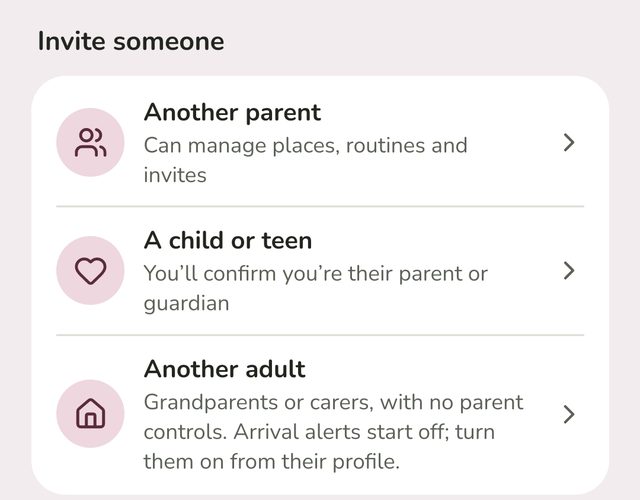
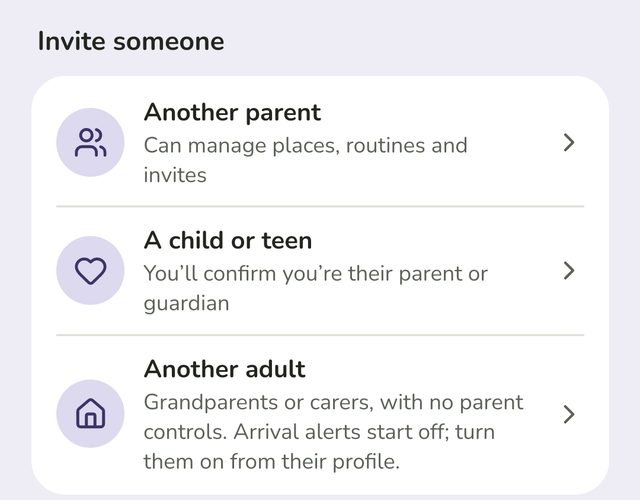
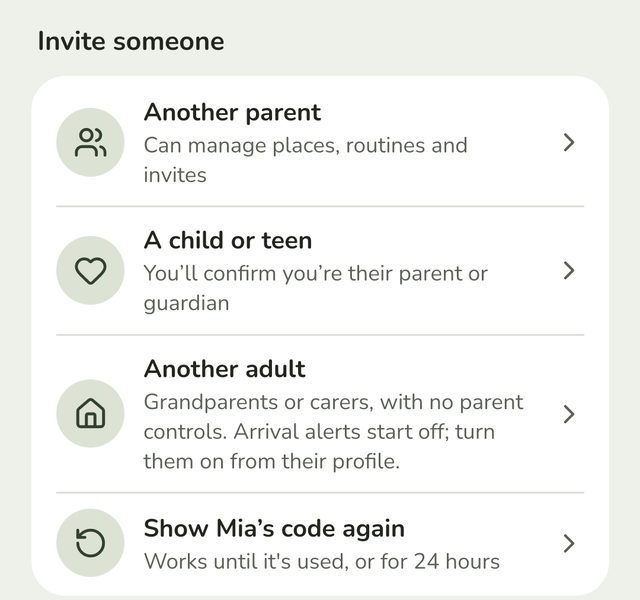
Tap Family at the bottom of the screen. Under Invite someone, tap A child or teen.
Step 2:Add their name and choose their profile
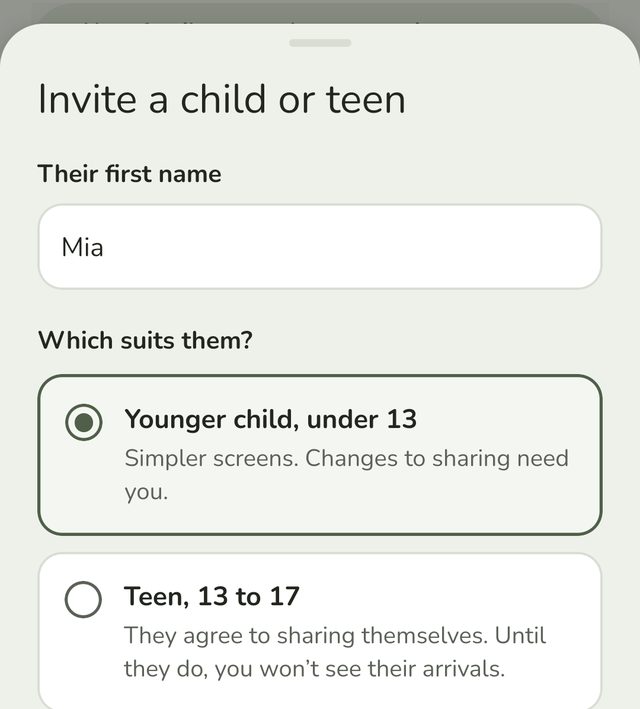
Type their first name. Then choose the profile that suits them:
- Younger child, under 13. Simpler screens. You set up their sharing, and changes to it need you.
- Teen, 13 to 17. They decide whether to share their arrivals and departures. Until they agree, you won't see them.
Step 3:Confirm you're their parent or guardian
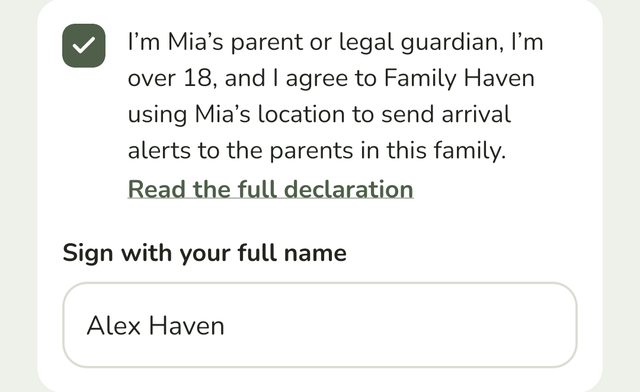
Tick the box to confirm you're their parent or legal guardian, you're over 18, and you agree to Family Haven using their location to send arrival alerts to the parents in your family.
Tap Read the full declaration to see exactly what you're agreeing to.
Step 4:Sign and create their code
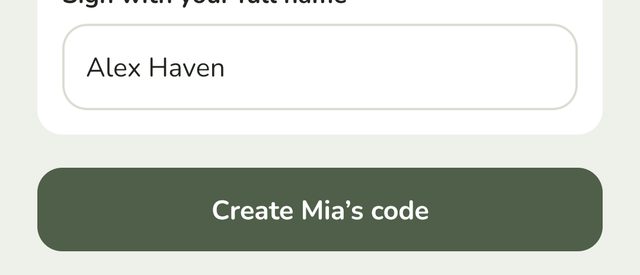
Type your first and last name to sign. Then tap Create, followed by their name, such as Create Mia's code.
If the button is greyed out, the line under it says what's still missing.
Step 5:Give them the code
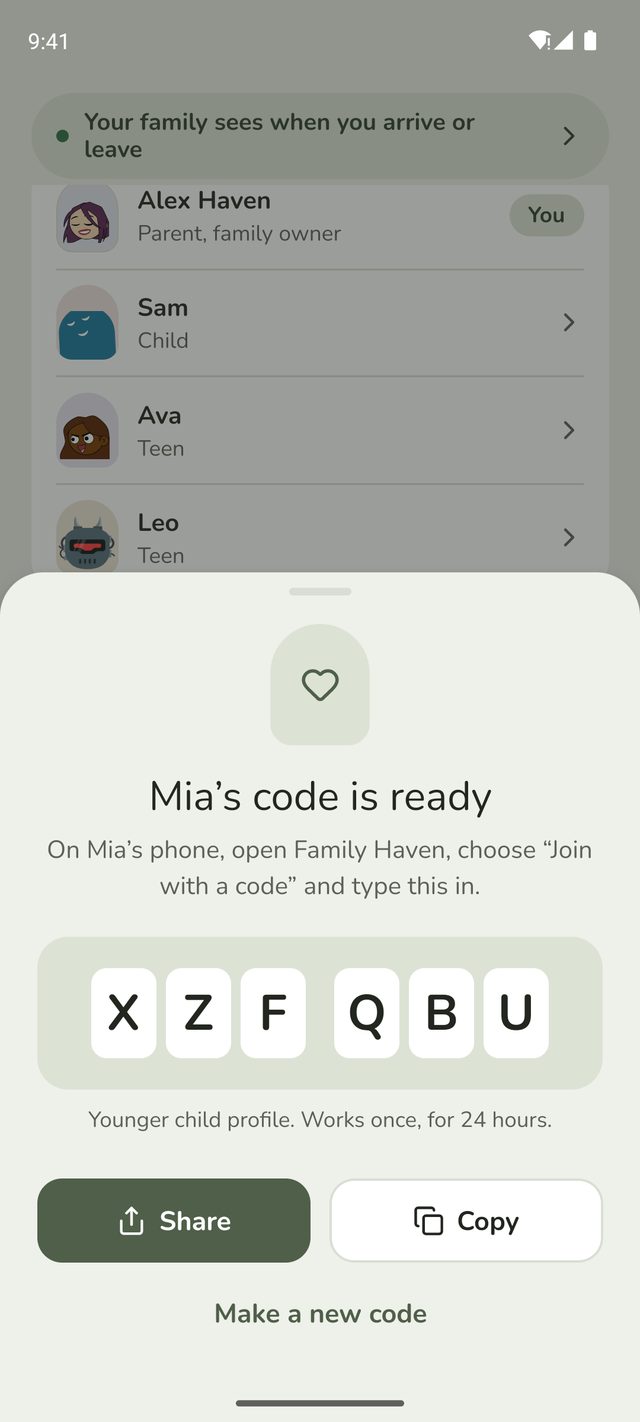
Family Haven makes a 6-character code just for them. Tap Share to send it, or Copy it, or simply show them your screen.
The code works once and runs out after 24 hours. If it runs out, tap Make a new code.
Step 6:Need the code again?
Closed the code before they used it? Under Invite someone, tap Show and their name, such as Show Mia's code again.
What happens on their phone
- A younger child doesn't need an email address or account. The code signs them in, and links their phone to your family.
- A teen signs in with their own Google account, or Apple account on iPhone, then enters the code. They're then asked whether they agree to share their arrivals and departures.
Both are covered step by step in "Set up your child's phone".
Good to know
- Their name appears in your Family tab as soon as they join.
- You can change their profile later. Open their profile in Family, under What they can do.
- If you think someone has added a child who isn't theirs, email support@ourfamilyhaven.com and we can suspend the family while we look into it.
Still stuck?
Send us a message and a person will reply by email.