In this guide
This guide is for a parent inviting another adult: a second parent, or someone like a grandparent or carer. Inviting a child or teen works differently, because you confirm you're their parent or guardian first. See Add a child or teen.
Before you start
- You need to be a parent in the family. Only parents can invite people.
- They need their own phone, with Family Haven installed from the App Store or Google Play.
- They'll sign in with Google, or on iPhone with Apple.
Step 1:Open Family and find Invite someone
Tap Family at the bottom of the screen. You'll see everyone in your family, then Invite someone below.
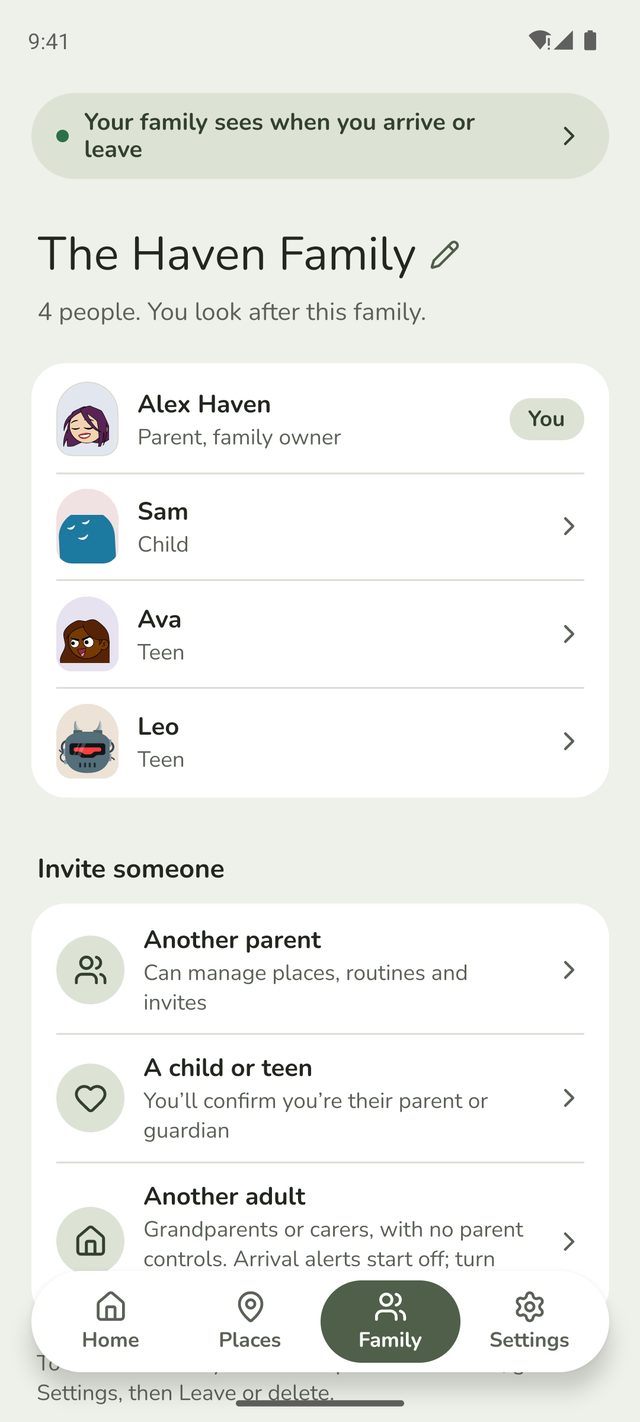
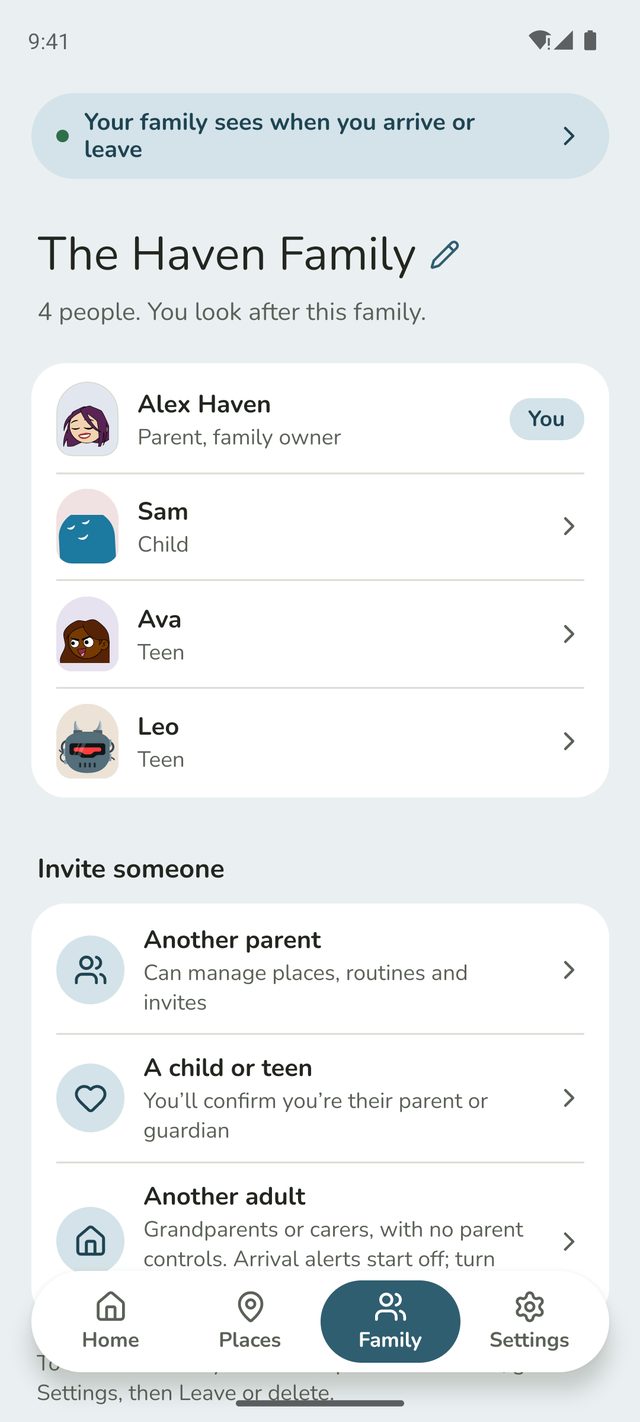
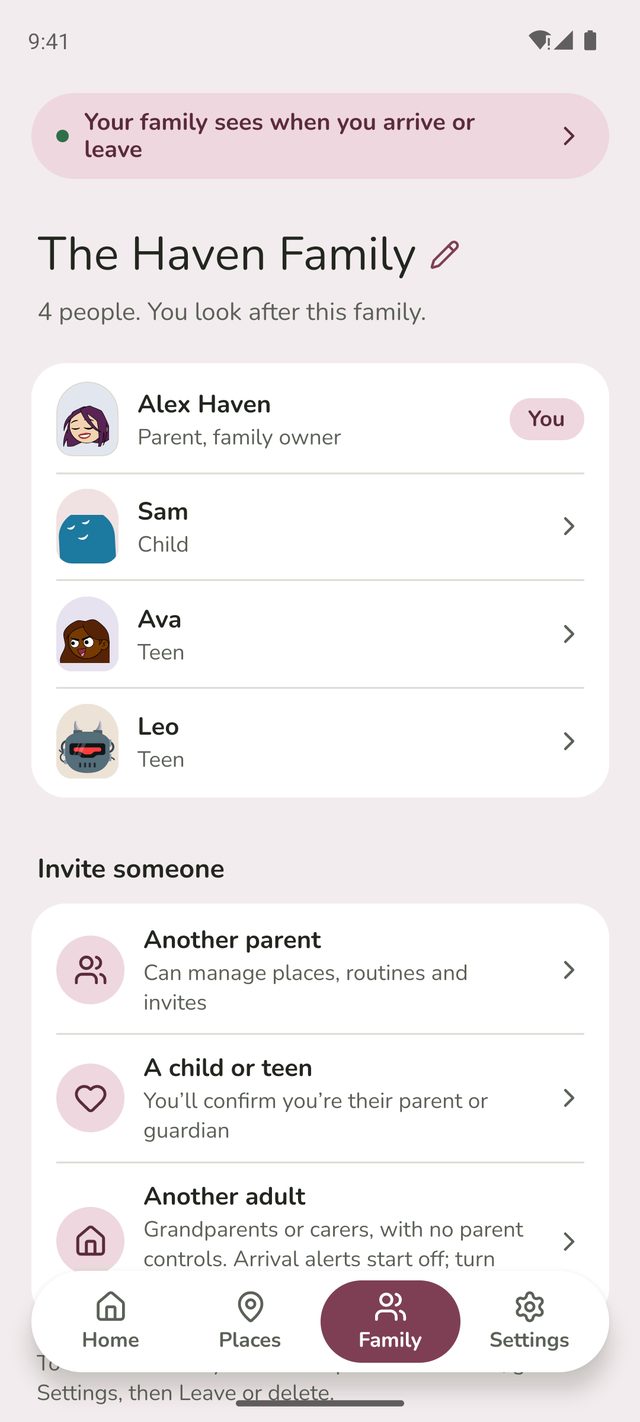
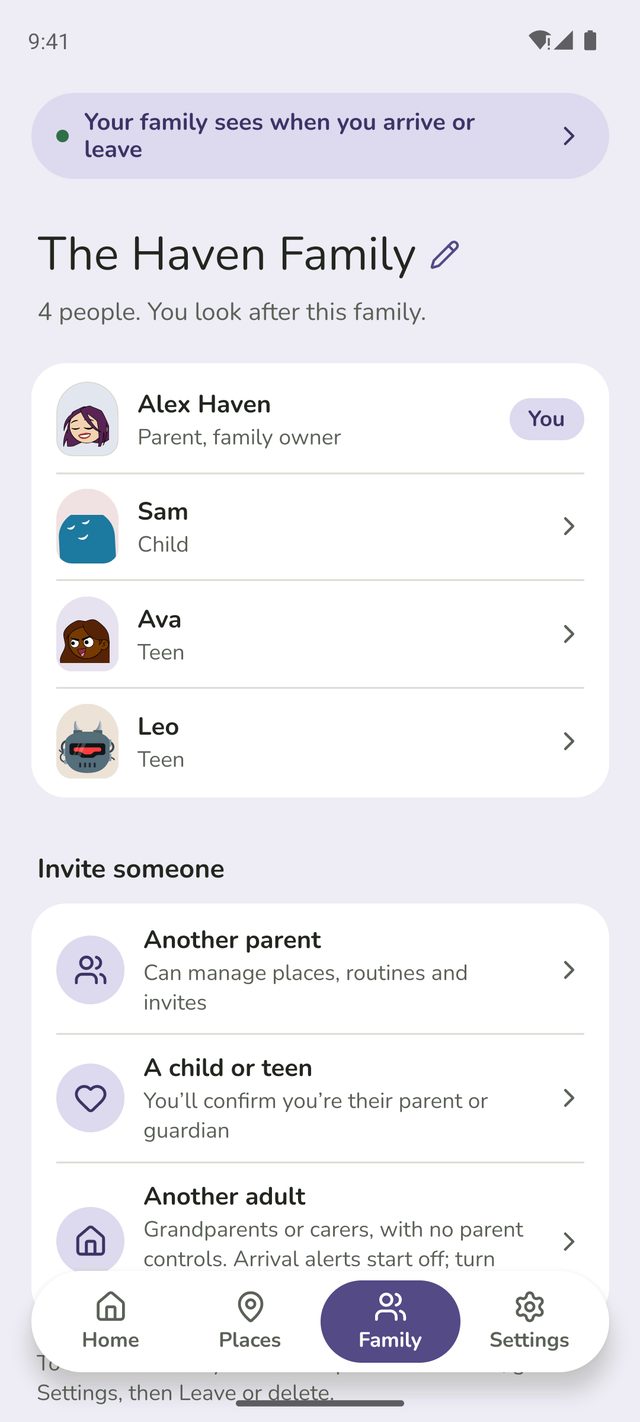
Step 2:Choose who you're inviting
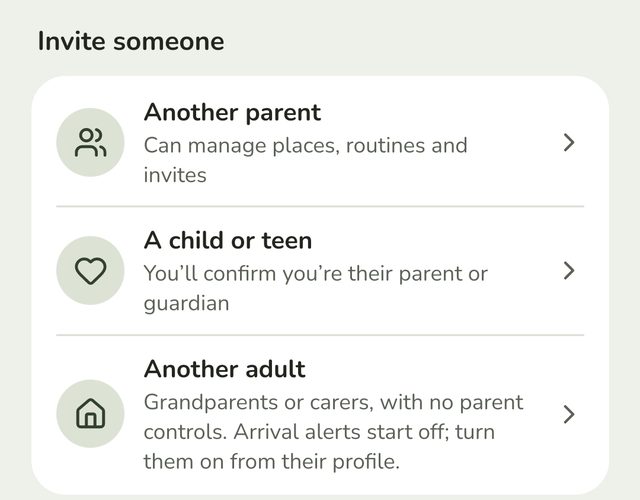
- Another parent can manage places, routines and invites, just like you.
- Another adult is for grandparents or carers. They have no parent controls, and their alerts about the children start off. You can turn them on from their profile once they've joined.
Step 3:Share the code
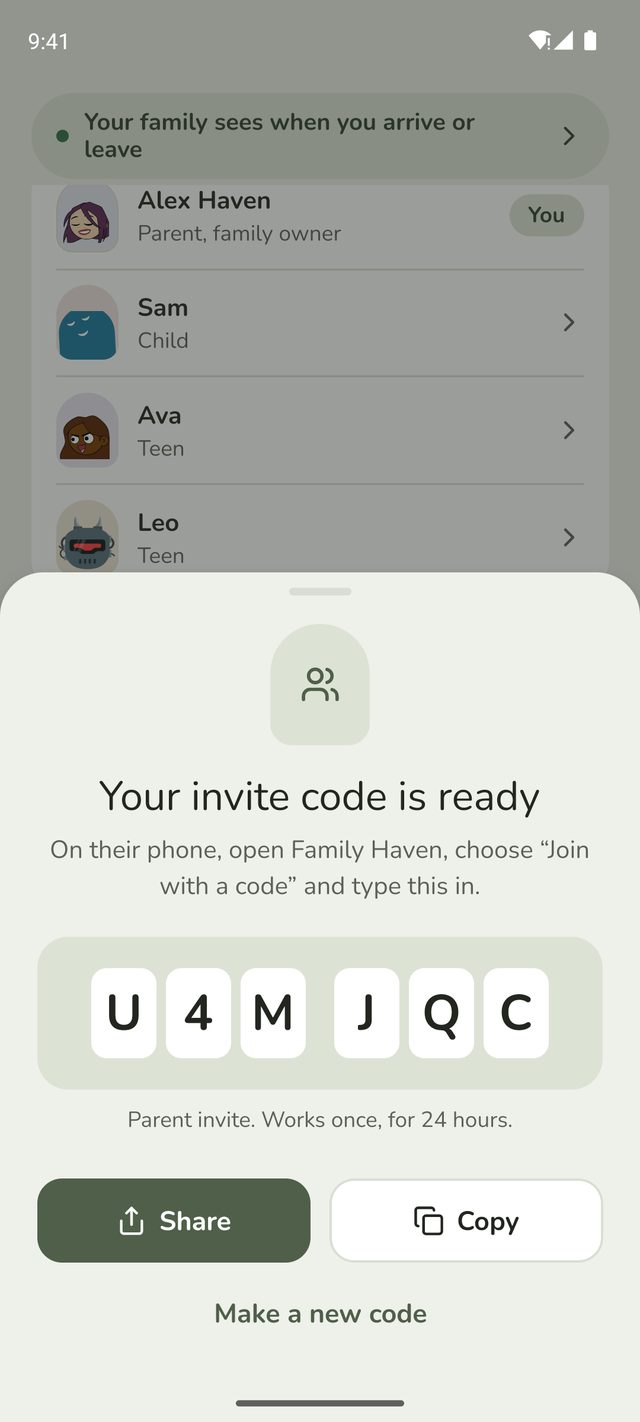
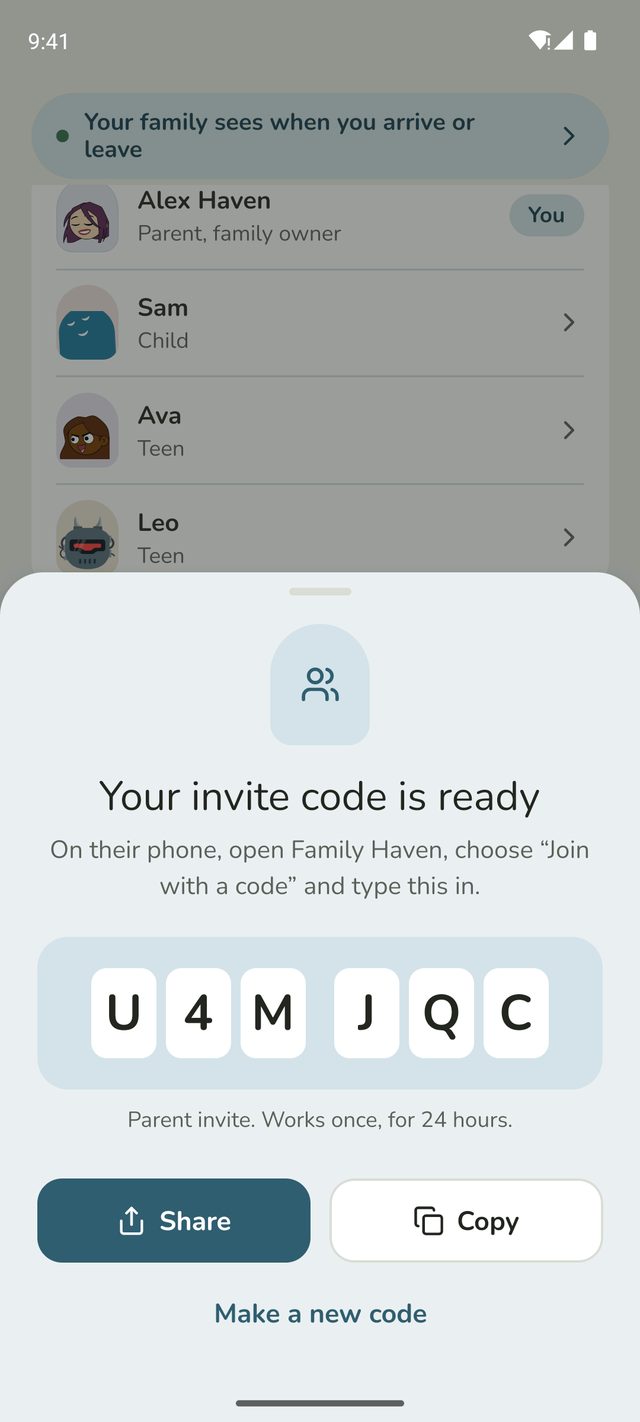
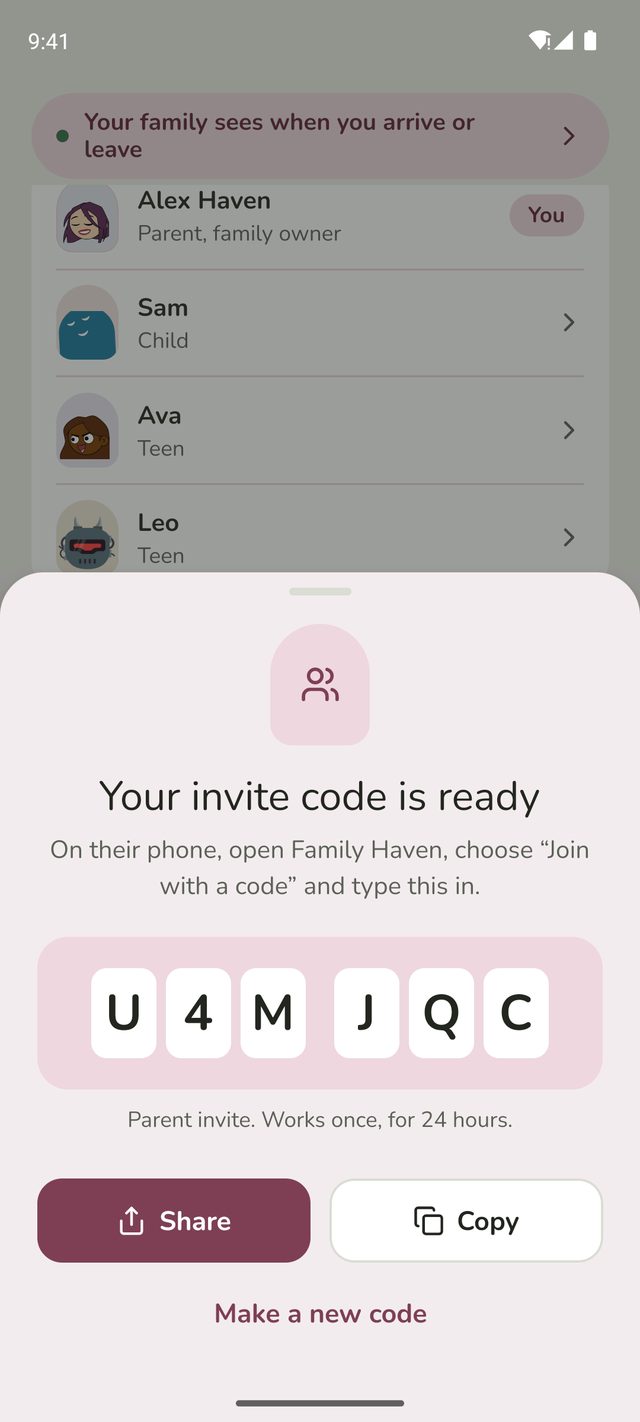
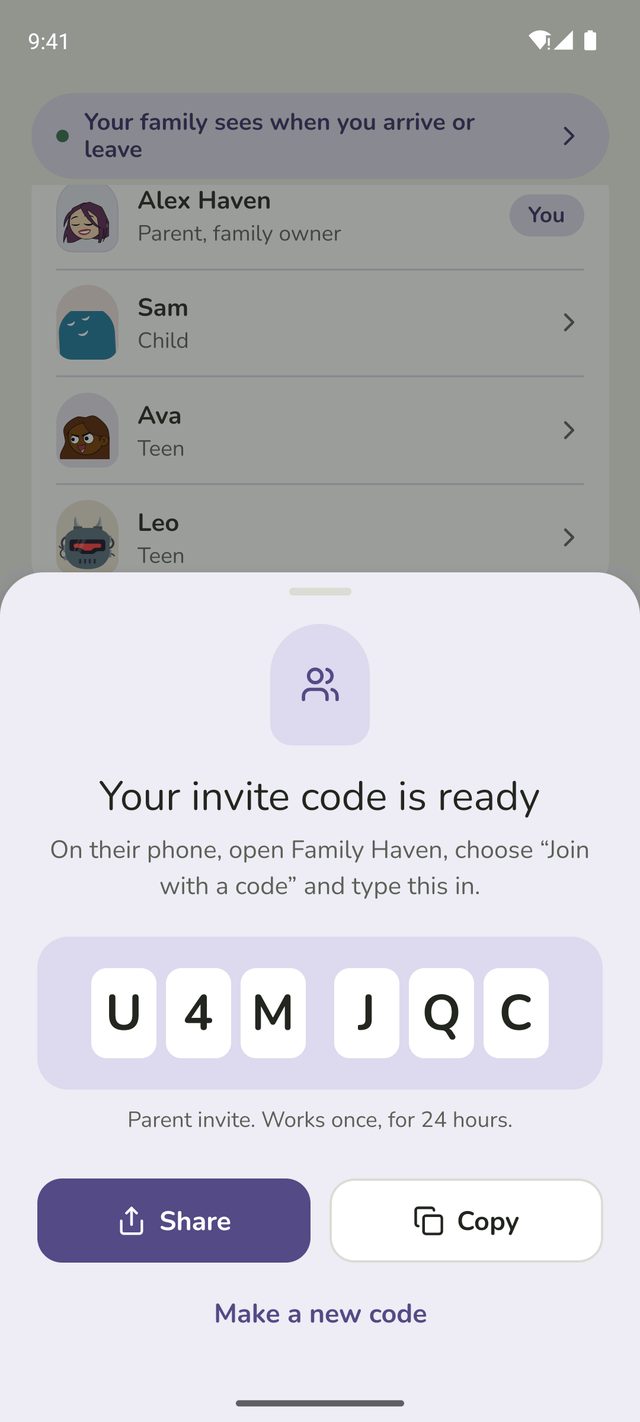
Family Haven makes a 6-character code. Tap Share to send it in a message, or Copy to paste it yourself. You can also just read it out.
Each code works once and runs out after 24 hours. If it runs out before they use it, tap Make a new code.
On their phone
The person you're inviting does the next steps on their own phone. If you're with them, you can help.
Step 4:Get started and sign in
They open Family Haven, tap Get started, enter the year they were born and sign in. It's the same as steps 1 to 3 of Set up your family.
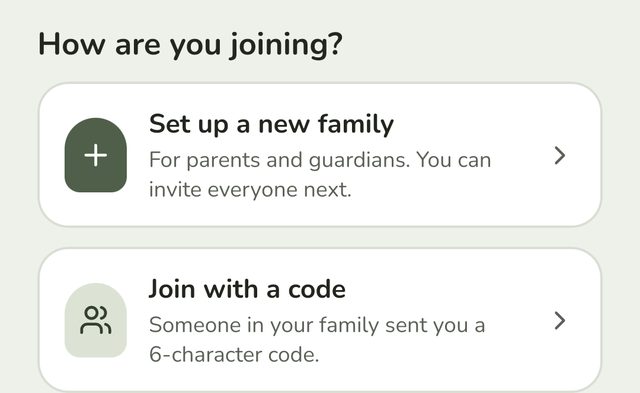
Step 5:Choose Join with a code
They type the name the family will see them as, then tap Join with a code.
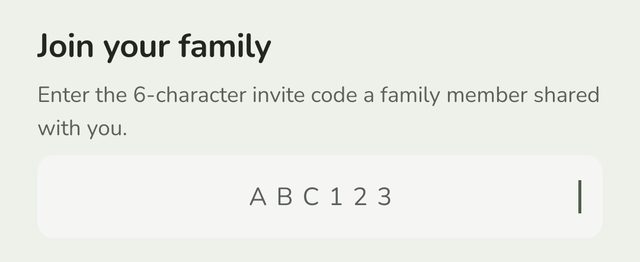
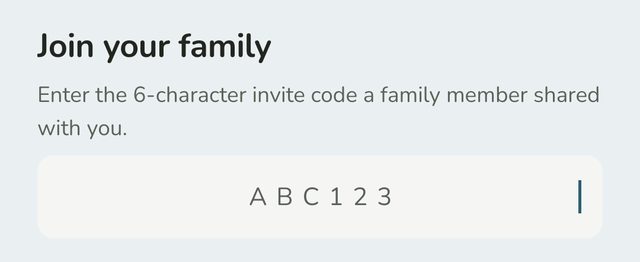
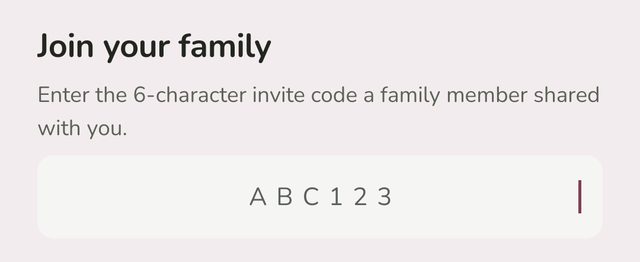
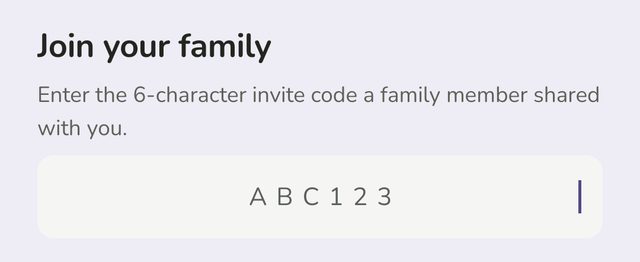
Step 6:Enter the code
They type the 6-character code you sent them. Capital letters or not, it doesn't matter.
If the app says the code has been used or has run out, make a new one at step 3.
Step 7:Check it's the right family
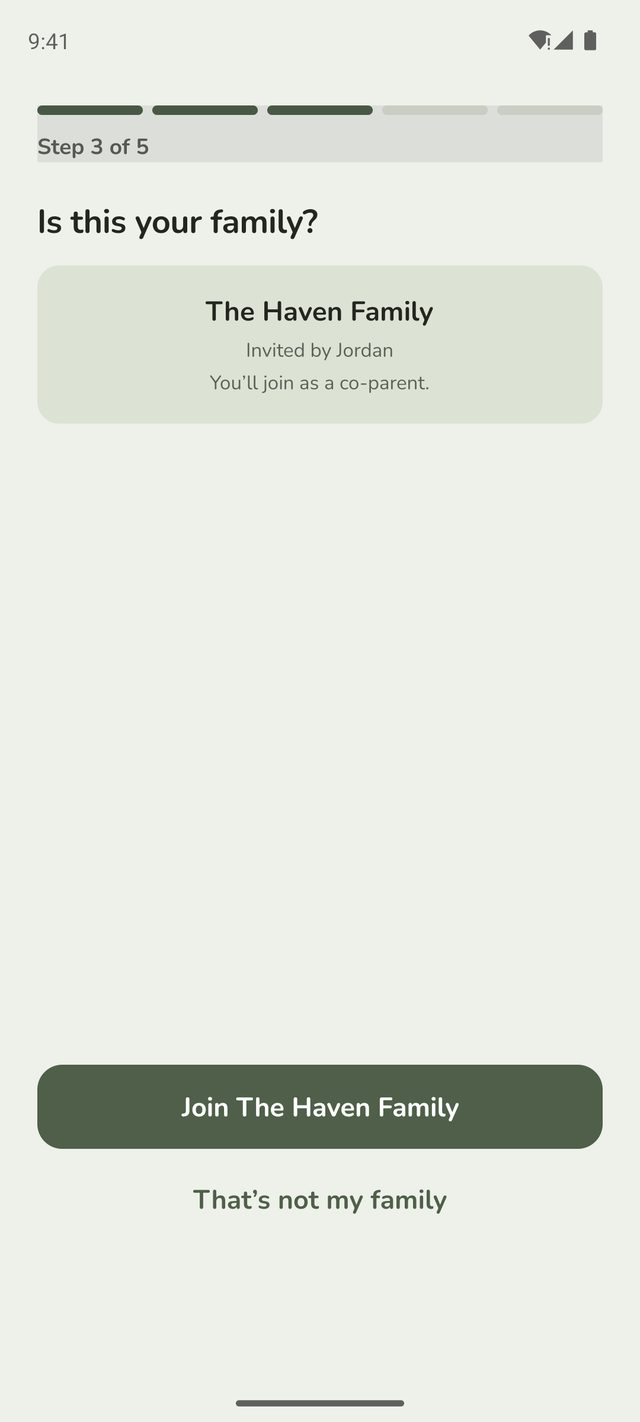
Family Haven asks Is this your family? and shows the family's name, who invited them, and whether they'll join as a co-parent. If it's right, they tap Join and the family's name, such as Join The Haven Family. If not, they tap That's not my family and check the code.
Step 8:Turn on alerts and location
Just like when you set up the family, Family Haven asks to send alerts and to use their location. The steps are the same as steps 7 and 8 of Set up your family.
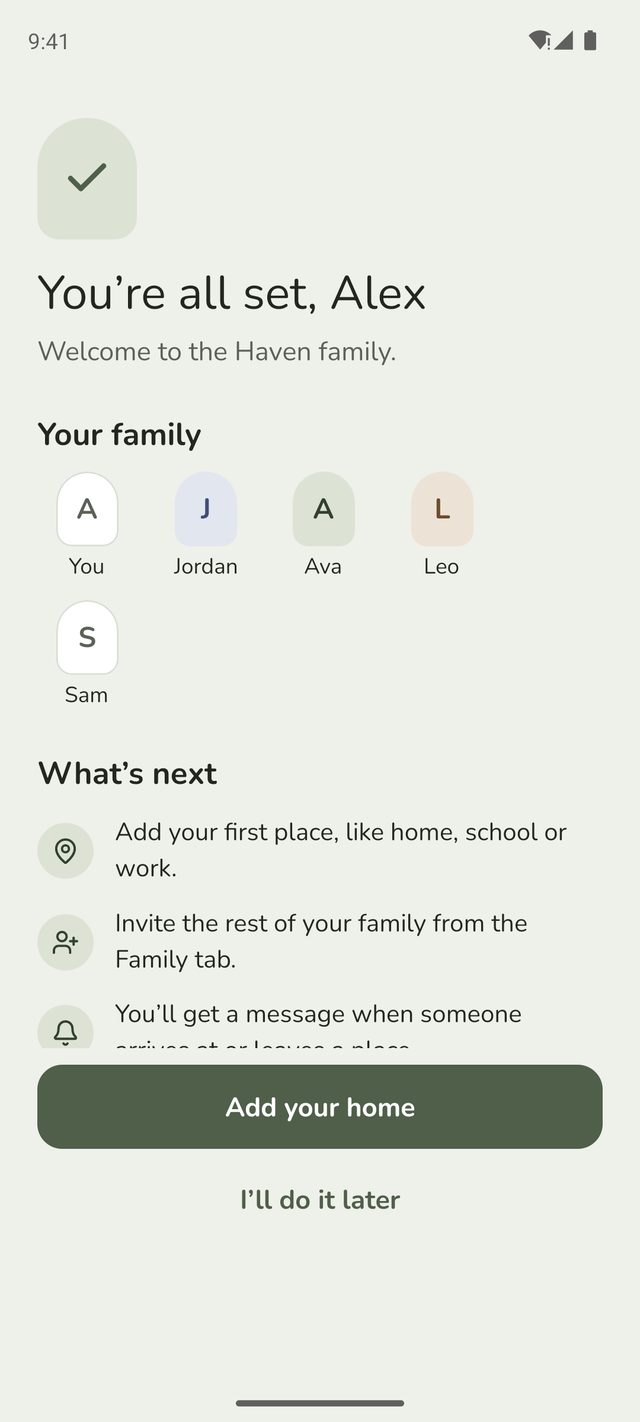
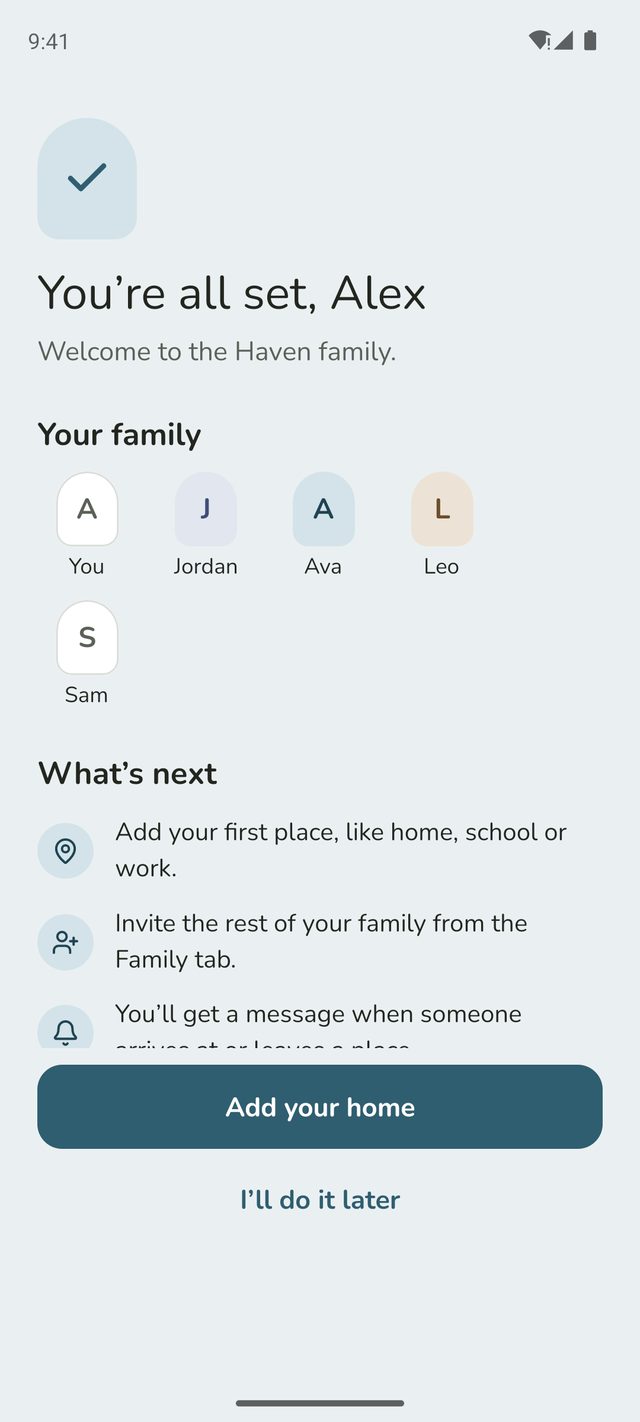
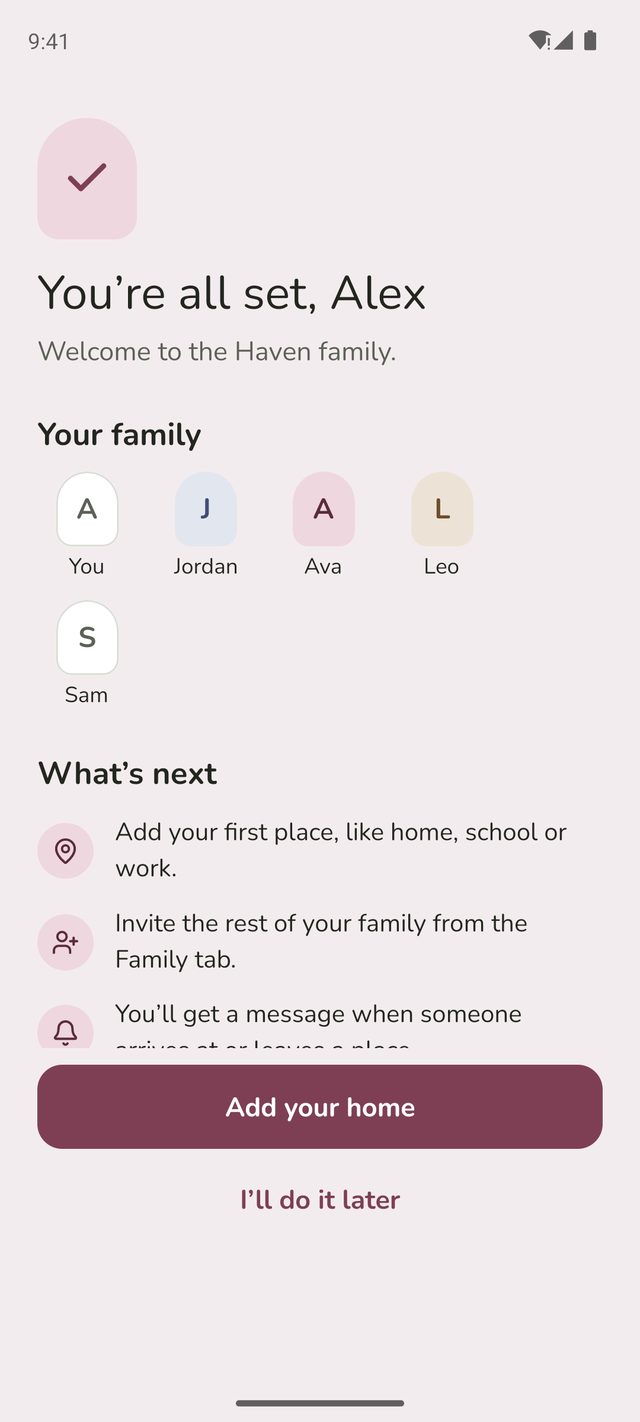
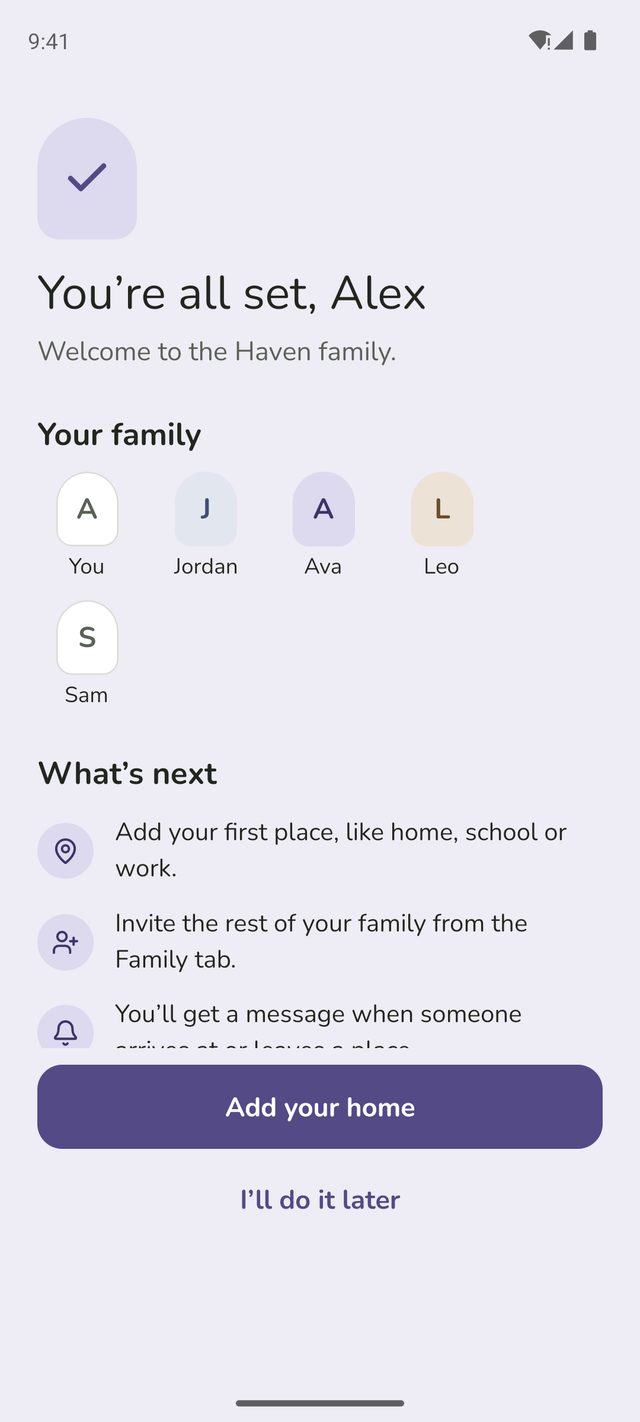
When they're done, they'll see You're all set, with everyone in the family.
Good to know
- They'll appear in your Family tab straight away. Tap their name to see their places and routines.
- A grandparent or carer won't hear about the children until you say so. Open their profile in Family and turn on See children's arrivals.
- A code is just for joining. Once they're in, they sign in with their own Google or Apple account on any phone.
Still stuck?
Send us a message and a person will reply by email.