In this guide
Moving Family Haven to a new phone doesn't change anything in your family. Your child keeps their places, routines and settings. A younger child signs in with a code from you. A teen signs in with their own account.
Before you start
- Install Family Haven on the new phone, from the App Store or Google Play.
- For a younger child, have your phone and theirs together. The code you make lasts 15 minutes.
For a child under 13
The same steps work if your child has been signed out on their current phone.
Step 1:Make a sign-in code
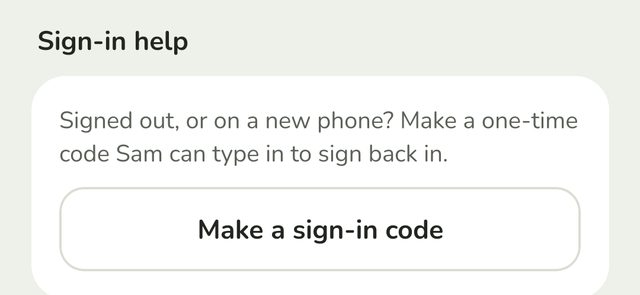
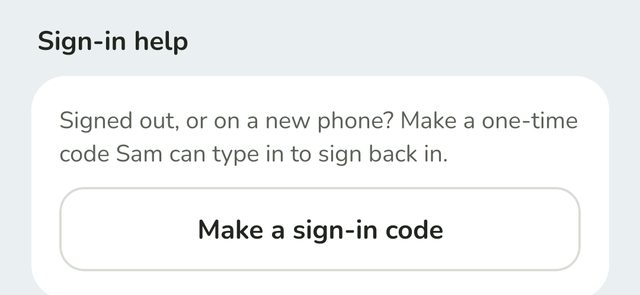
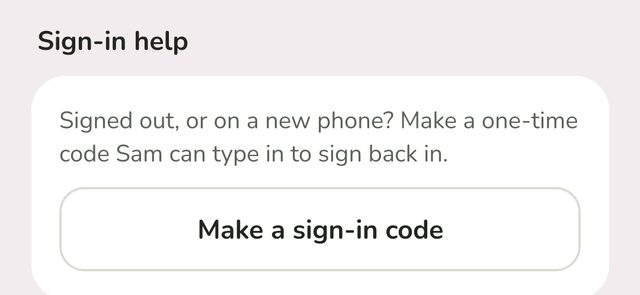
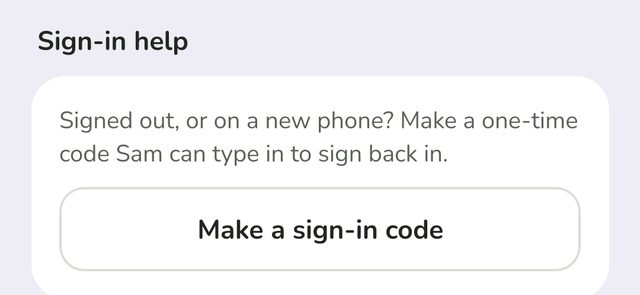
On your phone, tap Family, then your child's name. Scroll down to Sign-in help and tap Make a sign-in code.
Step 2:Keep the code to hand
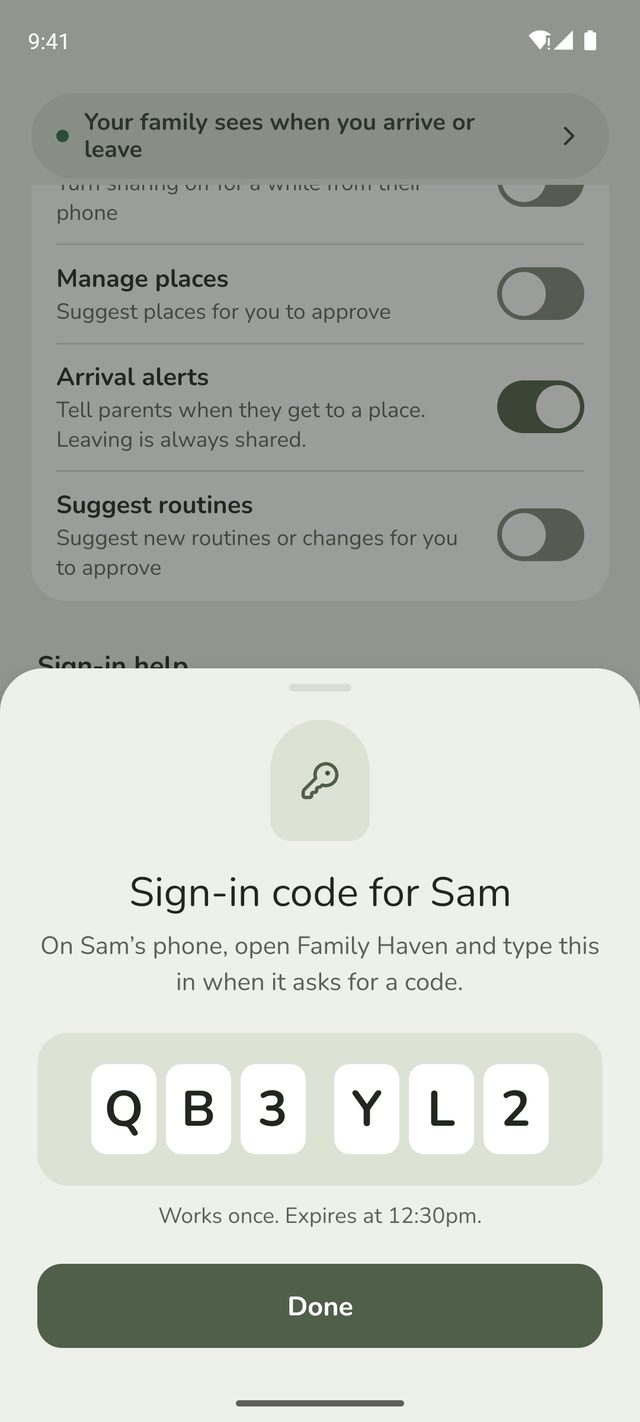
Family Haven shows a 6-character code just for your child. It works once and expires after 15 minutes. The time it expires is shown under the code.
Step 3:Enter the code on the new phone
On the new phone, your child opens Family Haven, taps Get started, enters the year they were born and taps I have my code. Then they type the code, just like setting up their first phone. See steps 1 to 3 of Set up your child's phone.
Step 4:Check it's them and sign in
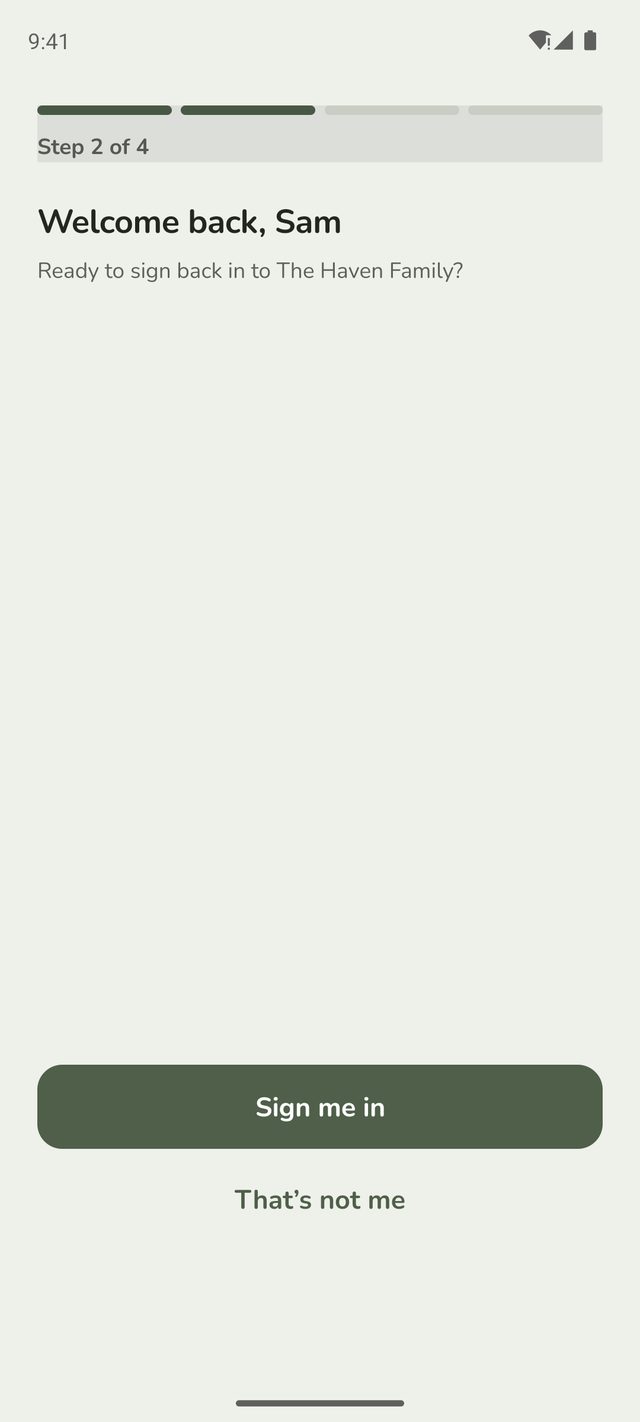
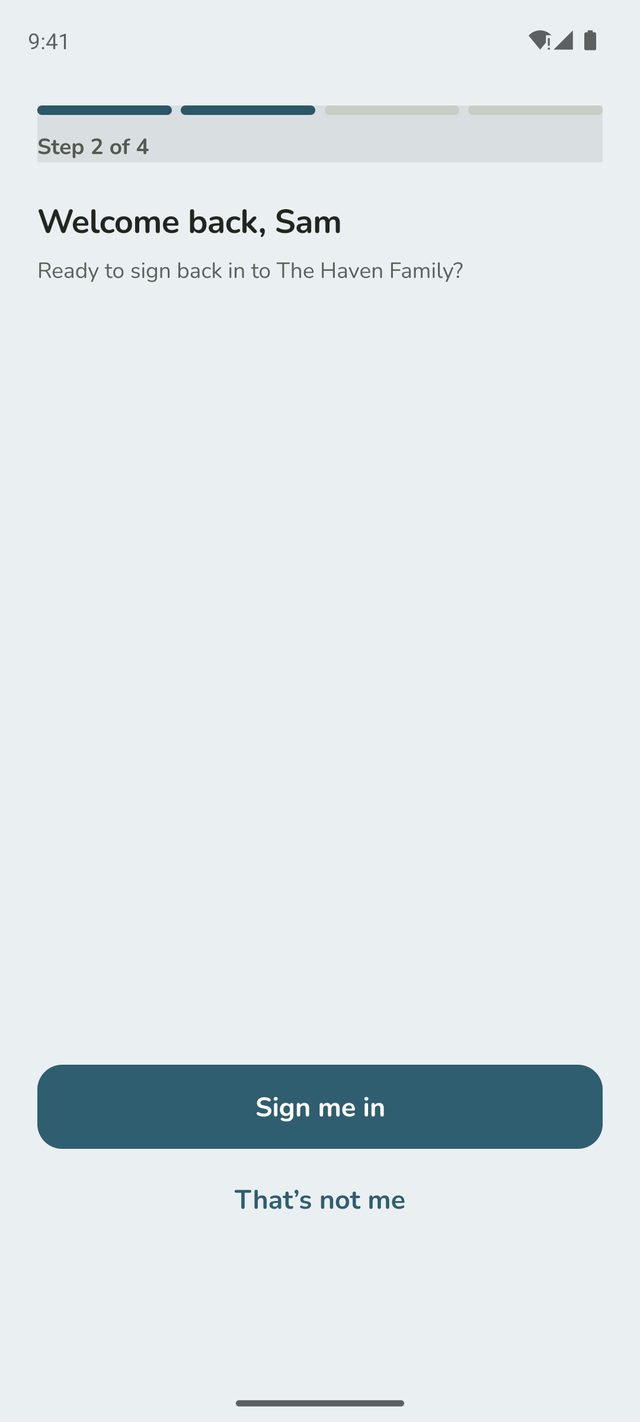
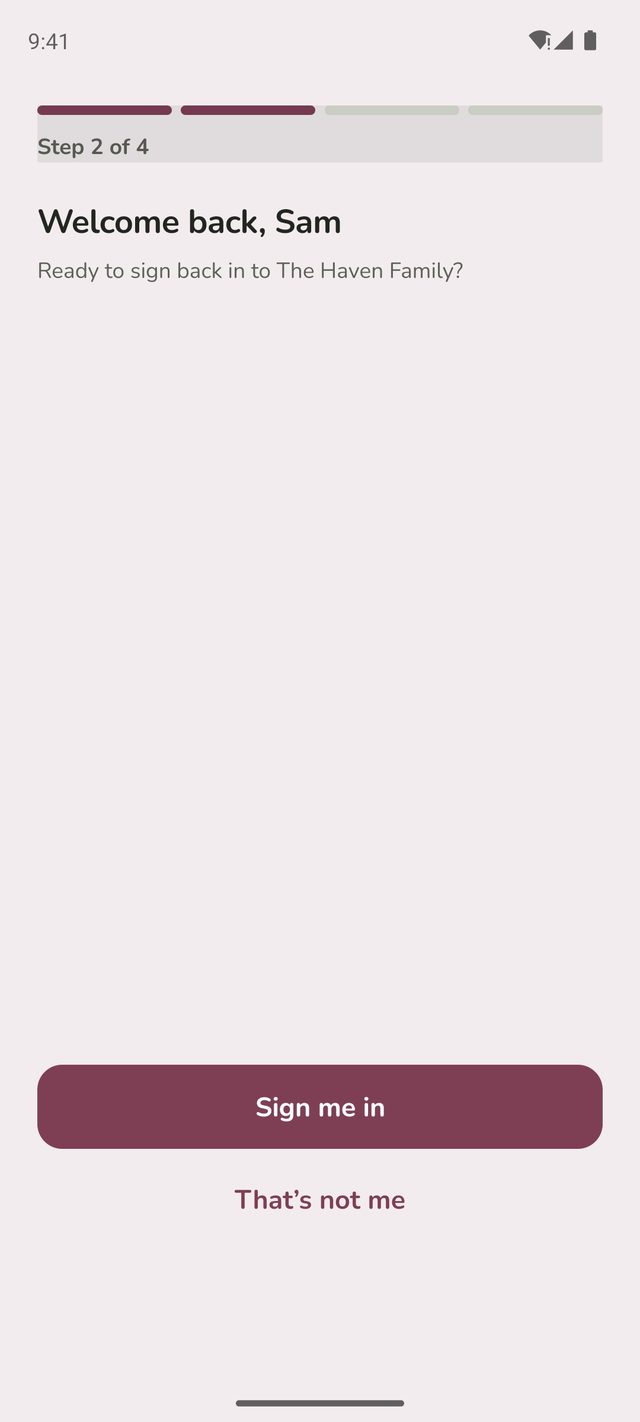
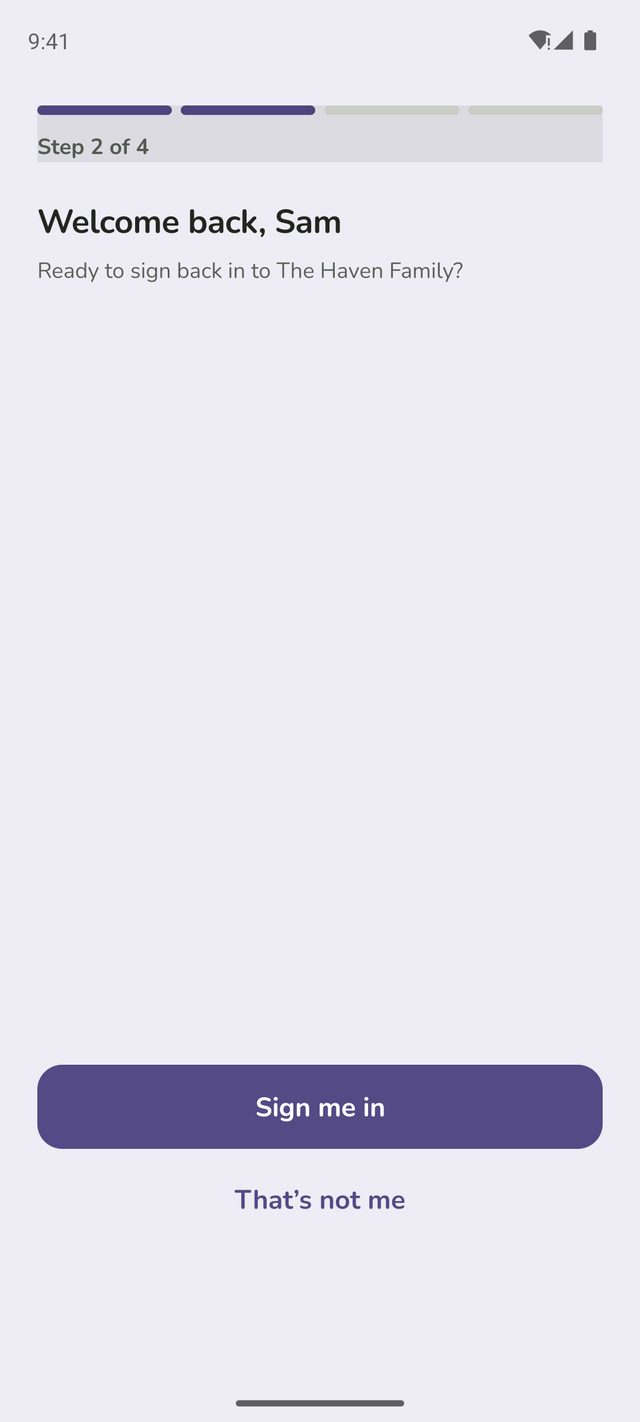
Family Haven asks Welcome back and shows their name and your family. If it's right, they tap Sign me in. If not, they tap That's not me.
Step 5:Turn on notifications and location
A new phone needs its own permissions. Follow step 5 of Set up your child's phone, so location is set to Allow all the time.
For a teen, 13 to 17
A teen doesn't need a code. On the new phone they open Family Haven, tap I already have an account, enter the year they were born, and sign in with the same Google or Apple account as before. Then they turn on alerts and location, and go straight to their Home screen, back in your family.
Remove the old phone
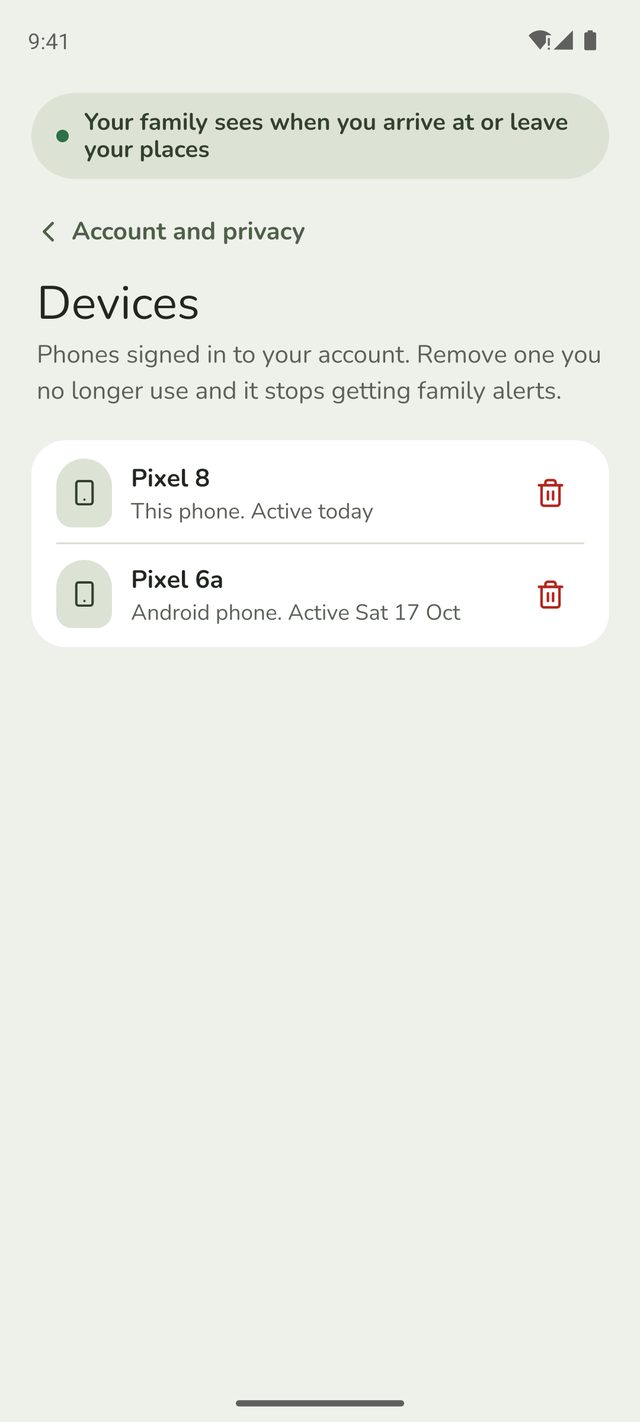
Once the new phone is working, remove the old one so it stops getting family alerts. On the new phone, open Settings, tap Account and privacy, then Devices. It lists every phone signed in to that account. Tap the bin next to the old one, then Remove.
If the old phone is used again later, signing in on it adds it back.
Good to know
- Code run out? Make another one the same way.
- Your own new phone? Tap I already have an account and sign in with your Google or Apple account. Then remove your old phone from Settings, then Account and privacy, then Devices.
- "Family Haven couldn't check this phone"? Make sure the app came from the App Store or Google Play, then try again. If it keeps happening, email support@ourfamilyhaven.com.
- Lost or stolen phone? Remove it from Devices on another phone signed in to the same account, or email support@ourfamilyhaven.com and we'll help.
Still stuck?
Send us a message and a person will reply by email.