In this guide
The person who set up the family is its owner. Only the owner can remove people or delete children's accounts, and the owner has to hand the family over before leaving it. Everything here starts in Settings, under Account and privacy, then Leave or delete, or on someone's profile in Family.
Before you start
- Know who's the owner. Your profile in Family says Parent, family owner if it's you.
- Deleting can't be undone. Accounts and families are permanently deleted 24 hours after you ask.
Hand the family to another parent
Do this before you leave, or if another parent should be in charge.
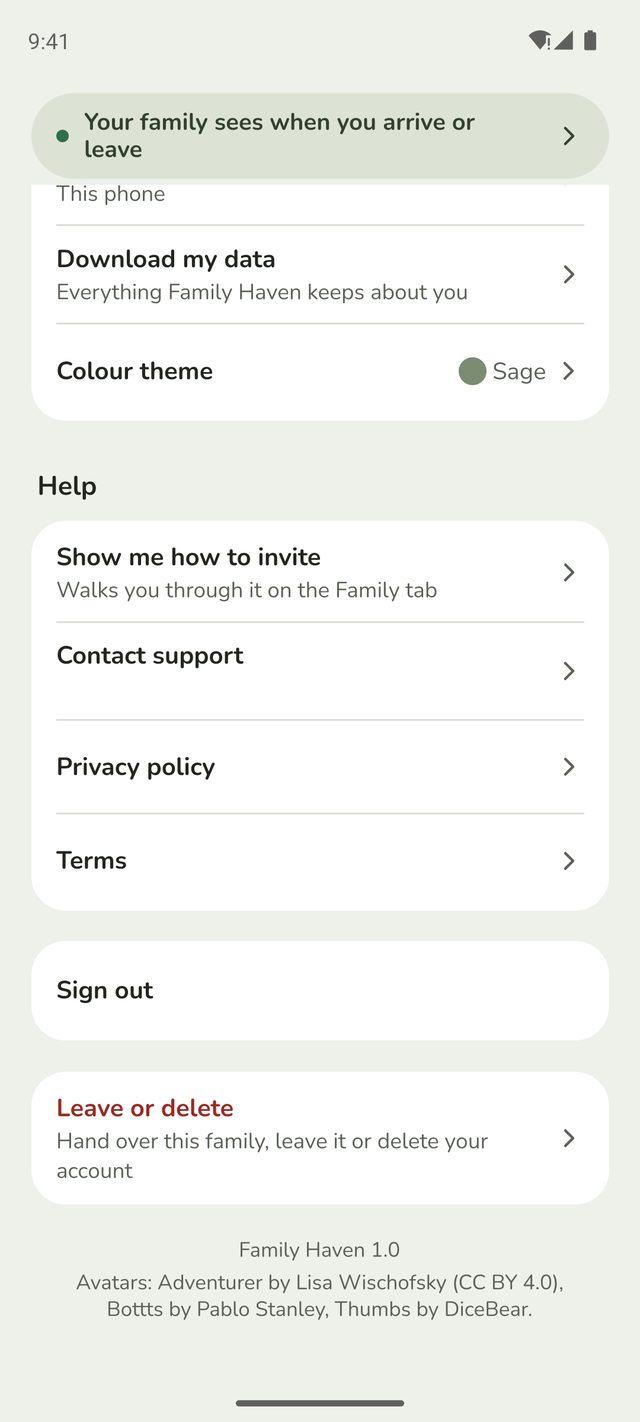
Step 1:Open Leave or delete
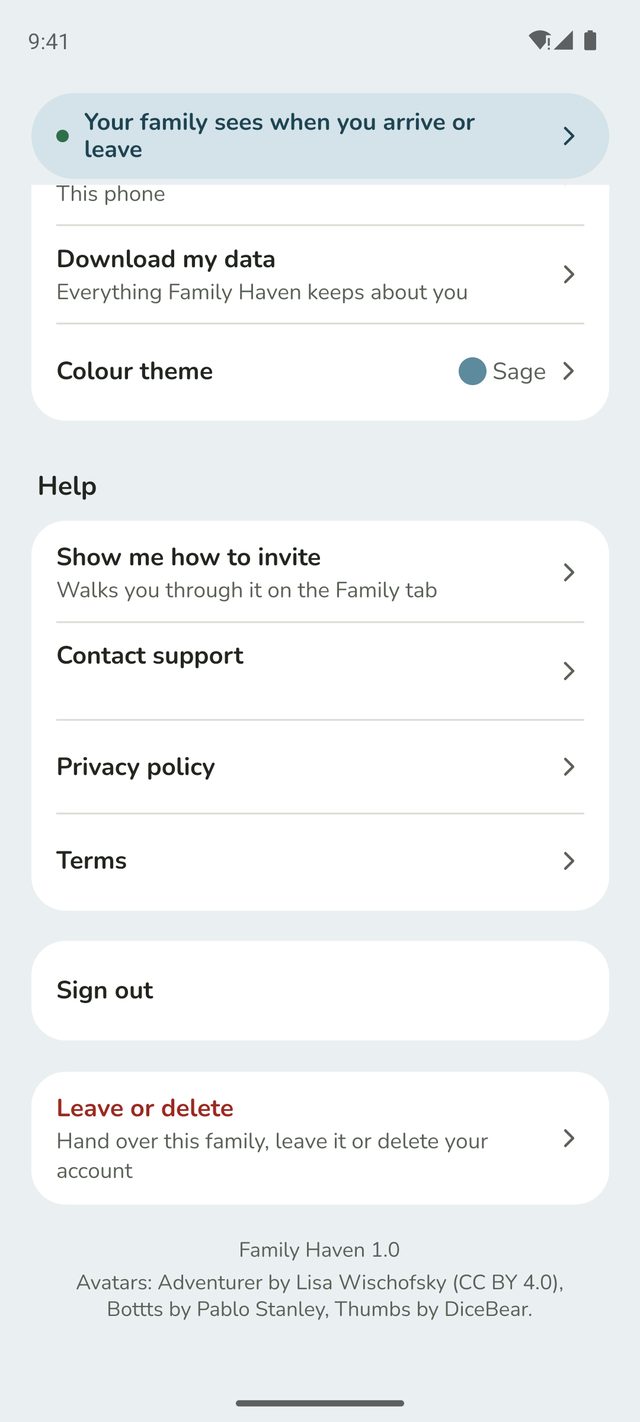
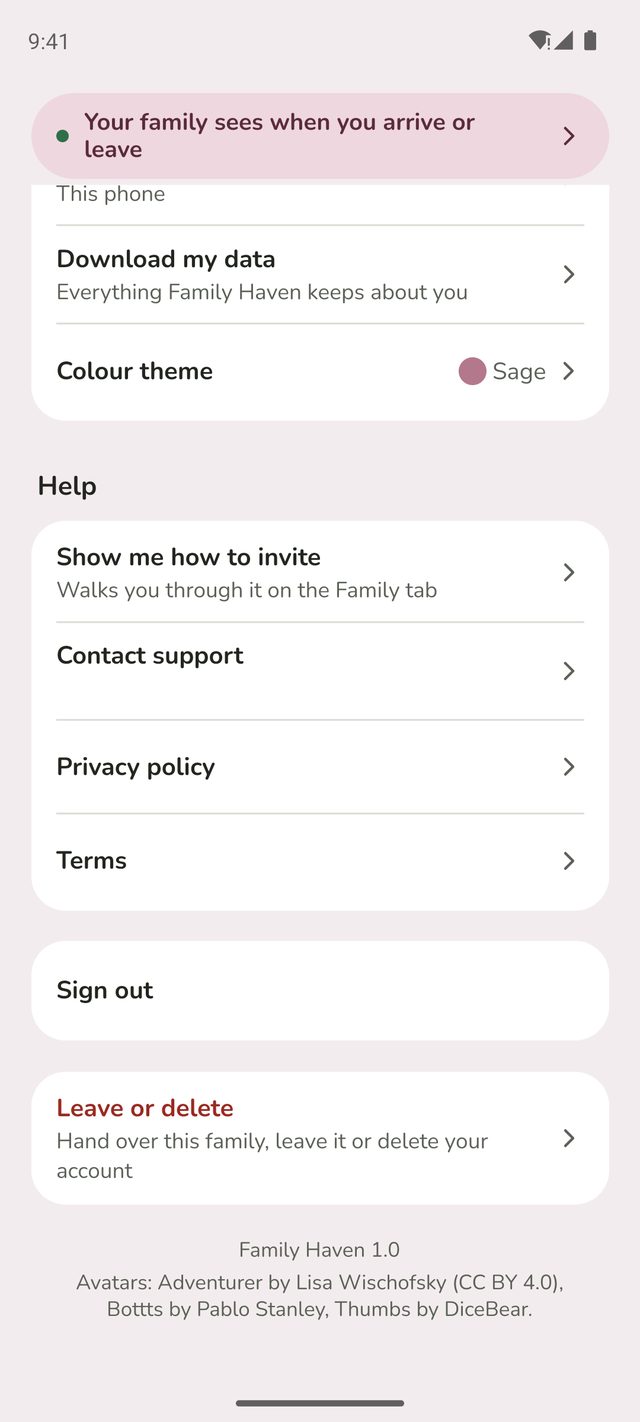
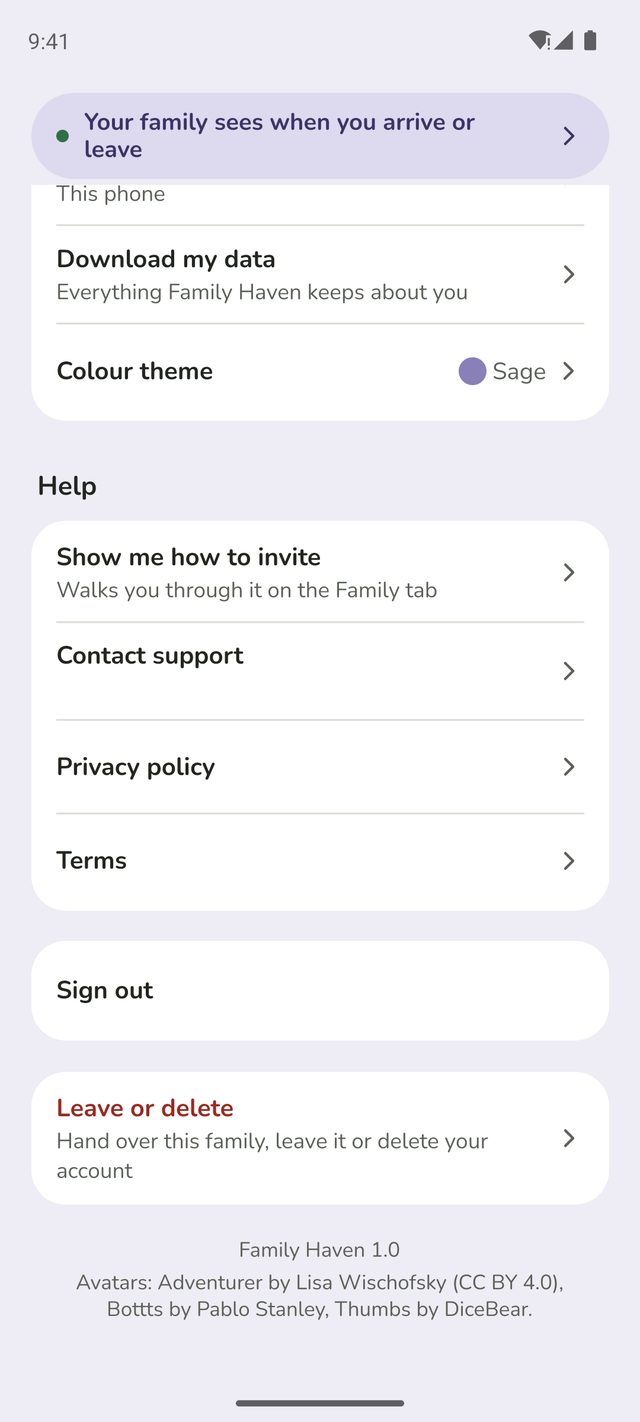
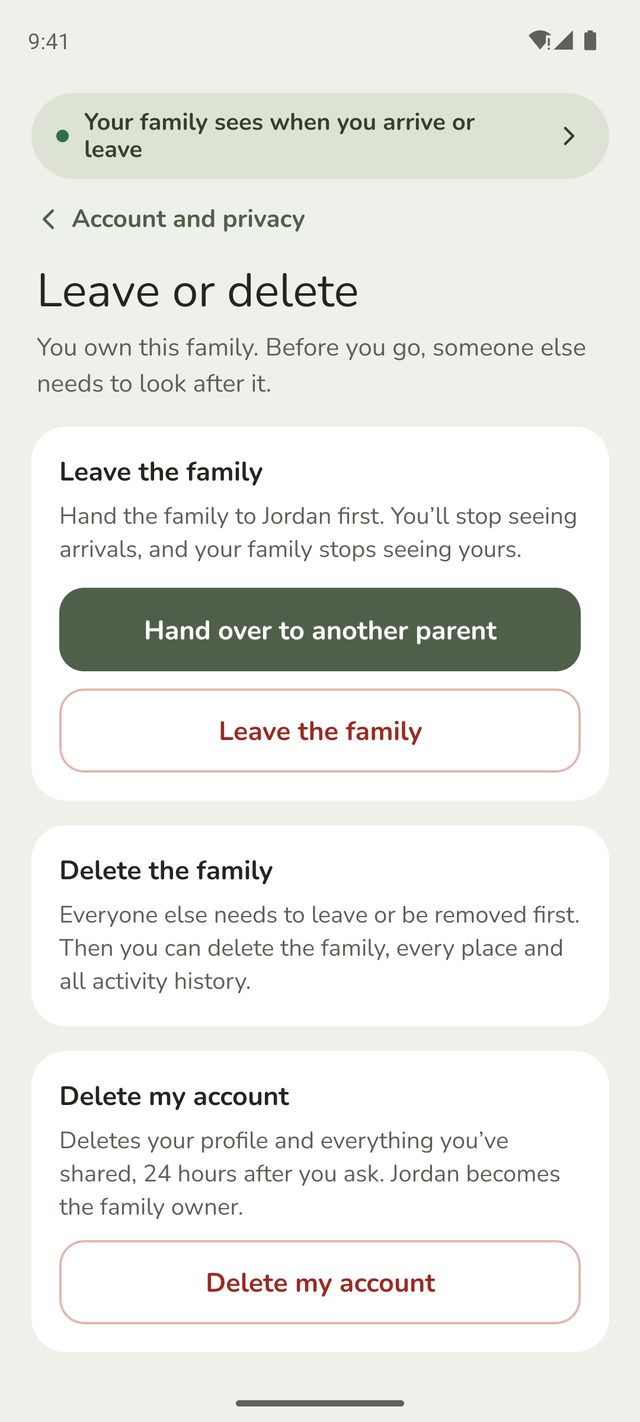
Tap Settings, then Account and privacy. Scroll to the bottom and tap Leave or delete. It's in red.
Step 2:Tap Hand over to another parent
As the owner, you'll see that someone else needs to look after the family before you go. The screen also explains what happens if you leave or delete your account. Tap Hand over to another parent.
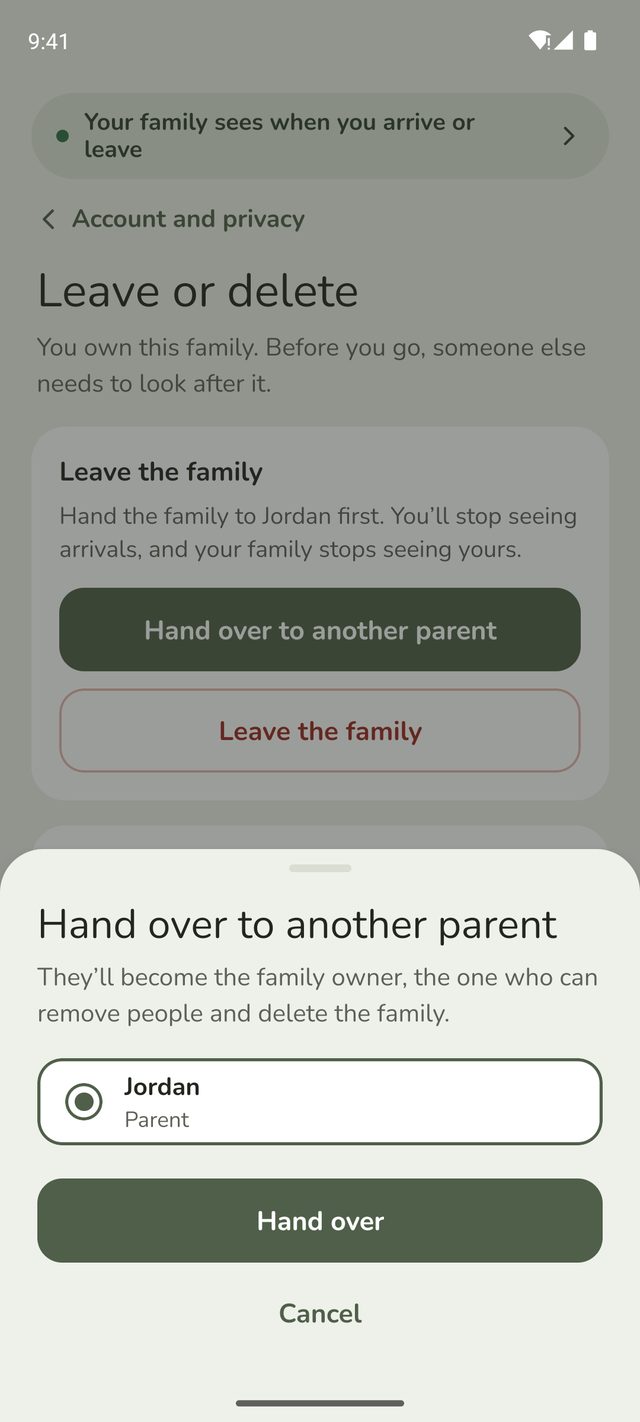
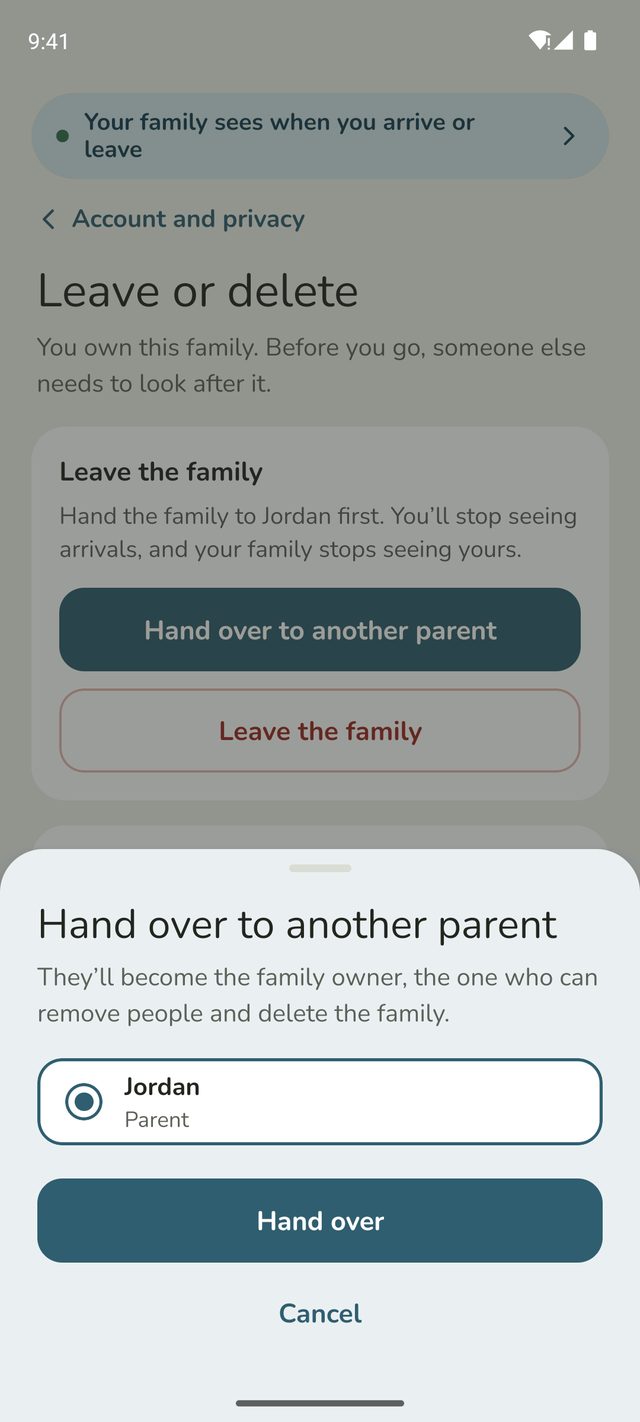
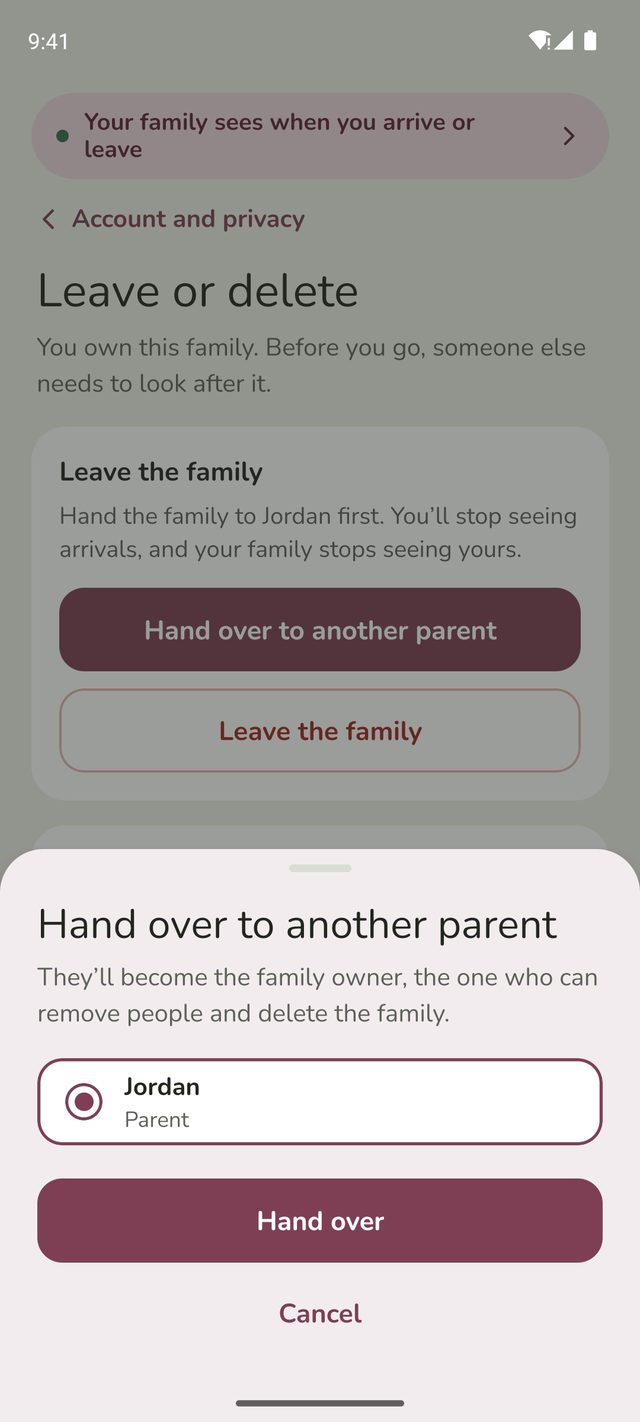
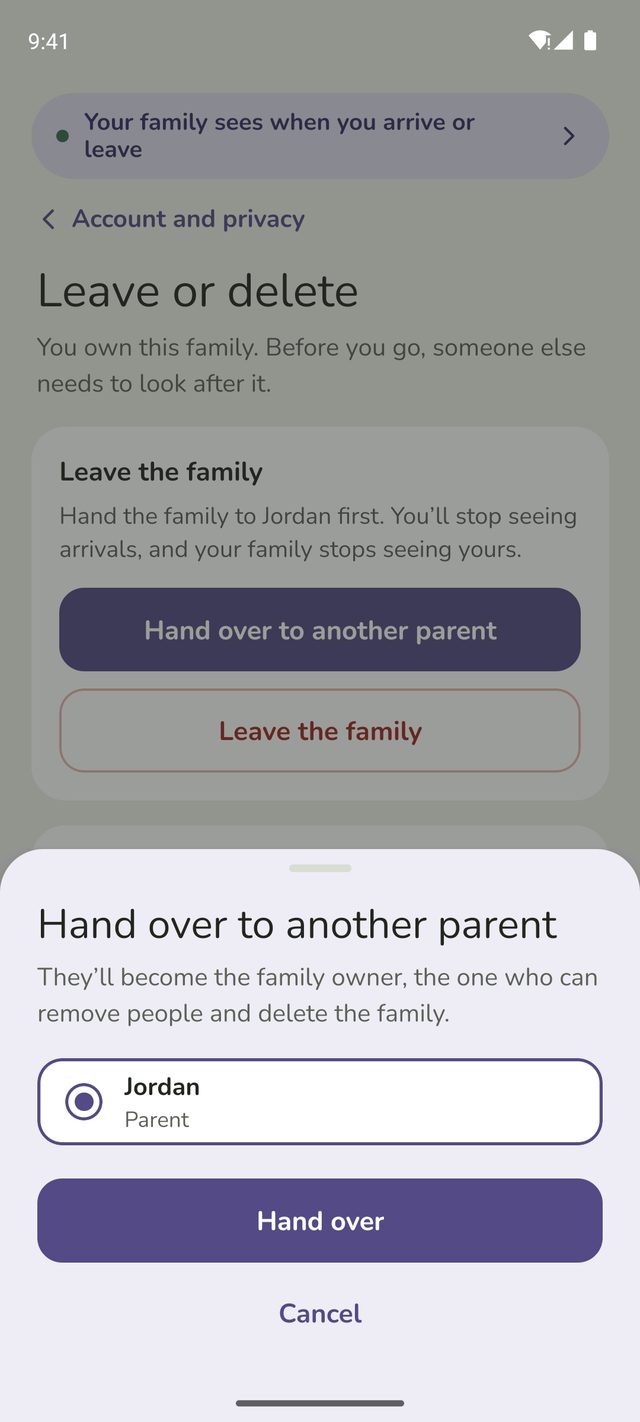
Step 3:Choose the new owner
Tap the parent who'll take over, then tap Hand over. They become the owner straight away, and you stay in the family as a parent.
Leave the family
Once someone else is the owner, tap Leave the family on the same screen. You'll stop seeing your family's arrivals, and they'll stop seeing yours. You can join or set up another family afterwards.
Children can't leave a family themselves. A parent can remove them. Teens aged 13 and over can delete their own account: in Settings, then Account and privacy, Leave or delete says Delete your account for them. It's deleted 24 hours after they ask, with their location history, and their parents are told.
Remove someone from the family
Only the owner can do this. Tap Family, then their name, then scroll down and tap Remove, followed by their name. They'll stop seeing your family's places and alerts, and you'll stop seeing theirs.




Delete your account
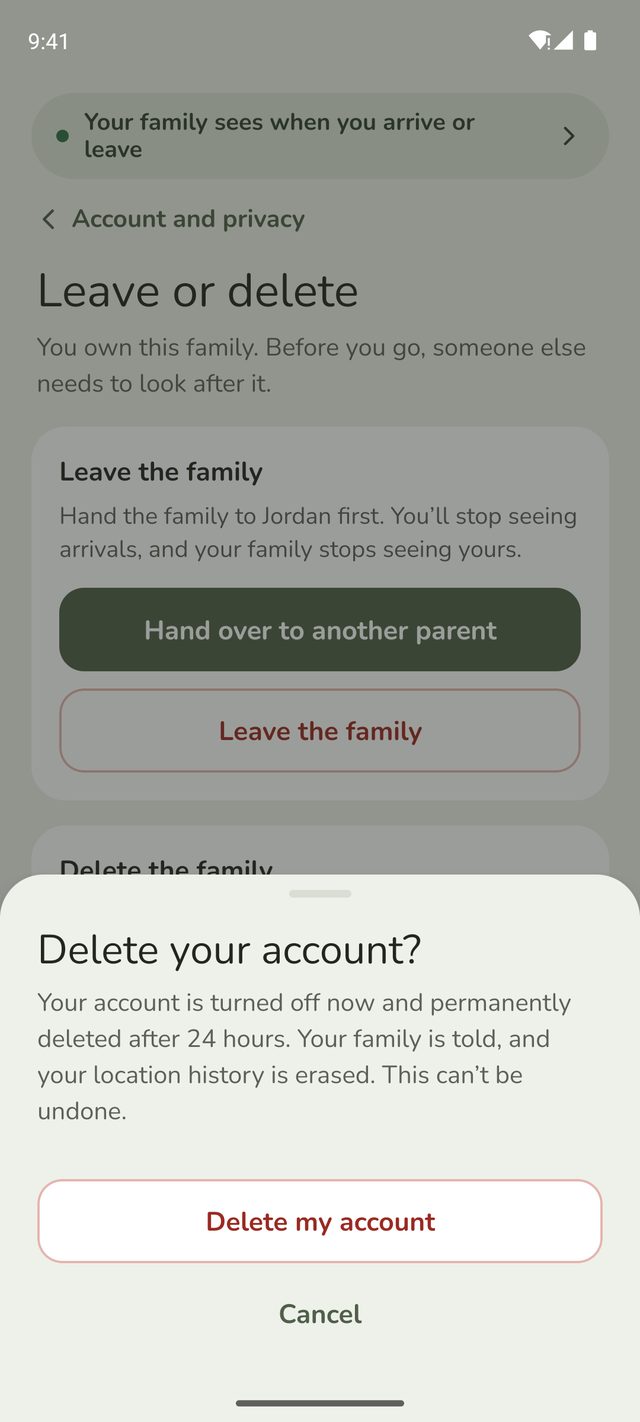
On Leave or delete, tap Delete my account. Family Haven tells you exactly what will happen first:
- If there's another parent, your account is deleted and they become the owner if you were.
- If you're the only parent, the family is deleted too, along with your children's accounts. To keep them, invite another parent and hand the family over first. You'll be asked to type your family's name to confirm.
Your account is turned off straight away and permanently deleted 24 hours later. Your family is told.
Your child's account
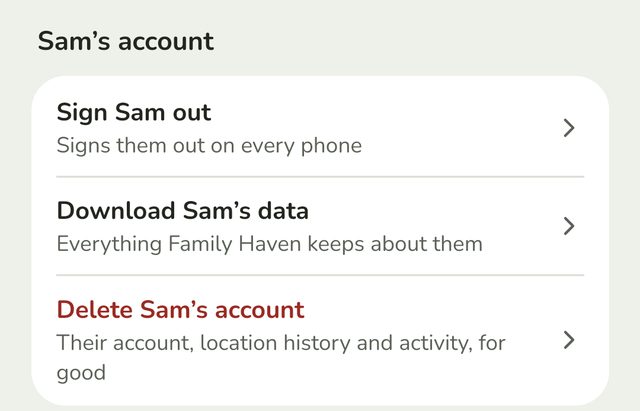
On your child's profile in Family, under their name's account, you can:
- Sign them out on every phone, for example if a phone is lost.
- Download their data: everything Family Haven keeps about them.
- Delete their account, with their location history and activity. Only the owner can do this, and it can't be undone.
Good to know
- Deleting the app doesn't delete your account. Use Delete my account, or if you no longer have the app, the Delete your account page.
- Delete the family works once everyone else has left or been removed. It deletes every place and all activity history.
Still stuck?
Send us a message and a person will reply by email.