In this guide
Each child has their own settings. You choose them on their profile, and they change straight away on your child's phone.
Before you start
- You need to be a parent. Any parent in the family can change a child's settings.
Step 1:Open your child's profile
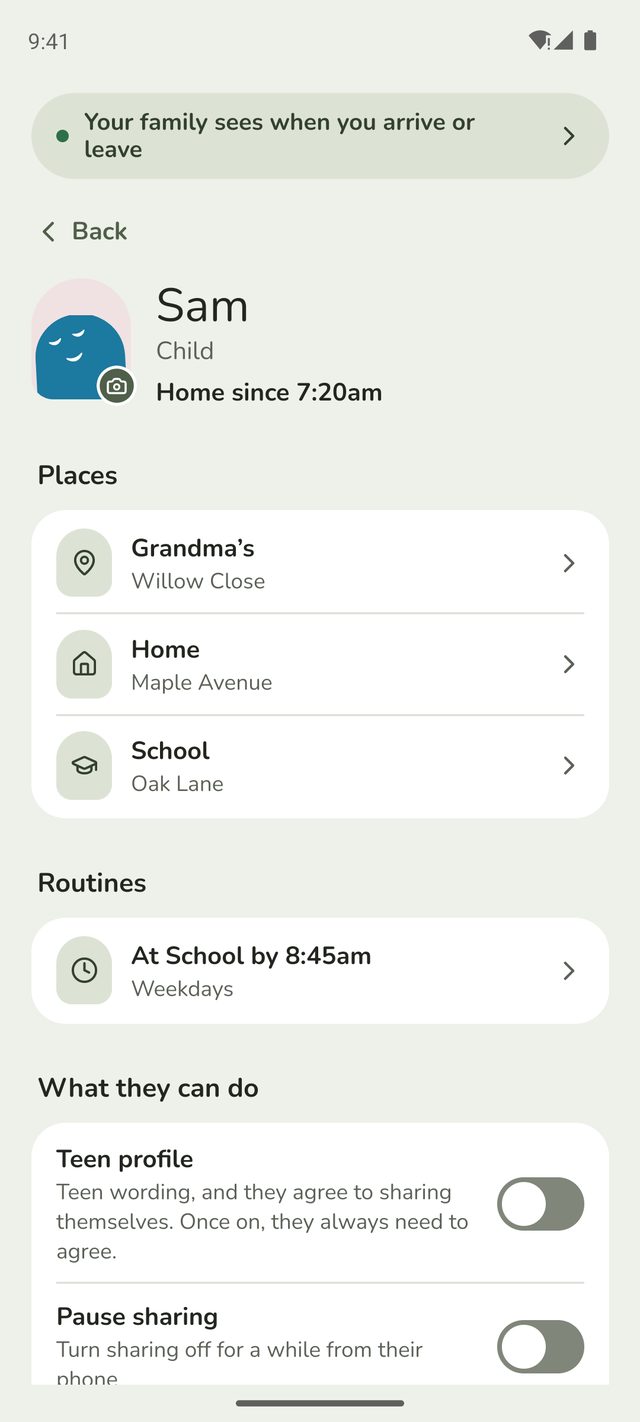
Tap Family at the bottom of the screen, then tap your child's name. Their profile shows their places, routines and phones.
Step 2:Find What they can do
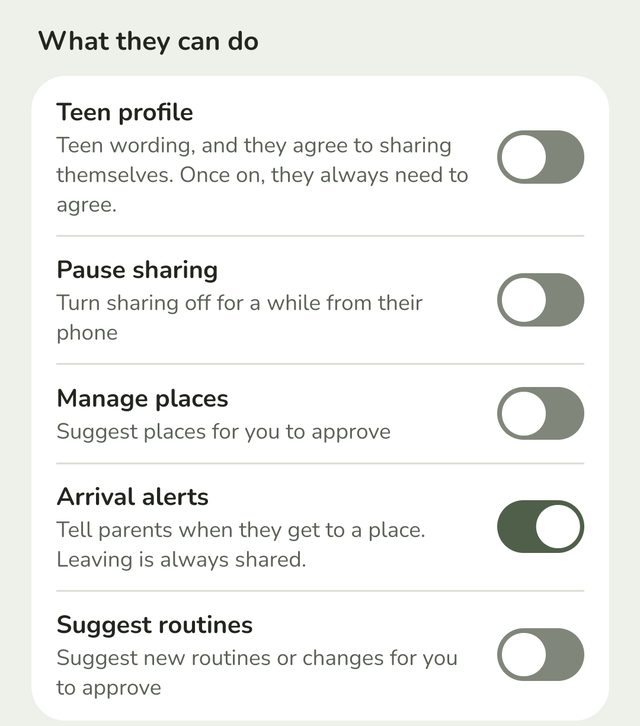
Scroll down to What they can do. Each switch is one thing your child can or can't do:
- Teen profile: teen wording, and they agree to sharing themselves. See step 4.
- Pause sharing: they can turn sharing off for a while from their phone.
- Manage places: they can suggest places for you to approve.
- Arrival alerts: you're told when they get to a place. Leaving is always shared, whatever this is set to.
- Suggest routines: they can suggest new routines, or changes, for you to approve.
Step 3:Turn a switch on or off
Tap the switch, or anywhere on its row. The change is saved straight away. There's no Save button.




Step 4:Move them to the Teen profile, when they're ready
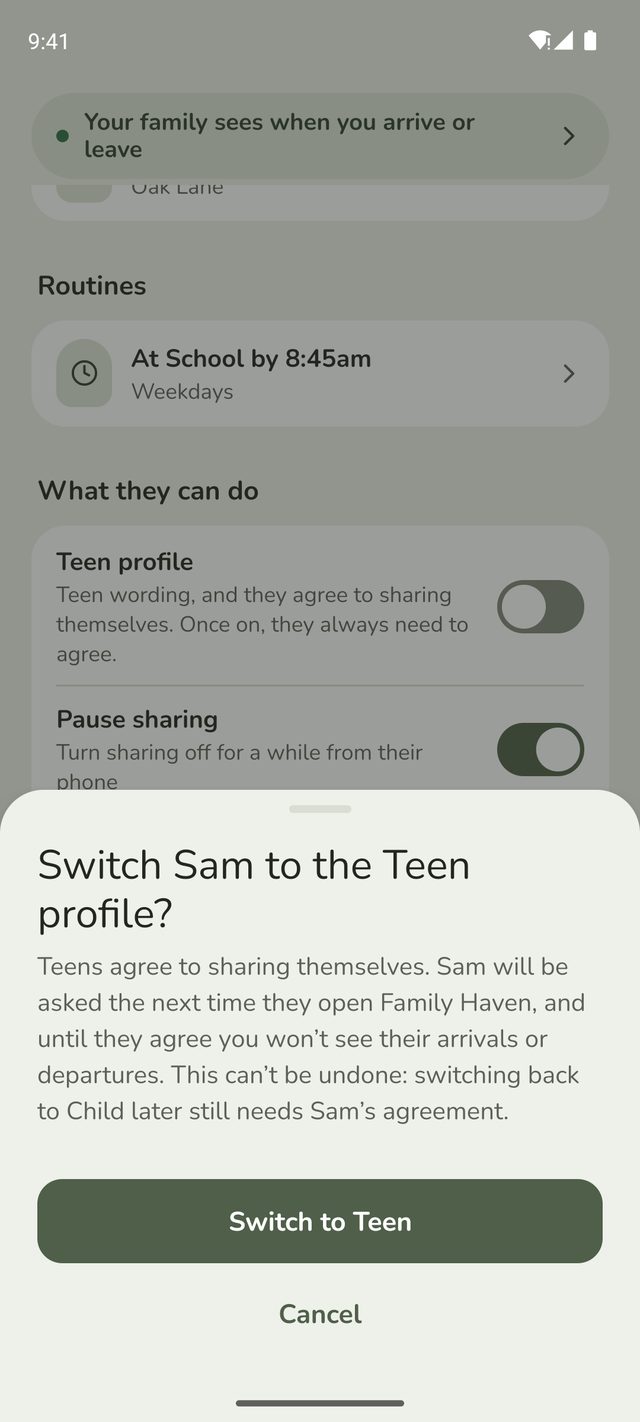
Turn on Teen profile for a child who's grown into it. Family Haven asks you to confirm first, because:
- They agree to sharing themselves. They're asked the next time they open Family Haven, and you won't see their arrivals or departures until they agree.
- It can't be undone. Switching back to Child later still needs their agreement.
Tap Switch to Teen to go ahead, or Cancel.
When they turn 13
When your child's phone shows they've turned 13, you'll get a notification: Sam is 13 now. From 13, teens agree to sharing themselves, so they're asked on their phone, and you won't see their arrivals or departures until they agree. This happens within about a month of their birthday, because the phone keeps only the month they were born, not the day.
To give them the teen wording and settings too, open To review on Home, find Turned 13, and tap Switch to Teen. You can change what they can do afterwards.
When your child asks for a change
Your child can ask for something they can't do yet, from Ask for changes in their Settings. Their request comes to you to approve or decline. See Review your child's requests.
Good to know
- A younger child starts with most switches off. They can't pause sharing, and they can't suggest places or routines, until you allow it.
- A teen starts able to suggest routines. You can change that too.
- Children always see what's shared. The top of their app says whether their family can see when they arrive and leave.
Still stuck?
Send us a message and a person will reply by email.